
Message Automations
These built-in automations answer, greet, announce and forward messages for one source. Set them up in the source's Automation view (MeshCore: Automations). Part of the built-in automations.
The Automation Engine is the recommended way to build bots
The Automation Engine runs one rule across every source and adds conditions, variables, scripts and notifications. Start there for new bots. Use the built-ins below when the Engine has no match yet.
| Built-in | In the Automation Engine |
|---|---|
| Auto Acknowledge | Auto-Ack template. Convert to an Automation… turns your settings into Engine rules (how). |
| Auto Announce | Timed Announcement template, or an On a schedule trigger with a Send a message action. |
| Auto Responder | Partial: A message is received trigger with Send a message or Run a script. The Engine has no HTTP response and no mailbox. |
| Auto Welcome | Partial: A new node is discovered trigger with Send a message. |
| Forwarding | Partial: A message is received trigger with Send a message. The Engine can also turn Forwarding on or off, and the MT↔MC Bridge template relays channels between protocols. |
MeshCore sources have their own versions of several of these; see MeshCore for the differences.
Auto Acknowledge
Use the Automation Engine instead
The Engine's Auto-Ack template answers direct, zero-hop messages across every source, with conditions and tapbacks. To move your current setup, use Convert to an Automation…. A few settings do not carry over, such as Maximum Number of Responses; see what doesn't convert.
Automatically responds to messages matching a specific pattern with a customizable confirmation message.
How It Works
When enabled, MeshMonitor monitors all incoming messages for patterns matching the configured regular expression. When a match is found, it automatically replies with your custom message template.
Configuration
Enable/Disable: Toggle the checkbox next to "Auto Acknowledge"
Message Pattern (Regular Expression): Defines which messages trigger auto-acknowledgment
- Default:
^(test|ping) - Case Insensitive: Patterns match regardless of capitalization
- Maximum Length: 100 characters
- Examples:
^ping- Matches messages starting with "ping"test- Matches messages containing "test" anywhere^(hello|hi|hey)- Matches messages starting with hello, hi, or hey
Pattern Testing: The interface includes a live testing area where you can enter sample messages to see if they match your pattern. Matching messages are highlighted in green, non-matching in red.
Custom Message Template: Craft your auto-acknowledge response using dynamic tokens:
{HOPS}or{NUMBER_HOPS}: Number of hops from the original message (e.g., "3" for multi-hop or "0" for direct){RABBIT_HOPS}: Visual hop indicator (🎯 for direct/0 hops, 🐇 emojis for multi-hop, e.g., "🐇🐇🐇" for 3 hops){DATE}: Date when the message was received (e.g., "1/15/2025"){TIME}: Time when the message was received (e.g., "2:30:00 PM"){LONG_NAME}: Long name of the sender (e.g., "Alice's Node"){SHORT_NAME}: Short name of the sender (e.g., "ALI"){NODE_ID}: Sender's node ID (e.g., "!a1b2c3d4"){SNR}: Signal-to-Noise Ratio in dB (e.g., "7.5"){RSSI}: Received Signal Strength Indicator in dBm (e.g., "-95"){LAST_HOP}: Short name of the last relay node (e.g., "RLY1"); falls back to the hex byte (e.g., "0x4F") when the relay isn't in the node database, or "unknown" when there's no relay info{VERSION}: MeshMonitor version{DURATION}: System uptime{FEATURES}: Enabled automation features{NODECOUNT}: Number of active nodes{DIRECTCOUNT}: Number of direct nodes (0 hops){TOTALNODES}: Number of nodes in the database, active or not{TRANSPORT}: How the message arrived:LoRaorMQTT
Default Template (Multi-hop):
🤖 Copy, {NUMBER_HOPS} hops at {TIME}Default Template (Direct Connection):
🤖 Copy, direct connection! SNR: {SNR}dB RSSI: {RSSI}dBm at {TIME}Auto-Ack Resend Attempts: How many times to resend an unacknowledged direct-message reply.
- Range: 1–3 (default 3). The server clamps the value, so it cannot be raised into a repeat-broadcast mechanism.
- 1 uses the least airtime; 3 gives the best odds of delivery on a lossy link.
- Channel (broadcast) replies always send once — there is no ACK to wait for, so a resend would just be a duplicate.
Hop Limit: How far the reply and the tapback may travel (Meshtastic only).
- Inherit (default) uses the node's own hop limit, exactly as before this setting existed.
- Any value is capped at the node's own hop limit, so this can only shorten reach, never extend it.
- 0 keeps the reply local: only nodes that hear this radio directly receive it. A zero-hop sender is adjacent by definition, so replying at 0 is often all you need.
- At 0 a DM reply is sent once with no delivery confirmation and is not resent — the firmware only honors a zero hop limit on a packet that does not ask for an ACK, so the resend attempts above do not apply.
- Converting to an Automation carries this setting onto the generated tapback and reply actions.
Separate Templates for Direct vs. Multi-hop: You can configure different acknowledgment messages for direct connections (0 hops) versus multi-hop messages. This allows you to include signal quality metrics like SNR and RSSI for direct connections while showing hop count for relayed messages.
Example Custom Templates:
✅ Received from {LONG_NAME} on {DATE} at {TIME}📡 Signal test: {HOPS} hop(s) | Date: {DATE} | Time: {TIME}👋 Hey {LONG_NAME}! Copy via {TRANSPORT}, last hop {LAST_HOP}Token Insertion: Click on any token button to insert it at your cursor position, making it easy to build complex templates.
Sample Message Preview: The interface shows a live preview of what your auto-ack response will look like with example token values filled in. Separate previews are shown for direct and multi-hop messages, so you can see exactly how each template will render before saving.
Channel Selection
Control which channels and message types trigger auto-acknowledgment:
Direct Messages: A separate toggle enables or disables auto-ack responses for direct messages (DMs). When disabled, DMs are ignored even if they match the pattern.
Channels 0–7: Individual checkboxes for each channel allow you to enable or disable auto-ack on a per-channel basis. Only messages received on enabled channels will trigger a response.
This granular control lets you respond on your primary channel while ignoring traffic on other channels, or vice versa.
Response Modes
Auto Acknowledge supports two independent response modes, each with separate toggles for direct and multi-hop messages:
Tapback (Emoji Reaction): React to the triggering message with an emoji instead of (or in addition to) a text reply:
- Direct (0-hop) messages receive a *️⃣ reaction
- Multi-hop messages receive a keycap digit emoji for the hop count (1️⃣ through 7️⃣, with 7️⃣ for 7 or more)
- 0-hop tapback and MQTT tapback (per source) change these glyphs. Set the 0-hop one to 0️⃣ if your mesh uses that for "heard directly". The MQTT one is used for messages in the IP row (received over MQTT or UDP); left blank, those get their hop-count glyph as before. Automations' hop-count tapbacks and the
trigger.hopEmojitoken use the same two glyphs, the MQTT one in place of#️⃣for messages from an MQTT source.
Text Reply: Send the configured message template as a text response. This is the traditional auto-ack behavior.
Both modes can be enabled simultaneously — for example, you can send a tapback reaction and a text reply to every matched message. Each mode has independent toggles for direct and multi-hop, giving you full control over which connection types get which response.
IP Row (MQTT / UDP)
The response matrix has a third row, IP (MQTT / UDP), for messages your node got over MQTT or multicast UDP instead of over the air. Auto Acknowledge checks this first: an IP message always uses the IP row, whatever its hop count, and never the 0-hop or multi-hop rows. RF numbers like SNR mean nothing for these messages, so this row lets you answer them in their own way, or not at all.
The IP row starts off on every install. Before this row existed, the 0-hop and multi-hop rows answered MQTT messages. If you want to keep answering them, turn on the IP row. An IP row reply still goes out over your radio, so a channel reply floods the mesh like any other. The cooldown, the reply cap, and the channel wait apply to it the same way.
IP messages use the standard reply template, not the 0-hop one.
Always Use Direct Message
When enabled, auto-ack responses are sent as direct messages (DMs) to the sender, even when the triggering message was received on a channel.
Use case: Avoid cluttering shared channels with automated responses. For example, if someone sends "ping" on a busy group channel, the auto-ack reply goes only to them instead of the entire channel.
Pre-Send Delay
Description: An optional pause (in seconds) before the auto-acknowledge response is sent, applied on both Meshtastic and MeshCore sources.
Default: 0 (immediate) — Maximum: 120 seconds
When to use it: Give a repeater time to finish transmitting the triggering message before your reply goes out, instead of racing it. For anything more elaborate than a single fixed delay — e.g. a delay followed by other actions — use the Automation Engine's Pause action instead.
On a Meshtastic channel message the delay works with the wait described under Maximum Number of Responses: a delay of 5 seconds or less changes nothing (the wait is already 5 to 30 seconds), and a longer delay becomes the start of the wait, so a delay of 20 gives a wait of 20 to 45 seconds. Direct messages use the delay exactly as set.
Maximum Number of Responses
When several nodes on a channel run Auto Acknowledge, one "ping" can draw a reply or tapback from every one of them. After the first couple, the rest tell the sender nothing and only use airtime.
So before it answers a channel message, MeshMonitor waits a random 5 to 30 seconds. When the wait ends it counts the other nodes that have already replied to that message or sent a tapback on it. If the count has reached Maximum number of responses, MeshMonitor stays quiet: it sends neither its tapback nor its reply.
Default: 2 — Range: 0 to 10 — set per source.
Testing with "ping"? Wait for it
A channel acknowledgement now arrives 5 to 30 seconds after the message, about 17 seconds on average, and not at all when enough other nodes answered first. Nothing is broken if your "ping" gets no instant reply. To see an answer every time, set the value to 0 and wait up to 30 seconds, or send the ping as a direct message, which is answered at once.
0means no limit: MeshMonitor still waits 5 to 30 seconds, then always answers.- A node that sends both a reply and a tapback counts once.
- Replies and tapbacks are recognised the same way the message view shows them under a message: a message that points at the original (its "reply to") is a reply, and one flagged as a reaction, or whose whole text is an emoji, is a tapback.
- Your own node's sends never count. Neither does a follow-up from the person who sent the original message.
- Only answers heard on this source, on the same channel, count. If two of your sources hear the same message, each decides by what it heard itself.
- Direct messages are not affected. Nobody else can answer a DM sent to you, so it is answered straight away, as before.
- Meshtastic sources only. MeshCore messages carry no "reply to" reference, so MeshMonitor cannot tell which message another node's reply answers; the MeshCore Auto Acknowledge is unchanged.
Why 5 to 30 seconds. The 5-second floor gives other nodes' answers time to reach you before you decide; without it you would answer before anyone could have been heard. The spread up to 30 seconds is for large or slow meshes, where an answer needs many seconds to cross several hops: the wider the spread, the fewer nodes finish waiting before they have heard each other.
Nearer nodes answer first. The lower end of the wait rises by 3 seconds for each hop the message took to reach your node; the 30-second upper end does not move. A node that heard the sender directly draws from 5 to 30 seconds, one hop away from 8 to 30, two hops from 11 to 30, three from 14 to 30, and so on up to 26 to 30 at seven hops. The node with the shortest path back to the sender is the one most likely to get its answer through, so it gets the first chance; farther nodes are then more likely to hear that answer and stay quiet. The wait is still random inside its window, so two nodes at the same distance do not answer at the same moment. When the hop count is unknown (older firmware, or a packet that came in over MQTT) no extra wait is added. This is fixed at 3 seconds for every MeshMonitor, because the ordering only works when all instances use the same number.
The wait follows your current settings. When the wait ends, MeshMonitor decides again from scratch. If in the meantime you turned Auto Acknowledge off, changed the pattern so the message no longer matches, removed the channel, added the sender to the ignore list, lowered the maximum, or the message was deleted, no answer is sent. The answer is also dropped, not kept for later, if the source is disconnected, has TX disabled, or is over the airtime cutoff. Answers still waiting are dropped when the source disconnects or MeshMonitor restarts.
Cooldown. The per-node cooldown is checked when the message arrives and starts again when the answer is sent, and a node with an answer still waiting cannot start a second one. Two answers to one node are never closer together than the cooldown, even when the cooldown is shorter than the wait.
Bursts. At most 10 answers wait at a time on one source; a burst beyond that is dropped.
The wait can only remove a send or delay it. It never adds one.
The limit is a target, not a guarantee. A node cannot count an answer it has not heard yet, so nodes whose waits end close together can all answer. On a LongFast mesh a few hops across, expect about one answer more than the number set here with 5 nodes answering and about two more with 10. On a slow preset such as LongSlow, where one answer can take 10 to 20 seconds to arrive, expect roughly half of the nodes to answer whatever the limit.
Upgrade note
This is on for every Meshtastic source after you upgrade, with the default of 2. Channel acknowledgements now arrive 5 to 30 seconds after the message (about 17 seconds on average) instead of at once, and are skipped when two other nodes have already answered. To answer every matching message as before (still after the wait), set Maximum number of responses to 0. Direct messages are answered at once, as before.
Long Replies on MeshCore
A MeshCore text message is small. A DM holds 160 bytes. A channel message holds 160 bytes minus your node name and 2, because the radio puts <name>: in front of the text (155 for a 3-byte name, 127 for a 31-byte name). A region scope does not change the cap. These are UTF-8 bytes, not characters: an emoji takes 4 bytes and a CJK character takes 3. A template that looks short can go over the cap once {NODE_NAME}, {ROUTE} and the other tokens are filled in.
Five MeshCore senders have a Split long messages option that sets what happens to a message over the cap: Auto Acknowledge, Auto Responder (per trigger), Timer Triggers (per timer), Auto Announce, and the Automation Engine Send a message action. It is off by default. One setting covers DM and channel sends. Every one of them also cuts an over-long message to the cap itself, so the stored message matches what went on air.
Off (default): MeshMonitor cuts the reply to the cap and sends one message. The cut message ends in ... so the reader can see text is missing. The cut never lands inside a character. The message list shows the text that was sent.
Behaviour change
Before this option existed, MeshMonitor handed the full reply to the radio and stored the full text, even though the radio could not send all of it. MeshMonitor now cuts the reply itself, so the stored message matches what went on air. If your reply loses its tail, shorten the template or turn on Split long messages.
On: MeshMonitor sends the reply as up to 3 messages, 10 seconds apart.
- Each part starts with a marker such as
(1/3), so the reader knows more is coming. The marker counts toward the byte cap. - MeshMonitor breaks at a line break, the end of a sentence, a comma, or a space when it can. It only breaks inside a word when there is no better place, and never inside a character.
- A reply too long for 3 parts loses its tail: the third part is cut to fit and ends in
.... - A reply that fits in one message goes out as before, with no marker.
- If one part fails to send, MeshMonitor skips the rest. It also stops if the source is switched to receive-only between parts.
- The per-sender cooldown counts the whole reply once, not once per part.
- Split sequences on one source never mix: a new split message waits until the running one finishes, so the
(1/3)markers stay in order. - When a timer, announce or action sends to several channels, part 1 goes to every channel, then part 2, and so on.
- Auto Responder and Timer scripts: only a script that prints exactly one message can split. A script that prints several messages has each one cut to the cap.
- Timer Triggers: a timer with splitting on must run at most every 5 minutes. MeshMonitor refuses to save a faster one (interval or cron).
- Meshtastic uses the same rules (#6330); see Long Replies on Meshtastic.
Airtime
Every part is a separate transmission, and every repeater in range repeats each one. A 3-part reply costs three times the airtime of a single reply across the whole mesh. With channel-send auto-retry on, a part that no repeater echoes is resent once, so a 3-part channel reply can reach 6 transmissions from your node. A DM part that gets no acknowledgement is retried up to 3 times. Set a per-sender cooldown, and keep the template short enough that most replies fit in one message.
Long Replies on Meshtastic
A Meshtastic text message holds 200 bytes. The same Split long messages option covers Meshtastic, with the same limits as MeshCore: up to 3 messages, 10 seconds apart, each marked like (1/3), and a reply too long for 3 messages is cut, ending in ....
- Auto Responder: the per-trigger Multiline option (see Multiline Support).
- Timer Triggers: Split long messages in the timer editor. It is off by default. A timer with splitting on must run at most every 5 minutes; MeshMonitor refuses to save a faster cron schedule.
- Auto Announce: Long Announcements under the channel list. It is off by default.
- Automation Engine: the Split long messages option of the Send a message action.
With splitting off, each sender cuts the message to 200 bytes, ending in .... Auto Announce used to hand the whole text to the radio; it now cuts it too, so a long announcement no longer fails to send.
Auto Responder, Timer and Auto Announce parts go through the source's outgoing queue, which waits 30 seconds between sends, so on air the parts are at least 30 seconds apart. The Automation Engine sends a channel message straight to the radio, 10 seconds between parts; a DM with Max attempts set keeps the queue. When a timer, announce or action sends to several channels, part 1 goes to every channel, then part 2. Timer scripts split only when they print exactly one message.
Airtime
Every part is a separate transmission, and every node that rebroadcasts repeats each one. A 3-part message costs three times the airtime of one. Keep templates short enough that most messages fit in one part.
Skip if still queued: a Meshtastic Timer Trigger or Auto Announce fire is skipped while that timer's (or that source's announcement's) messages from the previous fire are still waiting in the outgoing queue. This holds with splitting on or off. The skip is logged with the timer id (or announce). A manual Send Announcement always goes through. The queue lives in memory, so a restart clears it and the next fire runs.
Mesh impact
These figures are for one full 200-byte Meshtastic part (about 237 bytes on air, preamble 16):
| Preset | 1 part | 3 parts, our node | 3 parts, hop limit 3 (about 4 sends each) |
|---|---|---|---|
| LongFast (SF11 / BW250 / CR 4/5) | about 2.0 s | about 6 s | about 24 s |
| MediumFast (SF9 / BW250 / CR 4/5) | about 0.6 s | about 1.8 s | about 7 s |
- Auto Responder, Timer Triggers, Auto Announce: every part goes through the source's outgoing queue, which sends at most one message every 30 seconds. Our node therefore stays under about 7% of the airtime on LongFast, however many parts or channels a fire has.
- Backlog bound: because a timer or announcement is skipped while its previous fire is still queued, one timer or one source's announcement never has more than one fire waiting in the queue. A fire is at most 3 parts × the number of channels. A timer on 8 channels with splitting on queues 24 messages, which take 12 minutes to leave the queue, so a 5-minute timer then fires about every 15 minutes instead of piling up.
- Timer floor: a timer with splitting on must run at most every 5 minutes.
- Automation Engine: a channel message goes straight to the radio, 3 parts × channels × sources per fire, 10 seconds apart. The rule's rate limit counts fires, not parts, so set a cooldown.
- Off (default): one message per target, cut to 200 bytes. No extra packets.
Skip Incomplete Nodes
Description: When enabled, Auto Acknowledge will not respond to messages from incomplete nodes.
Default: Disabled
What are incomplete nodes?: Nodes missing proper longName, shortName, or hwModel. On secure channels (custom PSK), this typically means we haven't received their encrypted NODEINFO packet - they may have just overheard traffic but aren't verified channel members.
When to enable:
- Using secure/encrypted channels with custom PSK
- Want to only acknowledge messages from verified nodes
- Prevent responding to nodes that may be eavesdropping
Related: See Hide Incomplete Nodes for UI filtering.
Respond to Automated Messages
Description: When enabled, Auto Acknowledge also answers messages whose sender set the is_automation flag.
Default: Disabled. Flagged messages get no acknowledgement, so this bot and another can't trigger each other in a loop.
When to enable: you run a test bot on purpose and want it acknowledged. Set a maximum number of responses when you do.
When you convert Auto Acknowledge to an automation, this setting becomes the rule's Sent by filter: Anyone when enabled, People only when disabled.
Converting to an Automation
A Convert to an Automation… button in this section turns your current Auto Acknowledge configuration into one or two editable Automation Engine workflows — useful if you want per-channel wording (see the engine doc's range-test ack recipe), a hop-count tapback with independent text, or any other condition/action the engine offers but Auto Acknowledge doesn't. The dialog previews exactly what will be created and reports what did, didn't, or only approximately converted before anything is written; a checked-by-default option turns off Auto Acknowledge for this source afterward without touching any of its other settings. See Converting Auto-Acknowledge to an automation for the full walkthrough.
Side Effects
- Generates additional mesh traffic for each matched message
- May contribute to network congestion if pattern matches too frequently
- Direct-message replies go out at once (after any pre-send delay); channel replies wait 5 to 30 seconds, see Maximum Number of Responses
- Uses airtime on the mesh network for responses
Use Cases
- Testing mesh range and reliability
- Monitoring network responsiveness
- Automated acknowledgment of status checks
- Quick ping/pong style network testing
Related Meshtastic Documentation
This feature leverages Meshtastic's messaging capabilities. For more information about Meshtastic messaging, see:
Auto Responder
Automatically responds to messages matching custom trigger patterns with either text or HTTP requests. This powerful feature enables creating bot-like functionality such as weather information, node status, or custom commands.
How It Works
When enabled, MeshMonitor monitors all incoming messages for patterns matching your configured triggers. When a message matches, it either sends a text response with extracted parameters or makes an HTTP request to an external service with the extracted data.
Configuration
Enable/Disable: Toggle the checkbox next to "Auto Responder"
Triggers: Create custom trigger patterns that match specific message formats
Each trigger consists of:
- Trigger Pattern: The message pattern to match (e.g., "weather {location}")
- Response Type: Either "text" (send a message) or "http" (make an HTTP request)
- Response: The action to take when triggered
Trigger Patterns
Trigger patterns can include parameters using curly braces {parameter} that extract information from messages:
Basic Examples:
weather {location}- Matches "weather miami" or "weather new york"w {city},{state}- Matches "w parkland,fl" or "w austin,tx"status {nodeid}- Matches "status !a1b2c3d4"hello- Simple pattern with no parameters
Pattern Matching:
- Case insensitive by default
- Parameters match any non-whitespace characters by default
- Parameters support commas and special characters (e.g., "parkland,fl")
- Patterns are matched against the entire message
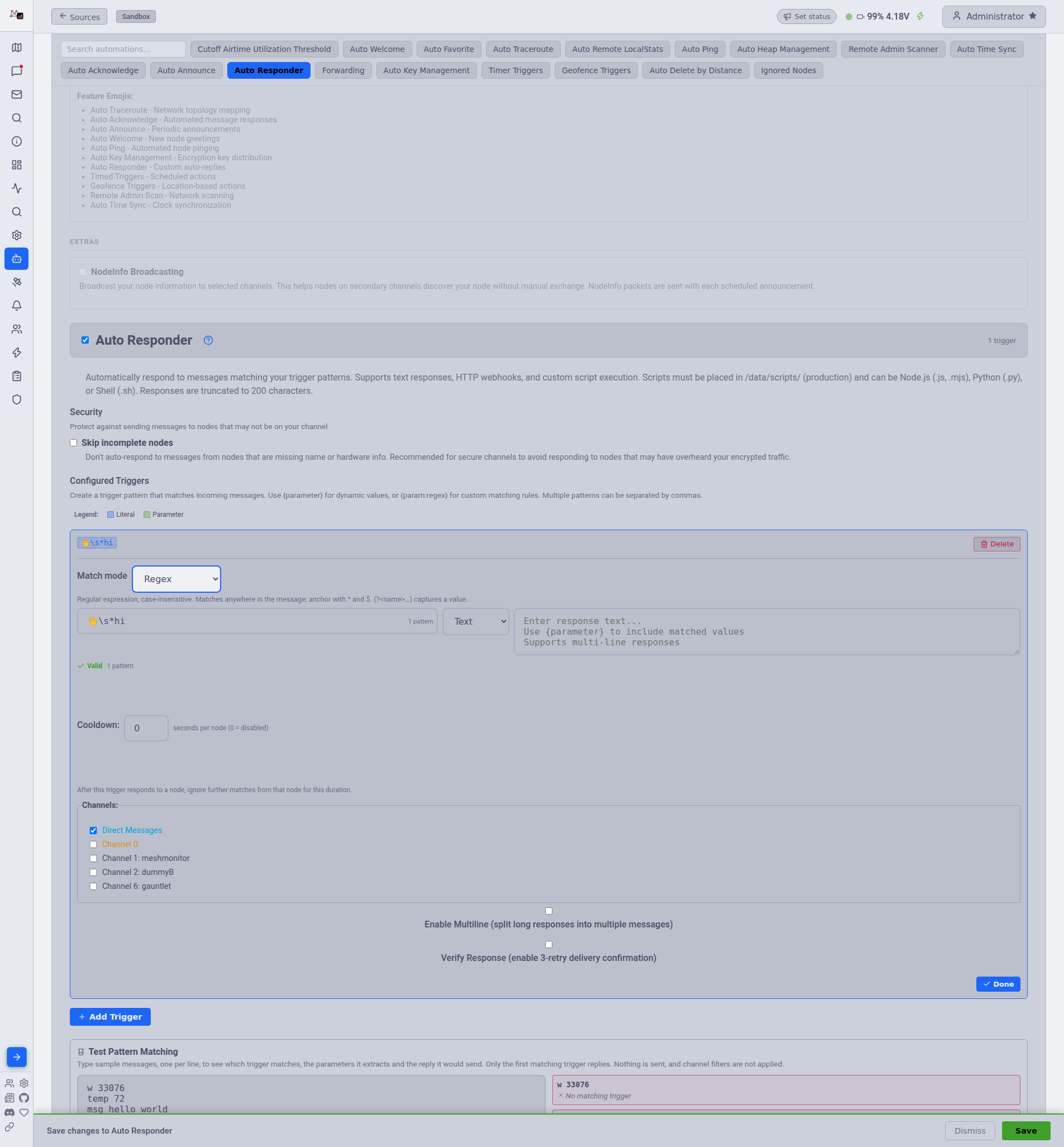
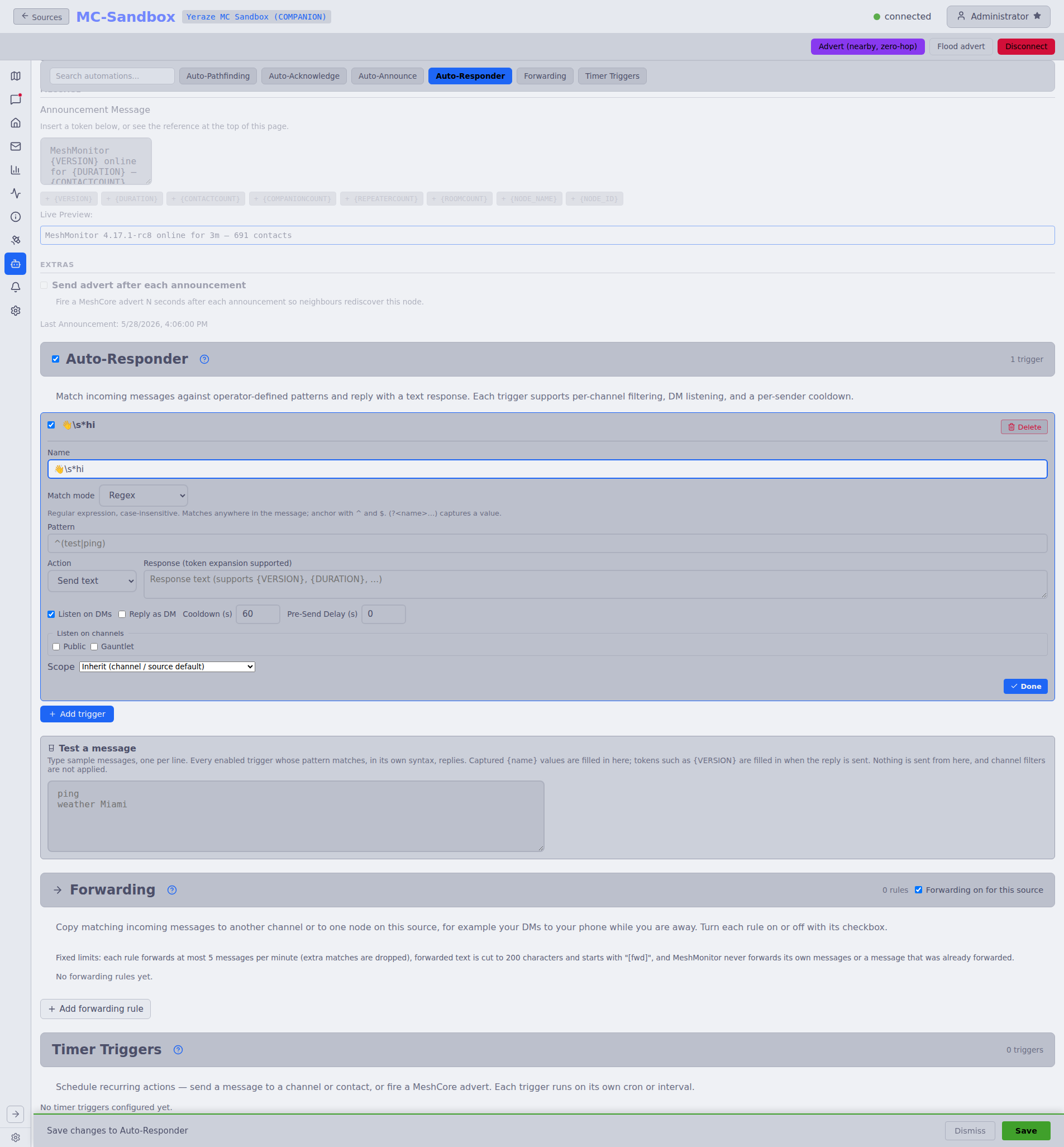
Match mode: Pattern or Regex
Each trigger has a Match mode. It works the same on Meshtastic and MeshCore sources, so a trigger written for one works unchanged on the other.
- Pattern (the default): the syntax on this page. The whole message must match, case-insensitive.
{name}captures a word and{name:regex}a custom value; commas separate alternatives. Look-alike Cyrillic letters count as their Latin twins. - Regex: one regular expression, case-insensitive, that matches anywhere in the message. Anchor it with
^and$to match the whole message. A named group such as(?<level>\d+)captures a value for the response as{level}. Commas are regex text, not separators. At most 100 characters, and patterns that can backtrack badly (such as(a+)+ora{2,}) are refused.
A regex matches more messages than an anchored pattern, so it can fire more replies. Cooldowns and rate limits apply the same in both modes.
Patterns in both modes may use any printable text: emoji (🔋, 👋\s*hi), accented letters and CJK. Control characters are refused.
Triggers saved before match modes existed keep their old behaviour: Meshtastic triggers read as Pattern, MeshCore triggers as Regex.
Multiple Patterns Per Trigger
You can specify multiple patterns for a single trigger by separating them with commas. This allows one trigger to match different message formats:
Examples:
ask, ask {message}- Matches both "ask" (shows help) and "ask {message}" (processes the message)help, help {command}- Matches "help" (general help) and "help weather" (command-specific help)temp, temp {value:\d+}- Matches "temp" (current temp) and "temp 72" (set temp to 72)
Usage: Enter patterns separated by commas in the trigger field: ask, ask {message}
Regex Pattern Examples
You can specify custom regex patterns for parameters using {paramName:regex} syntax for more precise matching:
Numeric Patterns:
w {zip:\d{5}}- Matches only 5-digit zip codes (e.g., "w 33076")temp {value:\d+}- Matches only numeric values (e.g., "temp 72", but not "temp hot")set {num:-?\d+}- Matches positive or negative integers (e.g., "set 42" or "set -42")
Decimal Patterns:
coords {lat:-?\d+\.?\d*},{lon:-?\d+\.?\d*}- Matches decimal coordinates (e.g., "coords 40.7128,-74.0060")
Multi-word Patterns:
weather {location:[\w\s]+}- Matches locations with spaces (e.g., "weather new york")alert {message:.+}- Matches everything including punctuation (e.g., "alert Hello, world!")
Common Regex Patterns:
\d+- One or more digits\d{5}- Exactly 5 digits[\w\s]+- Word characters and spaces.+- Any character (including spaces and punctuation)-?\d+\.?\d*- Optional negative sign, digits, optional decimal point and digits
Note: Remember to escape special regex characters if they appear in your pattern: \ . + * ? ^ $ { } [ ] ( ) |
Response Types
Text Response: Sends a message back to the sender
- Supports multiline text (automatically uses textarea for editing)
- Can include extracted parameters using
{parameter}syntax - Multiline Support: Enable to automatically split long responses into multiple messages
- Can output single or multiple responses (see Multiple Responses Support)
- Example trigger:
hello {name} - Example response:
Hi {name}! Welcome to the mesh.
HTTP Response: Makes an HTTP GET request to an external service
- URL can include extracted parameters using
{parameter}syntax - URL also supports all acknowledgement/announcement tokens (e.g.,
{NODE_ID},{SHORT_NAME},{HOPS},{SNR},{RSSI},{CHANNEL},{VERSION}, etc.) - token values are automatically URI-encoded for URL safety - Extracted parameters from regex capture groups take precedence over built-in tokens of the same name
- Multiline Support: Enable to automatically split long responses into multiple messages
- Can output single or multiple responses (see Multiple Responses Support)
- Useful for triggering webhooks, APIs, or external automation
- Example trigger:
alert {message} - Example response:
https://api.example.com/alert?msg={message}&node={NODE_ID}&snr={SNR}
Script Response: Executes a custom script for advanced logic
- Scripts must be placed in
/data/scripts/directory - Supports Node.js (
.js,.mjs), Python (.py), and Shell (.sh) scripts - Scripts receive message data and parameters via environment variables
- Can output single or multiple responses (see Script Response Details below)
- 30-second execution timeout
- Script Arguments: Optional command-line arguments with token expansion (see below)
- Example trigger:
weather {location} - Example response:
/data/scripts/weather.py
Mailbox Response (Dead Drop): A built-in asynchronous message store — "mesh voicemail"
- A node DMs the radio
msg <name> <text>and MeshMonitor holds the message until the named recipient retrieves it withinbox/inbox play— the recipient need not be online when the message is sent - No response text is needed; the mailbox parses the commands itself
- DM-only by design; set the trigger's channels to Direct Messages only
- See Mailbox (Dead Drop) below for the full command set and configuration
- Example trigger pattern:
msg {recipient} {body:.+},inbox,inbox play {sender},inbox play,inbox delete {id},inbox clear
Mailbox (Dead Drop)
The Mailbox response type turns the connected node into an asynchronous message drop — think mesh voicemail. A sender leaves a message addressed to another node by name; that node collects it later with inbox / inbox play. All state is per-source (each connected radio keeps its own mailbox) and is stored in the database (dead_drop_messages table), so it survives restarts.
Commands
All commands are sent as direct messages to the node running the mailbox:
| Command | Description |
|---|---|
msg <name> <text> | Store a message for <name> (short name, long name, or !nodeid) |
inbox | Show how many messages are waiting and from whom |
inbox play | Release up to 5 of the oldest messages (header + body per message) |
inbox play <name> | Release only messages from a specific sender |
inbox delete <id> | Delete one message by its 4-character id |
inbox clear | Delete all messages you have already played |
How recipient matching works
A message is addressed to a name as typed by the sender. When a node retrieves its inbox, the mailbox matches that stored name against any identity form of the requesting node — its short name, long name, node id (!hex), or node number. The requester proves its identity through the direct-message sender context, so there is no fragile store-time node lookup. Names are matched case-insensitively.
Delivery format
Metadata and body are sent as separate messages, so a near-200-byte body is never truncated by a prefixed header:
MSG 1/2 from ALLF, 14m ago, id 6458
antenna mount loose
MSG 2/2 from ZNOF, 3m ago, id C22D
router back online after battery swap
2 delivered. Reply 'inbox clear' to delete.2
3
4
5
Limits and expiry
| Limit | Default |
|---|---|
| Max message body | 180 bytes (UTF-8) |
Messages per inbox play | 5 (oldest first) |
| Pending per recipient | 20 |
| Pending per sender | 20 |
| Message expiry | 7 days |
Configuration
- Open Automation → Auto Responder for the source whose node should host the mailbox.
- Add a trigger:
- Type: Mailbox
- Channels: Direct Messages only
- Trigger pattern:
msg {recipient} {body:.+},inbox,inbox play {sender},inbox play,inbox delete {id},inbox clear1 - Cooldown: not needed — the mailbox is interactive (e.g.
inboxtheninbox playa second apart) and bypasses the per-node cooldown, so any value here is ignored for this trigger. - Verify response: recommended on. A stored message is only marked played once the radio confirms delivery of its body line. With Verify response off, a single unacknowledged send can still count as delivered, so a voicemail could be marked played even if it never reached the recipient. Enabling it (the default) makes an undelivered body resurface on the next
inbox play.
- Click Add, then Save.
No response text is required — the Add button enables once the trigger pattern is valid.
Script Arguments (Auto Responder)
A Script response can pass command-line arguments through the Arguments field, with tokens such as {NODE_ID} filled in at run time. For example, the trigger reboot {nodeid} with the arguments --dest {nodeid} --reboot calls the script with --dest !abc12345 --reboot when someone sends reboot !abc12345.
The token list, quoting rules and how to read the arguments in each language are in Writing automation scripts.
Multiline Support
For Text and HTTP response types, Multiline splits a long reply instead of cutting it. A Meshtastic message holds 200 bytes. These are UTF-8 bytes, not characters: an emoji takes 4 bytes. Multiline uses the same splitter and limits as MeshCore's Split long messages (see Long Replies):
- At most 3 messages, each marked like
(1/3). The marker counts toward the 200 bytes. - A reply too long for 3 messages loses its tail. The third message is cut to fit and ends in
.... - A reply that fits in one message goes out as before, with no marker.
- MeshMonitor breaks at a line break, the end of a sentence, a comma or a space when it can, and never inside a character.
- Only a single reply splits. Each item of a
{"responses": [...]}array is cut to 200 bytes instead (see Multiple Responses Support).
With Multiline off, MeshMonitor cuts a long reply to 200 bytes, ending in ....
Behaviour change (#6330)
Multiline used to split a reply into as many messages as it needed, with no marker. It now sends at most 3 marked messages and cuts the rest.
Message queue: each part goes through the source's outgoing queue, which waits 30 seconds between sends. Parts are queued 10 seconds apart, so on air they are at least 30 seconds apart. A DM part is retried and tracked for delivery like any other auto-reply. Split replies on one source never mix: a new split reply waits until the running one is queued.
Example:
Trigger: help
Response Type: text
Multiline: ✓ Enabled
Response:
Welcome to our mesh bot! Available commands:
- weather {location}: Get weather info
- status {nodeid}: Check node status
- ping: Test connectivity
For more info visit meshmonitor.org2
3
4
5
6
7
8
9
This reply is about 180 bytes, so it goes out as one message. A reply over 200 bytes would go out as (1/2) … and (2/2) …, 30 seconds apart.
When to Use Multiline:
- Help text with multiple commands
- Long informational responses
- Multi-paragraph announcements
- Formatted lists or instructions
When NOT to Use Multiline:
- Simple acknowledgments
- Short status updates
- Time-sensitive responses
- Single-line messages
Multiple Responses Support
For Text, HTTP and Script response types, you can return single or multiple responses, using JSON.
JSON Output Format:
Single Response:
{
  "response": "Your response text (max 200 chars)"
}2
3
Multiple Responses:
{
  "responses": [
    "First message (max 200 chars)",
    "Second message (max 200 chars)",
    "Third message (max 200 chars)"
  ]
}2
3
4
5
6
7
When using multiple responses, each message is queued individually and sent with:
- 30-second rate limiting between messages
- Up to 3 retry attempts per message
- Automatic ACK tracking for delivery confirmation
Optional fields:
| Field | Type | Applies to | Effect |
|---|---|---|---|
response | string | Text, HTTP, Script | Single message body (≤ 200 chars). |
responses | string[] | Text, HTTP, Script | Multiple message bodies (each ≤ 200 chars). Wins over response if both are present. |
private | boolean | Text, HTTP, Script | Force DM routing (true) or channel routing (false) regardless of where the trigger fired. Omit to keep the default ("reply on the same channel the trigger arrived on"). |
Interaction with the multiline trigger option:
multiline=trueonly splits when the payload is a single response (plain text or{"response": "…"}). Each item in a{"responses": [...]}array is treated as already-chunked: items longer than 200 chars are truncated, not split. Pre-chunk your own messages when returning the array form.multiline=false(default) cuts every response to 200 bytes, ending in....
HTTP responses that aren't MeshMonitor-shaped JSON:
If an HTTP endpoint returns a body that parses as JSON but doesn't have response / responses (e.g. {"status":"ok"} from a webhook acknowledgment), the entire raw body is used as the single response message — same behaviour as a plain-text body. Only the script path treats this as an error.
Parameter Extraction
Parameters are automatically extracted from the incoming message and can be used in responses:
Example 1 - Weather Bot:
Trigger: weather {location}
Response Type: http
Response: https://api.weather.com/lookup?q={location}2
3
When someone sends "weather miami", MeshMonitor makes a request to: https://api.weather.com/lookup?q=miami
Example 2 - Greeting Bot:
Trigger: hello {name}
Response Type: text
Response: Hey {name}! Thanks for saying hello. Welcome to our mesh network!2
3
When someone sends "hello Alice", MeshMonitor replies: Hey Alice! Thanks for saying hello. Welcome to our mesh network!
Example 3 - Multi-Parameter:
Trigger: w {city},{state}
Response Type: text
Response: Looking up weather for {city}, {state}...2
3
When someone sends "w parkland,fl", MeshMonitor replies: Looking up weather for parkland, fl...
Script Response Details
A Script response runs your own code and sends what it prints. To set one up:
- Write a script in Node.js (
.js,.mjs), Python (.py) or Shell (.sh). It must print JSON with aresponseorresponsesfield (see Multiple Responses Support) and finish within 30 seconds. - Put it in
/data/scripts/and make it executable, or upload it with Import Script. - Set the trigger's response type to Script and pick the file.
Writing automation scripts covers the rest: environment variables such as MESSAGE, FROM_NODE and PARAM_*, examples in each language, debugging, security limits, and the example scripts in the repository.
Installed Scripts inventory
Global Settings → Scripts lists every user script that MeshMonitor can see on disk, alongside which Auto Responder triggers reference it. A script that shows up here but has zero usedBy entries is a candidate to remove; a trigger that references a script name no longer present is easy to spot the other way. The computeScriptUsage helper does the same accounting that Auto Responder uses internally, so the inventory and the trigger picker stay in agreement.
Managing Triggers
Each trigger shows as a card with its pattern, a one-line summary of the response, and small tags for the type, channels, multiline, verify and cooldown. MeshCore's Auto-Responder uses the same cards.
Adding Triggers:
- Click Add Trigger. A new card opens below the list.
- Enter your trigger pattern (e.g., "weather {location}")
- Select the response type (text, HTTP, script, traceroute or mailbox) and enter the response (text message, URL, or script)
- Set the cooldown, channels, multiline and verify options as needed
- Click Done. MeshMonitor checks the trigger and shows any problem under the field.
- Click Save in the save bar
Editing Triggers:
- Click Edit on a trigger card
- Change any field, then click Done
- Click Save in the save bar, or Dismiss to drop your changes
Removing Triggers:
- Click Delete on a trigger card and confirm. The trigger is deleted when you click Save.
Testing Patterns:
- Type sample messages in Test Pattern Matching, one per line. Each line shows which trigger matches, the parameters it pulls out, and the reply it would send. Only the first matching trigger replies. Nothing is sent, and channel filters are not applied.
- For HTTP and script triggers, the Test button in the open card runs the request or script on the server once, using example values. A script test runs the script for real, so a script that talks to the node itself can still reach the mesh.
With more than five triggers, a search box and type filter appear above the list.
Multiline Text Support:
- Text responses automatically use a multiline textarea
- Supports 3+ lines with vertical resizing
- Useful for longer responses or formatted text
Skip Incomplete Nodes
Description: When enabled, Auto Responder will not process or respond to messages from incomplete nodes.
Default: Disabled
What are incomplete nodes?: Nodes missing proper longName, shortName, or hwModel. On secure channels (custom PSK), this typically means we haven't received their encrypted NODEINFO packet - they may have just overheard traffic but aren't verified channel members.
When to enable:
- Using secure/encrypted channels with custom PSK
- Want bot functionality to only serve verified nodes
- Prevent external HTTP requests or script execution from unverified sources
Related: See Hide Incomplete Nodes for UI filtering, or Skip Incomplete Nodes for Auto Acknowledge.
Respond to Automated Messages
Description: When enabled, Auto Responder also answers messages whose sender set the is_automation flag.
Default: Disabled. A trigger that matches a flagged message sends nothing, so two auto-responders can't answer each other forever.
When to enable: only when you mean to answer another bot. Use a trigger that its replies can't match, or you build the loop this setting prevents.
Side Effects
- Network Traffic: Each triggered response generates mesh traffic
- Response Time: Text responses are sent immediately; HTTP requests depend on external service response time
- Privacy: Be cautious with HTTP requests - parameters from messages are sent to external services
- Rate Limiting: Consider implementing external rate limiting for HTTP webhooks
- Airtime Usage: Text responses consume airtime on the LoRa radio
Use Cases
Information Bots:
- Weather lookup:
weather {location}→ HTTP request to weather API - Node status:
status {nodeid}→ Text response with node information - Help command:
help→ Text response with available commands
Automation Triggers:
- Alert forwarding:
alert {message}→ HTTP webhook to notification service - Data logging:
log {sensor},{value}→ HTTP POST to logging service - Integration:
trigger {action}→ HTTP request to home automation
Interactive Commands:
- Greetings:
hello {name}→ Personalized welcome message - Pings:
ping→ "pong!" response - Info requests:
info {topic}→ Detailed information response
Best Practices
Pattern Design:
- Use descriptive parameter names (e.g.,
{location}not{x}) - Keep patterns simple and memorable
- Document your available commands somewhere accessible
- Avoid overlapping patterns that might cause confusion
Text Responses:
- Keep responses concise to minimize airtime usage
- Include parameter values to confirm what was matched
- Use multiline text for structured information
- Consider adding emojis for visual clarity
HTTP Requests:
- Validate external services are reliable and fast
- Use HTTPS for secure external communications
- Implement error handling on the receiving service
- Consider rate limiting to prevent abuse
- Test URLs before deploying to production
Security Considerations:
- Don't expose sensitive URLs or API keys in triggers
- Be aware that parameters come from untrusted user input
- Sanitize parameters on the receiving end for HTTP requests
- Consider what information you're sharing with external services
Network Impact:
- Limit number of triggers to avoid complexity
- Monitor for patterns that might match too frequently
- Consider disabling during high network activity periods
- Test thoroughly before enabling on production networks
Example Configurations
Simple Ping Bot:
Trigger: ping
Response Type: text
Response: pong!2
3
Weather Lookup:
Trigger: weather {city}
Response Type: http
Response: https://wttr.in/{city}?format=32
3
Multi-Parameter Weather:
Trigger: w {city},{state}
Response Type: http
Response: https://api.weather.example.com/v1/current?city={city}&state={state}2
3
Help Command:
Trigger: help
Response Type: text
Response: Available commands:
- weather {location}
- w {city},{state}
- status {nodeid}
- ping2
3
4
5
6
7
Node Status:
Trigger: status {nodeid}
Response Type: text
Response: Looking up status for node {nodeid}...2
3
Troubleshooting
Triggers Not Matching:
- Check that patterns are spelled correctly
- Remember matching is case insensitive
- Verify parameters use
{paramName}format - Test with simple patterns first
Parameters Not Extracting:
- Ensure parameter names match between trigger and response
- Parameters must be surrounded by
{and} - Parameters cannot contain spaces
- Check for typos in parameter names
HTTP Requests Failing:
- Verify the URL is correct and accessible
- Check that parameters are properly URL-encoded
- Test the URL manually in a browser first
- Check external service logs for errors
Related Meshtastic Documentation
Auto Responder uses Meshtastic's messaging system. For more information:
Auto Welcome
Automatically sends a personalized welcome message to new nodes when they join your mesh network.
How It Works
When enabled, MeshMonitor watches for nodes it has not seen before on this source. When one appears, it sends your welcome message, as a direct message to the new node or on a channel you pick. Each node is welcomed once.
Configuration
Enable/Disable: Toggle the checkbox next to "Auto Welcome"
Wait for Name: Hold the welcome until the node has a real long name and short name, not the default Node !xxxxxxxx. With this off, the welcome goes out as soon as the node is discovered, and {LONG_NAME} may read as a placeholder.
Maximum Hops: Only welcome nodes within this many hops
- Range: 1-10 hops
- Default: 5
- Purpose: Skips distant nodes that may not be regular network participants, and saves the airtime of a long multi-hop send
Pre-send delay (seconds): How long to wait after first hearing a node before sending its welcome
- Range: 0-120 seconds
- Default: 30
- Purpose: Gives the node time to finish its startup burst and be ready to receive. This matters after a nodeDB reset, when many nodes appear at once
Broadcast Target: Where the welcome is sent
- Direct Message to New Node: Only the new node sees it
- A channel: Everyone on that channel sees it. Pick a channel from the list of this source's channels
Welcome Message: Craft your welcome message using dynamic tokens:
{LONG_NAME}: Long name of the new node (e.g., "Alice's Node"){SHORT_NAME}: Short name of the new node (e.g., "ALI"){VERSION}: Your MeshMonitor version{DURATION}: How long ago the node was first seen{FEATURES}: Enabled automation features as emojis{NODECOUNT}: Number of active nodes{DIRECTCOUNT}: Number of direct nodes (0 hops){TOTALNODES}: Number of nodes in the database, active or not
Default Template:
Welcome {LONG_NAME} ({SHORT_NAME}) to the mesh!Example Custom Templates:
🎉 Hey {LONG_NAME}! Welcome to our mesh network, {NODECOUNT} nodes and counting👋 Welcome aboard {LONG_NAME} ({SHORT_NAME})! Check meshmonitor.org for network stats.🌐 New node detected: {LONG_NAME}. MeshMonitor {VERSION} is watching!Token Insertion: Click on any token button to insert it at your cursor position for easy template creation.
Mark All Welcomed: Marks every node already in the database as welcomed, so none of them gets a welcome. Use it before you turn Auto Welcome on for an existing mesh.
Side Effects
- Network Traffic: Each welcome message consumes airtime and generates mesh traffic
- Privacy: A welcome sent to a channel is seen by everyone on it; choose Direct Message to New Node to keep it private
- Once per node: MeshMonitor records when it welcomed a node and never welcomes it again
- Busy mesh: Welcomes are skipped while the automation airtime cutoff is active
Use Cases
- Welcoming new members to your community mesh
- Providing network information or guidelines to newcomers
- Announcing the presence of MeshMonitor monitoring
- Building a friendly mesh community atmosphere
Best Practices
- Keep messages concise and friendly
- Include useful information (network rules, contact info, website)
- Test your template with the token preview before enabling
- Consider what information would be helpful to a new user
Related Meshtastic Documentation
Auto Welcome uses Meshtastic's direct messaging. For more information:
Auto Announce
Use the Automation Engine instead
The Engine's Timed Announcement template, or an On a schedule trigger with a Send a message action, posts to Meshtastic and MeshCore channels at once and can stop on an end date. See Schedule trigger.
Automatically broadcasts periodic announcement messages to a selected channel.
How It Works
When enabled, MeshMonitor sends a scheduled message to the configured channel at the specified interval. The message can include dynamic tokens that are replaced with current system information.
Configuration
Enable/Disable: Toggle the checkbox next to "Auto Announce"
Announcement Interval: How often to broadcast the announcement
- Range: 3-24 hours
- Default: 6 hours
- Recommendation: Use longer intervals (6-12 hours) to avoid annoying mesh users
Scheduled Sends: Use cron expressions for precise scheduling
- Enable/Disable: Toggle the "Use Scheduled Sends" checkbox
- Cron Expression: When enabled, replaces the interval-based scheduling with precise time-based scheduling
- Default Expression:
0 */6 * * *(every 6 hours at the top of the hour) - Validation: Live validation with visual feedback (green checkmark for valid expressions, red error for invalid)
- Cron Helper: Click the link to crontab.guru for assistance building cron expressions
- Format: Standard 5-field cron format (minute hour day month weekday)
- Examples:
0 */6 * * *- Every 6 hours at minute 0 (12:00 AM, 6:00 AM, 12:00 PM, 6:00 PM)0 9 * * *- Every day at 9:00 AM0 12 * * 1- Every Monday at noon30 8,20 * * *- 8:30 AM and 8:30 PM daily0 0 1 * *- First day of every month at midnight
- UI Behavior: When scheduled sends is enabled, the "Send every X hours" setting is hidden
- Immediate Apply: Changes to the cron schedule take effect immediately without requiring a container restart
Announce on Start: When enabled, automatically sends an announcement when the container starts
- Includes 1-hour spam protection to prevent network flooding during container restarts
- Useful for notifying the network that MeshMonitor is back online after maintenance
Broadcast Channel: Select which channel to send announcements on
- Choose from any available channel on your device
- Typically use the Primary channel or a dedicated announcements channel
- Avoid using channels meant for private or sensitive communications
Hop Limit: How far the announcement may travel.
- Inherit (default) uses the node's own hop limit.
- Any value is capped at the node's own hop limit, so this can only shorten reach.
- 0 keeps the announcement to nodes that hear this radio directly — useful when the status of your MeshMonitor instance matters locally but the wider mesh does not want the airtime. Announcements are channel broadcasts and are never ACKed, so 0 gives up nothing.
Announcement Message: The text to broadcast. Supports dynamic tokens:
{VERSION}: Current MeshMonitor version (e.g., "v2.2.2"){DURATION}: System uptime (e.g., "2 days, 5 hours"){FEATURES}: Enabled automation features as emojis (e.g., "🗺️ 🤖")- 🗺️ = Auto Traceroute enabled
- 🤖 = Auto Acknowledge enabled
- 📢 = Auto Announce enabled
- 👋 Auto Welcome, 🏓 Auto Ping, 🔑 Auto Key Management, 💬 Auto Responder, ⏱️ Timer Triggers, 📍 Geofence Triggers, 🔍 Remote Admin Scanner, 🕐 Auto Time Sync
{NODECOUNT}: Number of active nodes (e.g., "42 nodes"){DIRECTCOUNT}: Number of direct nodes at 0 hops{DATE}: Current date when the announcement is sent, formatted per your Date Format preference (e.g., "1/15/2025"){TIME}: Current time when the announcement is sent, formatted per your Time Format preference (e.g., "2:30 PM")
Default Message:
MeshMonitor {VERSION} online for {DURATION} {FEATURES}Side Effects
- Network Traffic: Each announcement consumes airtime and generates mesh traffic
- User Annoyance: Too-frequent announcements may be seen as spam by mesh users
- Immediate Apply: Changes to announce settings (interval, cron schedule, enabled/disabled) take effect immediately without requiring a container restart
- Channel Impact: Announcement messages appear in the selected channel for all users
Use Cases
- Notifying mesh users of MeshMonitor availability
- Sharing network statistics periodically
- Announcing system features and capabilities
- Providing automated status updates
Best Practices
- Keep messages concise to minimize airtime usage
- Use intervals of 6-12 hours to avoid spam, or use cron expressions for precise scheduling
- Use cron expressions for precise timing (e.g., daily at 9 AM instead of every 6 hours)
- Consider time zones when scheduling (container timezone applies to cron expressions)
- Include useful information using tokens
- Test messages with "Send Now" before enabling automatic scheduling
- Be considerate of other mesh users
Send Now Button
The "Send Now" button allows you to manually trigger an announcement immediately without waiting for the next scheduled interval. This is useful for:
- Testing your message format
- Announcing system maintenance or updates
- Verifying channel configuration
Related Meshtastic Documentation
Auto Announce uses Meshtastic's channel messaging. For more information:
Forwarding
Forwarding copies matching incoming messages to another destination on the same source. A common use is "send my DMs to my phone while I'm away from home". It sits next to the Auto Responder and needs no Automation Engine workflow. It works on Meshtastic and MeshCore sources.
How It Works
Each source has its own list of rules. When a text message arrives, every enabled rule checks it:
- Forward messages from: direct messages to this node, or one channel.
- Only from sender (optional): limit the rule to one node.
- Only if text matches (optional): a case-insensitive regular expression, checked with the same safe regex engine as the Auto-Acknowledge and MeshCore Auto-Responder patterns.
When a rule matches, MeshMonitor sends a copy to the rule's target:
- Node (DM): a direct message to one node, such as your phone's companion node.
- Channel: a broadcast on another channel of the same source. No channel is pre-selected; you must pick one before the rule can be saved.
Each rule has its own checkbox, so you can switch a rule on when you leave and off when you get back without deleting it. A new rule starts switched off: fill it in, then tick its checkbox to turn it on.
Turn Forwarding On or Off for a Source
The Forwarding on for this source switch in the section header is a master switch. Turn it off and no rule on that source forwards anything, whatever its own checkbox says. Turn it back on and each rule follows its own checkbox again. The switch saves at once and survives a restart. It is on by default.
There are three ways to flip it:
- The header switch in the Forwarding section. It needs the Automation write permission on that source.
- The FWD pill on the source's card in the dashboard sidebar. The pill shows on every source that has forwarding rules, for users who may read that source's automation settings. It shows
FWD 2(on, two rules ticked) orFWD off. Click it to flip the switch. Without the Automation write permission on that source, the pill is read-only. - An Automation Engine action, Turn forwarding on or off, for example to quiet a source overnight on a schedule.
Flipping the switch sends nothing on the mesh and does not reset the 5-per-minute count below.
The forwarded text looks like this:
[fwd] Alice: are you around?It always starts with [fwd]. After that comes the rule's optional prefix, then the original message. The prefix supports two tokens:
| Token | Replaced with |
|---|---|
{from} | The sender's name, or its node ID if the name is unknown |
{channel} | The channel name the message arrived on, or DM |
Built-in Limits
These limits are fixed. You cannot change them:
- 5 forwards per rule per minute. Past that, MeshMonitor drops further matches for that rule until the minute has passed, and writes one log line per minute (not one per dropped message). Saving your rules does not reset this count.
- 200 characters. MeshMonitor cuts longer forwarded messages, including the
[fwd]marker and prefix, and ends them with.... - No loops. MeshMonitor never forwards its own messages, never forwards a message that already starts with
[fwd], and never forwards a message back to the node or channel it came from. You also cannot save a rule that forwards a channel to itself. - One try per forward. A forwarded DM that fails is not retried.
- No forwarding while the source cannot transmit. On a MeshCore source in receive-only mode, a Meshtastic source with TX disabled, or an MQTT source, the rules stay visible but read-only and nothing is sent. On Meshtastic, the automation airtime cutoff also pauses forwarding while the mesh is busy.
- Live messages only. Messages that a Meshtastic 2.8 node replays from its history on reconnect are not forwarded.
- At most 20 rules per source.
Channel targets use shared airtime
Forwarding to a channel broadcasts to everyone on that channel, and every hop repeats it. Each forward costs about one message times the number of hops. At the 5-per-minute cap, a busy rule can add up to 5 channel broadcasts a minute to the mesh. Prefer a DM target when you can.
Limitations
- Same source only. A rule forwards within the source that received the message. It cannot forward from one source to another (for example, from a MeshCore source to a Meshtastic source, or to an LXMF destination on a Reticulum source). Use the Automation Engine for cross-source work; see the Meshtastic ↔ MeshCore bridge and Meshtastic ↔ Reticulum DM relay recipes.
- MeshCore channel messages carry no sender key. On MeshCore, a rule with Only from sender set can match DMs, but never channel messages.
- MeshCore channel targets do not use the automatic re-send that other MeshCore automations can use for missed channel sends.
Permissions
Viewing rules needs automation read permission on the source. Changing them needs automation write permission on that source.