

Packet Monitor
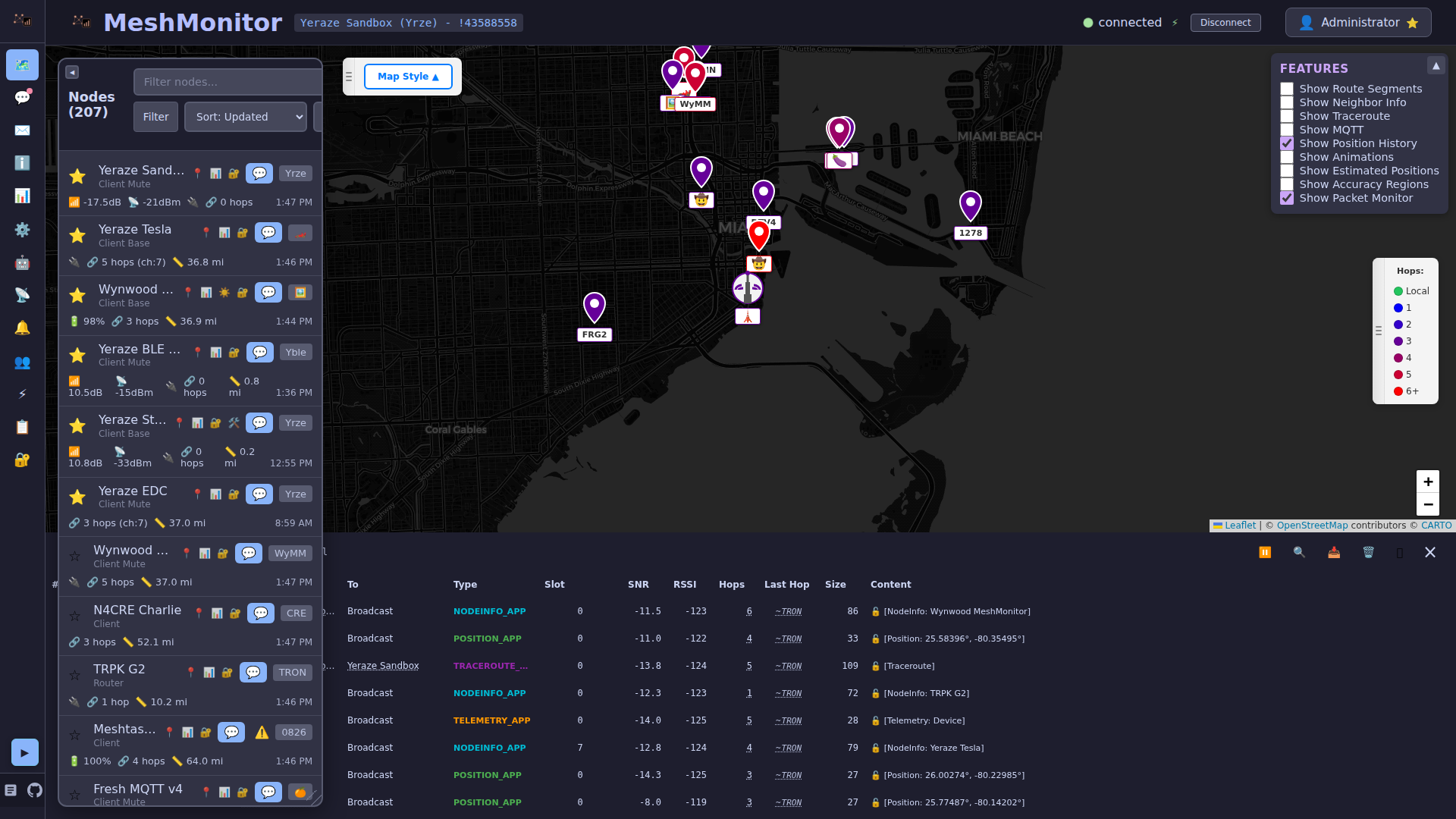
The Packet Monitor is a diagnostic tool that displays raw Meshtastic packets as they are received from the mesh network. It provides visibility into the low-level packet traffic for debugging and analysis purposes.
MeshCore Packet Monitor
MeshCore sources have their own equivalent — the OTA Packet Monitor accessible from the Packet Monitor tab in the MeshCore source page. It captures raw OTA frames (route type, payload type, relay chain, SNR/RSSI, and a full hex dump) from a companion's LogRxData push, from a repeater's serial packet log (this needs a firmware build with MESH_PACKET_LOGGING=1), or from a MeshCore MQTT ingest feed. Its Packet Decode view can decrypt channel packets with keys the server holds. See the MeshCore documentation for details.
MQTT Packet Monitor
MQTT sources (mqtt_broker and mqtt_bridge) also have their own gateway-aware equivalent — see MQTT sources below.
ATAK / CoT Integration
The ATAK_PLUGIN, ATAK_PLUGIN_V2, and ATAK_FORWARDER rows below are one piece of a larger integration — ATAK contacts also render on MeshMonitor's maps, and a streaming CoT feed can expose MeshMonitor as an ATAK/WinTAK network input. See ATAK / CoT Integration for the full picture.
Accessing the Packet Monitor
The Packet Monitor is available in two locations:
- Sidebar tab — Click the Packet Monitor icon in the sidebar for a full-page view
- Map panel — The Packet Monitor also appears at the bottom of the Map tab
Both views require the packetmonitor:read permission and must be enabled in Settings.
What the Packet Monitor Shows
Received and sent packets
The Packet Monitor is a "radio sniffer": most rows are packets your node heard from the mesh (RX). Packets MeshMonitor sends through the source, such as a text message or a traceroute, are logged too and carry a TX marker.
Packets That Appear
| Packet Type | Description |
|---|---|
| TEXT_MESSAGE (1) | Text messages received from other nodes |
| POSITION (3) | GPS position updates from nodes |
| NODEINFO (4) | Node information broadcasts |
| ROUTING (5) | Routing acknowledgments and errors |
| ADMIN (6) | Administrative messages |
| PAXCOUNTER (34) | Paxcounter telemetry |
| TELEMETRY (67) | Device/environment telemetry |
| TRACEROUTE (70) | Traceroute responses |
| NEIGHBORINFO (71) | Neighbor information |
| MESH_BEACON (37) | Firmware 2.8+ periodic beacon advertising a joinable channel (name/preset) — early preview, decoded as [MeshBeacon: "..."] |
| ATAK_PLUGIN (72) | ATAK (Team Awareness Kit) plugin packets — decoded as [ATAK PLI ...] (position), [ATAK GeoChat ...] (chat, also delivered to Messages), [ATAK detail ...], or [ATAK GeoChat receipt]; full decoded TAKPacket in the detail view |
| ATAK_PLUGIN_V2 (78) | ATAK V2 (firmware 2.8+ rich CoT, zstd-compressed) — shown as [ATAK V2 (not decoded), N bytes]; decoding is a planned follow-up |
| ATAK_FORWARDER (257) | Third-party ATAK Forwarder packets — identified by name, not decoded |
Signed-packet shield (firmware 2.8 early preview)
Packets carrying a firmware-verified XEdDSA signature (Meshtastic's new packet-signing scheme, not yet in an official release) show a small shield icon next to the entry. This only reflects what the connected node itself reported as verified — MeshMonitor doesn't re-verify the signature.
Packets That Do NOT Appear
The following packets are not logged to the Packet Monitor:
Internal management packets (to/from local node):
- ADMIN_APP (6) - Administrative packets for local device configuration
- ROUTING_APP (5) - Routing acknowledgments to/from your connected node
These internal packets are filtered to reduce noise and keep the log focused on actual mesh traffic. ADMIN and ROUTING packets between remote nodes on the mesh are still logged.
This is by design - the Packet Monitor shows mesh network traffic, not local device management.
Filtering Packets
Use the packet type dropdown to filter by specific packet types (portnums). The dropdown lists the full set of Meshtastic portnums, not just the common ones, so filters like ADMIN, NEIGHBORINFO, WAYPOINT, ATAK_PLUGIN, and every other named port are directly selectable.
Common filters include:
- All Types - Show all received packets
- TEXT_MESSAGE - Show only text messages
- POSITION - Show only position updates
- TELEMETRY - Show only telemetry data
- TRACEROUTE - Show only traceroute responses
- NODEINFO - Show only node information packets
Alongside the type dropdown, a free-text search field matches against decoded packet content and metadata (node names, node IDs, message text, evidence). The type filter and the search field combine with AND, so you can narrow a single portnum down to only rows that mention a specific node or word.
Hide Own Packets
The filter drawer (the funnel button) has a Hide Own Packets checkbox, on by default. It hides your own packets when the radio hears them back: RX rows whose sender is your node, returned by a rebroadcast over RF or by MQTT or UDP. These echoes repeat what you sent and add clutter.
It does not hide TX rows. A packet the source sent always stays in the list, so you can confirm a message or traceroute left the radio. (Before v4.17.0 the filter matched on the sender alone and hid TX rows as well.)
When the filter is hiding rows, a small "N hidden" chip appears beside the packet count. It counts hidden rows among the packets loaded so far. Hover for the reason, or click it to open the filter drawer. The filter runs in your browser, so the "total" figure and JSONL export still include the hidden rows.
Every packet monitor view, the main Meshtastic one, the per-source MQTT gateway monitor, and the MeshCore over-the-air monitor, exposes the same Stop capturing control at the top so a run does not need to be left open to sample a short window.
Traceroute Filter
If you filter on TRACEROUTE and see no results, this likely means no traceroute operations have been performed on your mesh recently. Traceroute packets only appear when:
- A node on your mesh initiates a traceroute
- The traceroute response is received back
To see traceroute packets, initiate a traceroute from MeshMonitor's Node Details page or from another device on your mesh.
Packet Information
Each packet entry shows:
- Timestamp - When the packet was received
- From Node - The sending node's ID and name
- To Node - The destination (broadcast or specific node)
- Channel - The channel number
- Port Type - The Meshtastic portnum/application type
- SNR/RSSI - Signal quality metrics
- Hop Count - Number of hops the packet traveled
- Encrypted - Whether the packet was encrypted
- Payload Preview - A summary of the packet contents
Permissions
Access Permission
Viewing the Packet Monitor requires the packetmonitor:read permission. This is granted by default to all users (including Anonymous). Administrators can revoke it per-user in Settings > Users. The Packet Monitor permission is read-only: the Users page offers no write grant for it, so only an administrator can clear a packet log, on Meshtastic and MeshCore sources alike.
Packet Filtering by Permission
Once a user has access to the Packet Monitor, the packets they see are filtered based on their other permissions:
| Packet Type | Permission Required |
|---|---|
| Encrypted packets | None — always visible (content is unreadable) |
| Decrypted channel packets | channel_N:read for the packet's channel (0-7) |
| Direct Messages (TEXT_MESSAGE_APP to a specific node) | messages:read (Node Details & DM: Read) |
| Other decrypted packets (POSITION, TELEMETRY, etc.) | channel_N:read for the packet's channel |
| Packets with no channel info | Always visible |
Admin users bypass all filtering and see all packets.
Example
A user with packetmonitor:read, channel_0:read, and channel_1:read (but no messages:read) will see:
- All encrypted packets
- Decrypted packets on channels 0 and 1
- Non-DM packets on channels 0 and 1
- Not direct message text packets (they need
messages:readfor those)
MQTT sources
MQTT sources (mqtt_broker and mqtt_bridge) render a different, gateway-aware Packet Monitor on the same tab. MQTT's defining trait is that a single mesh packet can be relayed to the broker by multiple gateway nodes, each publishing its own copy with its own reception time, RSSI, SNR, and hop counts — so the MQTT view is built around deduplicating those copies back into one packet per entry while still exposing every gateway's reception details.
Deduplicated packet list
The main table shows each packet once, regardless of how many gateways relayed it, with a Gateways column giving the number of distinct gateways that reported it (and a Receptions count in the tooltip for the total number of copies received). Clicking a row opens a detail view listing every gateway that received the packet, with that gateway's specific time, RSSI, SNR, and computed hop count (hopStart - hopLimit) for that reception.
Gateway filter
Use the Gateways dropdown in the filter panel to narrow the list to packets heard by one or more specific gateways (multi-select, with Select all / Clear affordances). Gateways are labeled with their resolved node name when the gateway is present in the node list for the source, otherwise by their hex gateway ID. When a gateway filter is active, the Gateways column and filter panel note that the count reflects only the selected gateways, not the packet's full gateway set.
Capture opt-in and retention
Like the MeshCore OTA Packet Monitor, MQTT packet capture is opt-in — enable it from the banner shown when capture is off, or from the filter panel (requires settings:write). Capture is controlled by the mqtt_packet_log_enabled setting, with retention governed by mqtt_packet_log_max_count (default 5000 rows — higher than the other monitors because each row is one gateway reception, not one packet) and mqtt_packet_log_max_age_hours (default 24 hours).
Encrypted, ignored, and geo-ignored copies are still captured
The MQTT capture records every copy that reaches ingestion, not just packets that were successfully decoded — including copies that could not be decrypted, copies dropped by geo-ignore filtering, and copies with an unsupported portnum. These are flagged with an outcome badge (encrypted, ignored, geo-ignored, unsupported-portnum, or decode-error) in place of the decoded packet type, so the monitor stays useful for diagnosing why a packet's contents aren't visible elsewhere in MeshMonitor.
ok_to_mqtt violation detection
Every Meshtastic packet carries an ok_to_mqtt bit (bit 0 of Data.bitfield) by which the originating node signals whether it consents to its traffic being relayed to MQTT. Firmware only enforces this bit when a gateway relays someone else's packet, and it skips the check entirely whenever the gateway believes its configured broker address is private — a check that is a plain IP-range test with no awareness of NAT or port forwarding. A gateway reaching its broker through a LAN-literal address that is also port-forwarded to the internet gets misclassified as private, and will silently relay opted-out traffic to what is effectively a public broker.
MeshMonitor detects this condition: when a received MQTT packet's ok_to_mqtt bit is explicitly clear and the publishing gateway is not the packet's originator, that is a provable, confirmed violation, and MeshMonitor records it. A packet whose bit cannot be read at all — because the field was never set, or because the packet is encrypted and MeshMonitor has no matching channel key — is recorded only as unknown/suspected, never as a confirmed violation.
Not necessarily malicious
The overwhelmingly likely cause of a detected violation is the firmware misconfiguration described above — a gateway whose broker address merely looks private but isn't — not a deliberate attempt to bypass a node's opt-out. Treat a violation as a configuration issue worth flagging to the gateway operator, not as evidence of hostile intent.
The other side of that same private-broker check also produces false positives, not just missed detections: when the gateway's broker genuinely is private, firmware skips the drop entirely and relays every packet regardless of the ok_to_mqtt bit — by design, not a bug. Every row MeshMonitor records still looks the same at capture time (a relayed opt-out), so the ok_to_mqtt Violations report annotates each one with what can be determined about the observing source's own configured broker (private / public / unverified) so an expected private-broker relay isn't mistaken for a confirmed violation. See Private-broker false positives for details.
Settings
Violation detection is controlled by three settings, all with working defaults out of the box — no configuration is required to start collecting violation history:
| Setting | Default | Description |
|---|---|---|
mqtt_oktomqtt_violation_log_enabled | ON | Kill switch for recording violations. Unlike mqtt_packet_log_enabled (opt-in, default off), this setting is on by default: set it to 0 to disable violation logging; any other value — including leaving it unset — keeps it on. |
mqtt_oktomqtt_violation_retention_days | 90 | How long a confirmed violation record is retained. |
mqtt_oktomqtt_violation_max_count | 50000 | Maximum number of violation records retained per source before the oldest are trimmed. |
Retention is independent of the Packet Monitor
Confirmed violations are stored in their own record set with their own retention policy — 90 days / 50,000 records per source — deliberately independent of the Packet Monitor's much shorter window (24 hours / 5,000 rows, see Capture opt-in and retention above) and of whether MQTT packet capture is enabled at all. Violation history is therefore retained even on installs that never turn on the MQTT Packet Monitor, and isn't lost when the packet log trims itself daily.
Forward-only detection
Violation detection only covers MQTT traffic received after upgrading to a MeshMonitor version with this feature. There is no backfill: the ok_to_mqtt bit was never previously stored, so there is nothing to retroactively re-evaluate for packets received before the upgrade — an old row can't be distinguished from a genuinely unreadable one, so guessing would only produce wrong answers. Expect an empty violation history immediately after upgrading; it fills in as new MQTT traffic arrives.
Viewing violations
A violation badge appears in the Type column of the MQTT Packet Monitor's packet list when a packet has at least one violating reception. Because the list groups a packet's per-gateway receptions into a single row, the badge means at least one gateway that relayed the packet violated the bit — it does not mean every gateway did, and it does not say which one. Open the packet to find out.
The packet detail view is where that attribution happens. It adds an ok_to_mqtt row to the packet summary and an ok_to_mqtt column to the per-gateway receptions table, showing one of four states for each individual reception:
| State | Meaning |
|---|---|
| violation | This gateway relayed the packet even though the sender did not opt in. The only state rendered as a highlighted badge. |
| allowed | The sender set the bit; relaying the packet was permitted. |
| opted out | The sender did not opt in, but no third-party relay of this reception could be established, so it isn't a violation. This can happen for several reasons — it is not simply "the sender published its own packet." |
| unknown | The bit could not be read: the payload wasn't decryptable, or the packet was captured before violation detection existed. |
Only violation renders as a badge; allowed, opted out, and unknown are shown as plain text in the detail view. This is deliberate — unknown is the majority state on any channel MeshMonitor has no key for, and badging it would drown out the real signal. For the same reason, the packet list shows the badge only for confirmed violations; the other three states are visible only in the detail view.
Capture must be on to see the badge
Violation recording (described above) is on by default, but the badge and per-gateway column read from the MQTT Packet Monitor's own capture log (see Capture opt-in and retention), which is opt-in and off by default. On a default install, violations are being recorded in the background while the badge never appears, because there is no captured packet list for it to attach to.
When capture is off, the Packet Monitor says so explicitly — in both the capture-disabled banner and the empty state. Absence of badges does not mean absence of violations. Turn capture on to see per-packet, per-gateway violation badges.
Reviewing violation history without packet capture
Violation recording runs independently of the Packet Monitor (see above), and there's a dedicated place to review it: the ok_to_mqtt Violations report under Analysis & Reports. It aggregates confirmed violations across every MQTT source you can read — no need to turn on MQTT packet capture on any of them just to see gateway violation history. See ok_to_mqtt Violations for details.
Live Mesh Activity dashboard widget
The Live Mesh Activity widget shows every remote node a source heard in a recent window, like the live mesh activity view in the Meshtastic phone app. Add it from the Dashboard with Add Widget → Live Mesh Activity. Each widget belongs to the source whose Dashboard you added it to.
| Column | Meaning |
|---|---|
| Node | Short name and node ID. Click a row to open that node. |
| Packets | Packets logged from that node in the window. |
| Extra rx | Copies of a packet heard again after the first (rebroadcasts). |
| SNR | SNR of the latest packet, with an arrow when it sits more than 1 dB above or below the window average. |
| Hops (last/min) | Hops on the latest packet, and the fewest seen in the window. ? means the firmware did not report a hop start. |
| Last heard | Time since the latest packet. |
- Window: 1, 5, 10, 30 or 60 minutes (default 10). Editors save the choice with the widget.
- All transports: off by default, so the table counts radio (RF) receptions only. Turn it on to add MQTT and UDP receptions.
- Sorting: click Packets, SNR, Hops or Last heard. Default is newest first.
- Refresh: the widget polls every 10 seconds while the browser tab is visible. Each poll runs one indexed query on the packet log and sends nothing over the mesh.
The widget reads the packet log, so it needs Settings → Packet Monitor turned on, and it only shows packets the log still holds. The log cap (default 1000 packets, shared by all sources) can drop packets from the start of a long window on a busy mesh; when that happens the widget says "Data covers since …" with the time of the oldest packet left. Raise the maximum packet count in Settings to cover the full window.
It needs packetmonitor:read on the source, and non-admin users only count packets on channels they can read, the same rule as the packet list. Meshtastic sources only for now; MeshCore dashboards do not offer it.
Cross-source tags (Unified Packet Monitor)
The Packet Monitor only logs TX for packets MeshMonitor itself sends. A router's own flood relays never show as TX rows. With two or more sources, though, one radio hears the other, and the Unified Packet Monitor uses that to show what your radios put on the air:
- Sent by our source (solid tag with the source name): the packet's sender is the local node of another of your sources. This is proven: only that radio stamps its node number as the sender.
- Likely relayed by our source (dashed tag, name followed by
?): the packet came from elsewhere, took at least one hop, and its relay byte matches the low byte of one of your radios' node numbers. One byte is not unique on a busy mesh, so this is an inference. The tooltip says so, and says when more than one of your sources shares that byte. - For MeshCore, a signed advert from one of your companions proves origin, and a relay hash in a flood path gives a likely relay.
The tooltip names the transport that carried the copy: RF, MQTT, or UDP. Radios on different LoRa presets cannot hear each other over RF, so between them you will only see MQTT or UDP tags.
The Cross-source filter (shown when you can read two or more sources) narrows the stream to tagged rows.
You only see a tag when you can read both sources under Packet Monitor permission. Nothing is stored for this; tags are worked out when the page loads the rows, so they need packet logging on for the receiving source.
Use Cases
The Packet Monitor is useful for:
- Debugging connectivity issues - See if packets are being received
- Analyzing mesh traffic patterns - Understand what types of traffic flow through your node
- Verifying encryption - Check which packets are encrypted vs unencrypted
- Signal quality analysis - Monitor SNR/RSSI values over time
- Troubleshooting packet delivery - Verify packets are reaching your node