

Interactive Maps
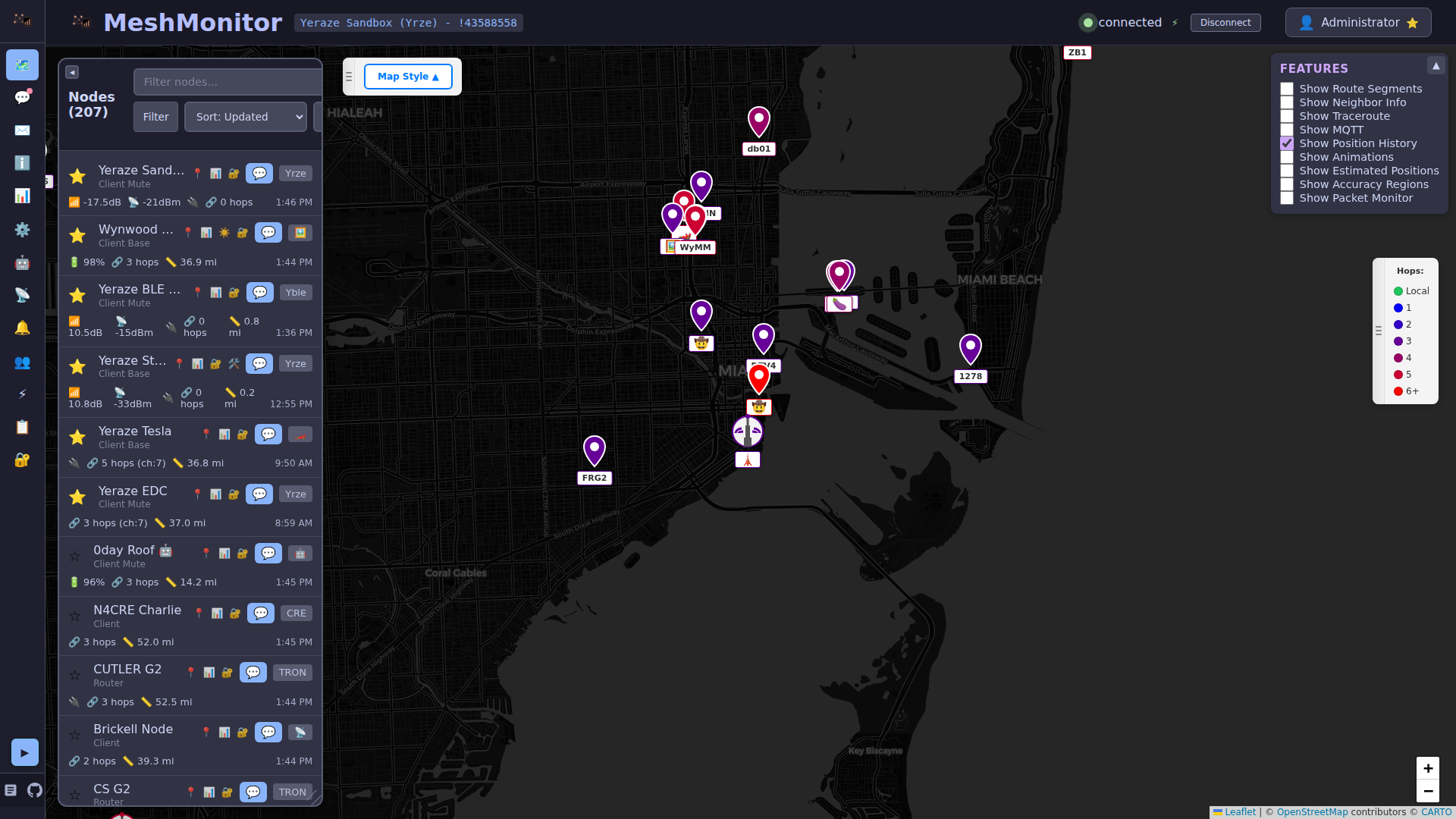
MeshMonitor provides powerful interactive mapping capabilities to visualize your mesh network in real-time. View node positions, track movement, analyze signal strength, and customize your map experience with flexible tile server options.
Overview
The interactive map is the primary visualization tool in MeshMonitor, displaying:
- Node Positions: Real-time GPS locations of all nodes in your network
- Signal Strength: Color-coded indicators showing network quality (SNR)
- Network Topology: Visual connections between nodes
- Node Status: Active, inactive, and flagged nodes with distinct markers
- Traceroute Paths: Visual representation of message routing paths
- Custom Markers: User-defined waypoints and points of interest
Map Features
Node Visualization
Node Markers
Each node is represented on the map with a marker that provides visual information:
Color Coding by SNR (Signal-to-Noise Ratio):
- 🟢 Green: Excellent signal (SNR ≥ 5 dB)
- 🟡 Yellow: Good signal (SNR ≥ 0 dB, < 5 dB)
- 🟠 Orange: Fair signal (SNR ≥ -5 dB, < 0 dB)
- 🔴 Red: Poor signal (SNR < -5 dB)
- ⚫ Gray: No signal data available
Security Indicators:
- ⚠️ Warning icon: Node has security issues (low-entropy keys, duplicate keys)
- See Security Features for details
Status Indicators:
- Solid marker: Active node (heard recently)
- Faded marker: Inactive node (not heard within configured time window)
Per-node color (New in 4.15.2):
- Every node gets a deterministic color derived from its NodeNum using the same algorithm the official Meshtastic app uses. The color is applied to the map pin and to the matching node's row in the sidebar list, so a node is easy to pick out at a glance across the map and the list. Signal-quality color coding above still applies where the underlying color is used as a fill — the per-node color drives the pin's outline / accent so the two signals don't collide.
Node Popups
Click any node marker to view detailed information:
- Node name (long name and short name)
- Node ID (hexadecimal and decimal)
- Hardware model with device image
- Battery level and voltage
- Signal quality (SNR and RSSI)
- Last heard timestamp
- Device role
- Firmware version
- Network position (hops away)
- Position accuracy (🎯) — a human-readable estimate derived from the node's reported GPS precision (e.g. "~91 m"), shown whenever the node broadcasts a non-full precision fix
- Location source (🛰️) — how the position was obtained: Manual, Internal GPS, or External GPS. Hidden when the node hasn't reported a source.
Share a Node as a Contact
The node detail card has a Share contact action that turns the node into a standard Meshtastic contact you can hand to someone else:
- QR code — point the Meshtastic app's contact scanner at it to add the node, its name, and its public key in one step.
- Contact URL — the same contact encoded as a
https://meshtastic.org/v/#…link you can paste into chat or a browser. (/v/is the contact form;/e/is the channel-set link, which this is not.)
Both carry the node's public key, so the receiving device can send PKI-encrypted direct messages without anyone retyping a key. This shares a contact, not your channel keys — the link contains no PSK and grants no access to your MeshMonitor instance.
Map Controls
Zoom Controls
- Zoom In/Out: Use
+and-buttons or mouse wheel - Zoom Limits: Respects the max zoom level of your selected tileset
- Double-Click Zoom: Double-click to zoom in on a location
Marker Clustering
When you zoom out past the Map Click Zoom Gate level, crowded markers group into one numbered circle. Click a circle to zoom in until its markers split apart. To show every marker at every zoom instead, turn off Cluster overlapping markers in Settings → Map Settings. The click zoom gate keeps working either way. See Map Settings.
Layer Controls
- Tileset Selector: Bottom-center visual picker to switch between map styles
- Default Tilesets: OpenStreetMap, Satellite, Topographic, Dark/Light modes
- Custom Tilesets: Any configured custom tile servers appear in the selector
Per-theme tileset preferences (New in 4.13)
MeshMonitor remembers a separate tileset preference for light and dark appearance, so switching your color theme (e.g. Catppuccin Latte → Mocha) can also switch your map style automatically — a light OSM style while your UI is light, a dark CartoDB style once you flip to a dark theme, without picking the tileset again each time. Configure both in Settings → Map Settings (see below); the visual picker on the map always changes the tileset for whichever appearance is currently active.
Map Navigation
- Pan: Click and drag to move the map
- Center on Node: Click a node in the sidebar to center the map on that node. The map zooms in to a configurable target level (default 17, adjustable in Settings → Map) when the node is far away, but never zooms out below your current zoom level.
- Fit to Network: Automatically adjusts zoom to show all active nodes
- Zoom to Fit: A dedicated control in the map sidebar frames all currently-visible nodes in one click, honouring the active age and source filters (so a Zoom to Fit while you have "Only stationary" or "Last 24 h" on frames only that subset, not everything the mesh has ever heard).
Unified map controls sidebar (New in 4.15.2)
Every map surface, the Dashboard map, the Nodes tab map, MeshCore, and Map Analysis, now shares one collapsible sidebar on the right instead of individual floating panels stacked in the map corners. Layer toggles, filters, tileset controls, and per-surface controls all live in one place, in the same order, so muscle memory carries between views. Click the tab handle to collapse the sidebar back to a thin edge when you want the map full-width.
Traceroute Visualization
When viewing traceroute data:
- Navigate to a node's details page
- View the Traceroute section
- Click "Show on Map" to visualize the routing path
- The map displays:
- Color-coded path segments showing hop sequence
- Arrows indicating message direction
- SNR indicators at each hop
- Failed routes shown in red
Channel Routing
For a traceroute to resolve every hop, each intermediate node must be able to decrypt the packet so it can append itself to the route. That depends on the channel's PSK, not its slot number. MeshMonitor therefore routes traceroutes over the lowest-numbered channel that the whole mesh can decrypt — one using the well-known default key (AQ==, what LongFast uses by default) or an unencrypted channel — rather than a hardcoded channel slot 0. If no channel is mesh-readable, it falls back to channel 0.
The Traceroute and Exchange Node Info actions in the messages/node UI are split buttons with a ▾ channel-selection dropdown (shown when more than one channel exists, mirroring the Exchange Position control). Use it to override the default and send on a specific channel.
Transport filtering and route segments
Since 4.16.0, the Show RF / UDP / MQTT toggles hide route segments too, not just node markers. Show MQTT and Show UDP are off by default, so upgrading removes segments from your map. Nothing is deleted. Turn Show MQTT on in the Map Features panel to see them again — the dashed, MQTT-coloured ones are the ones you will miss.
The three toggles filter the map by how the traffic reached MeshMonitor: over the air (RF), Meshtastic's multicast-UDP local transport, or an MQTT broker or bridge. Show RF starts on; the other two start off.
MeshMonitor draws a segment when any transport it saw that segment on is switched on:
- Each traceroute records the transport that carried it, and every hop inherits it.
- One thing overrides that: if the firmware could not fill in a hop's SNR, it marks the hop, and MeshMonitor reads that mark as MQTT. The mark wins for that hop.
- Show Route Segments draws one line per node pair from many traceroutes. So a link that one traceroute saw over RF and another saw over MQTT stays on the map while Show RF is on. Real RF evidence for a link survives, whatever route the other traceroutes took.
Traceroutes from before 4.16.0 carry no transport at all — MeshMonitor never recorded it — so the map treats them as RF and keeps showing them.
This filter skips MeshCore and Reticulum sources. Their messages live in other tables and need a different query.
Cross-Source Links
If you run two or more sources, Show Cross-Source Links (Map Features, off by default) draws an edge whenever one of your radios is heard by another of your sources. Unlike traceroute segments and neighbor links, which come from what nodes report, these come from what MeshMonitor's own receivers heard.
Each edge is one-way. The arrow points from the radio that transmitted to the radio that heard it. An edge from A to B says nothing about B to A; if both directions work you will see two edges.
| Style | Meaning |
|---|---|
| Solid | Your radio's own packet, heard directly (0 hops) by another source's radio |
| Long dashes | Heard by an MQTT gateway's (or MeshCore observer's) radio on another source |
| Dotted | Likely relay (inferred): your radio appears to be the last relay of someone else's packet, as heard by another of your own radios |
A likely relay is a best guess. Meshtastic packets carry only the last byte of the relaying node's number, and MeshCore paths carry a one to three byte hash, so another node can share it. The popup says so. For that reason a likely relay is only drawn when one of your own radios heard the packet. A hearing by an MQTT gateway or a MeshCore observer never produces one: on a wide feed, a gateway far away will match the same byte by chance.
Lines get thicker with the number of hearings and fade with age. Click an edge for the count, SNR (average, min, max), average RSSI, and when it was last heard. The map's age filter sets the window.
Not drawn:
- Copies that arrived only through an MQTT broker or UDP. Those are not RF.
- A multi-hop copy of your own packet. It proves the packet was sent, not that the two radios can hear each other.
- Radios on different LoRa presets. They cannot hear each other over RF.
You need read access to both sources to see an edge, and both radios' positions must be visible to you on the map. Links are kept for the Coverage retention period (Settings, Coverage Report) and are included in system backups. They start filling from the moment this version runs; there is no backfill.
The same toggle works in the 3D view. The choice is saved in your browser.
Traceroute-Confirmed Links
A one-way edge between your own sources cannot show that a remote node hears you. Only a traceroute proves that: the reply has to travel back.
Traceroute-Confirmed Links is a sub-toggle under Show Cross-Source Links, in both Map Features panels. It is on by default, appears once the parent toggle is on, and is saved in your browser. It also works with a single source.
It draws a double-headed, dash-dot line between one of your radios and a neighbour when a completed traceroute your radio ran used that link both ways: the first hop out and the last hop back were the same node. For a zero-hop traceroute that node is the destination itself. Each line is one real link, heard in both directions.
| Colour | The confirming traceroutes travelled |
|---|---|
| Teal | RF |
| Amber | MQTT |
| Blue | UDP |
A link confirmed over RF by one traceroute and over MQTT by another shows as two lines, one per transport. Lines get thicker with the number of confirming traceroutes and fade with the age of the newest. Click a line for the source, the transport, the SNR each way (what the neighbour heard from you, and what you heard from it), the number of confirming traceroutes, and when it was last confirmed.
Not drawn:
- A traceroute that went out through one neighbour and came back through another. Neither link carried both directions, so neither is confirmed.
- A traceroute with no recorded return path.
- A traceroute some other node ran. Only your own radio's runs have a leg next to your radio.
- Hops further out than your radio's own neighbour. Those are other radios' links.
Limits worth knowing:
- MeshMonitor keeps only the newest
TRACEROUTE_HISTORY_LIMITtraceroutes per node pair (default 50). The count on a line cannot pass that, and an old confirmation can drop out even inside the map's age window. - A traceroute records one transport value: how the reply reached your radio. That is the "back" half of this link, and the line takes its transport from it. A hop whose SNR the firmware could not fill in is treated as MQTT, as on the rest of the map.
- Nothing is stored and nothing is sent. The lines are worked out from the traceroutes already in the database each time the map asks. Turning the toggle on never starts a traceroute; run those yourself, or with auto-traceroute.
You need read access to both nodes and traceroutes on the source, and both nodes' positions must be visible to you on the map. A hidden or private node yields no line.
Waypoints
Waypoints — Meshtastic's WAYPOINT_APP pins — render directly on the per-source dashboard map and the Map Analysis canvas, using each waypoint's emoji as its icon. Users with waypoints:write can create, edit, and delete waypoints in place from the Map Features panel. The same panel has a Show Waypoints checkbox (default on) that toggles waypoint marker visibility per-user — persisted alongside the other map feature toggles. See the dedicated Waypoints page for the full workflow, permissions, and REST API.
ATAK Contacts
Full ATAK / CoT documentation
This section covers only how ATAK contacts render on the map. For packet decoding, GeoChat messages, and the streaming CoT feed that exposes MeshMonitor as an ATAK/WinTAK network input, see ATAK / CoT Integration.
ATAK contacts — positions reported by ATAK/WinTAK devices over the Meshtastic ATAK plugin (TAKPacket PLI, portnum 72) — render as team-colored circular markers with a callsign label on the per-source Nodes map, the Dashboard map, and the Map Analysis canvas. The Show ATAK Contacts checkbox in the Map Features panel (default off) toggles them. Markers use the ATAK team color (Cyan, Red, Green, …); a contact with no fresh position report for 15 minutes dims and its popup shows a STALE badge. The popup lists callsign, team, role, battery, course, speed, altitude (HAE), and last-seen time. Contacts are per-source, kept for 24 hours after the last report, and served at GET /api/sources/:id/atak/contacts (requires nodes:read on the source). Contacts without a valid position (e.g. Null Island fixes) are stored but not plotted. Meshtastic sources only — MeshCore has no ATAK wire format.
Estimated Positions & Accuracy
For nodes that never report GPS, MeshMonitor can plot an estimated position derived from traceroute and NeighborInfo geometry. Two Map Features toggles control the display:
- Show Estimated Positions — shows the estimated node markers.
- Show Accuracy — shows the dashed uncertainty circle around each estimated node (and the precision-bits accuracy regions for GPS nodes). The circle radius reflects how confidently the node could be placed.
Estimation itself is configured in Global Settings → Position Estimation, including a Maximum acceptable accuracy cutoff that discards low-confidence guesses. See the dedicated Position Estimation page.
Node Age Filter
The Map age filter slider in the Map Features panel hides node markers last heard before the window it defines. Rather than one linear hour-per-tick (unusable once you reach weeks), the slider snaps to human-scale stops (1h, 3h, 6h, 12h, 24h, 3d, 7d, 14d, and 30d) so it stays usable whether you're narrowing to the last hour or reaching out to a month. The line under the slider says what the map shows right now, such as Showing: last 6h.
The slider can only narrow the Node list & map window setting (Settings → Node Display), never widen it. Its top stop follows that setting and says so: All (24h from Settings). On the Nodes tab, when you pick a window in the Nodes list header's quick age filter, the slider narrows that window instead and reads All (7d from Nodes filter).
Show all (0): the Node list & map window setting accepts 0 to mean "no age cap". At 0 the slider's top stop reads All (no limit in Settings) and MeshMonitor never hides a node for being stale. Useful for post-mortem review of a mesh you don't intend to prune.
The active/total (last 2h) badge on each source card in the sidebar is a separate, fixed 2-hour activity stat. It is informational only and does not filter the list or the map.
MeshCore Nodes Without a Current Position Advert
A MeshCore node that stops sharing its position keeps advertising, but its adverts no longer carry coordinates. MeshMonitor keeps the last position it stored, so the node stays on the map at a place it no longer reports.
Hide nodes without a current position advert removes those markers. It is in Map controls on the MeshCore map, and in Map Features on the Dashboard map when the map holds MeshCore nodes. It is off by default and saved per browser; the two maps share the choice.
- A node is hidden only when the latest advert MeshMonitor heard from it had no position (or 0/0, which MeshCore uses for "none").
- A node whose position comes from telemetry stays. That is a live GNSS fix, not a stale advert.
- A node MeshMonitor has heard no advert from since the upgrade is unknown, and unknown nodes stay. So the filter fills in as adverts arrive; nothing vanishes on upgrade.
- Only the marker goes. Path and neighbour lines to the node stay, as with the node-type filter.
- Your own node is never hidden.
The stored position is kept, so turning the toggle off brings the node back where it was.
What counts as evidence. A repeater source and a MeshCore MQTT ingest source see every advert frame, so they always know. A Companion source learns it from the raw advert frame the radio logs. The companion's own contact list is no help here: the firmware keeps a contact's old coordinates when a later advert has none, so a contact that still shows a position proves nothing. A contact with no coordinates at all has never advertised one, and is recorded as such.
Likely Aircraft
A node flagged by likely-aircraft detection (Meshtastic sources only) gets an aircraft badge on its marker, so it's easy to tell an airborne node apart from a fixed one at a glance.
The Likely aircraft control in the Map Features panel has three modes:
- Mark (default) — the badge shows on flagged markers; the marker itself still behaves normally and can be clicked through to the node.
- Show — no badge, no filtering; flagged nodes look like any other node.
- Hide — flagged markers are removed from the map, except a node that is one of your own favorites, which always stays visible.
The control appears in both the Nodes map and the Dashboard map, and the chosen mode is shared across them (saved per user, with a local fallback for anonymous viewers). Map Analysis reads the same mode, so a marker hidden or marked here is hidden or marked there too.
Show aged-out — a checkbox under the three modes. When age-out ignores a likely aircraft, the node drops off the map like any ignored node. Tick Show aged-out to draw those nodes again, faded and with the aircraft badge. It only brings back aircraft ignored by age-out; manual and geo ignores stay hidden. The hint line shows how many aged-out nodes the map would draw with your other filters applied. The setting is saved in your browser and applies to both maps and Map Analysis.
A node's popup and details say Aged out (likely aircraft) while it is aged out, and Reclassified as fixed once the sweep has decided it is a fixed node. To correct the detector yourself, see Marking a node by hand.
Flight trails
Tick Flight trails under the likely-aircraft modes to draw the recent path of each aircraft on the map. Each aircraft gets its own colour, with a dark outline and small arrows that point the way it was flying. Hover over a trail to see the node's name and the time of the nearest position.
- A trail appears only for an aircraft whose marker the map draws, so it follows Hide, the age filter, the transport toggles, and Show aged-out.
- The Trail lookback slider, shown while the box is ticked, sets how far back a trail reaches: 1 hour to 7 days, 6 hours by default. MeshMonitor keeps position history for 7 days, so older points don't exist.
- On the Unified dashboard, an aircraft heard by more than one source draws as one trail.
- You only see trails for nodes you can see on the map. Private positions and channels you can't view on the map stay hidden.
- Both settings are saved per user and apply to the Nodes map and the Dashboard map. The 3D view doesn't show trails.
Trails are drawn from positions MeshMonitor has already stored, so they send nothing over the mesh.
MQTT sources store position history too, the same as a connected radio, so aircraft heard only over MQTT get trails. A position relayed by several gateways is stored once. History for an MQTT node starts from when you upgrade to this version.
Flight matching (ADS-B)
MeshMonitor can check a likely aircraft against a free, public ADS-B feed and show which flight it is on. It is off by default: a stock install makes no calls to any outside service. An admin turns it on in Settings → Flight matching (ADS-B) (global, not per source).
When it finds a match, the node's popup and details show one line, for example:
Matched: UAL123 · B738 · N12345 · 450 kt 270° Data: adsb.lol
The line links to the flight on the feed's own map. Parts the feed doesn't report are left out. The node keeps its own name; the marker and automations don't change.
How it looks up a flight
- Lookups start only when a node becomes a likely aircraft: two lookups, then up to six re-checks per flagging (at most eight in all).
- Lookup 1 runs when the node is flagged. A hit shows as Possible match.
- Lookup 2 runs on the node's next live position, 1 to 30 minutes later. If it names the same aircraft again, the line changes to Matched.
- After that, a live position re-checks the match when the node has moved more than 10 km from where the last lookup ran, or 15 minutes have passed since it:
- the same aircraft refreshes the callsign, speed, heading and altitude (a flight number can change mid-flight);
- a different aircraft shows as Possible match with the new one;
- no aircraft twice in a row clears the match.
- After six re-checks nothing more is looked up until the node is flagged again. The counts are stored in the database, so a restart or a settings save doesn't reset them, and a restart alone never triggers a lookup.
- MeshMonitor picks the nearest aircraft within a radius that grows with the age of the node's fix (5 to 90 km) and within 300 m of the node's altitude. If two aircraft are about equally close, it shows nothing rather than guess.
- A match only confirms. No match never clears the likely-aircraft flag: light aircraft, balloons and drones often carry no ADS-B.
Feeds
| Feed | Terms |
|---|---|
| adsb.lol (default) | Open data under the ODbL. |
| adsb.fi | For personal, non-commercial use only. |
| OpenSky Network | Non-commercial and research use only. Credit: Data: The OpenSky Network. Needs a free OpenSky account. |
airplanes.live is not offered: it refused anonymous requests when this feature was built. The optional API key field is for adsb.lol's announced future key; leave it empty unless adsb.lol asks for one. Only admins can see the key.
OpenSky Network needs an API client: log in to OpenSky, open your Account page, create an API client, and paste its client ID and client secret into Settings. There is no anonymous mode: the feed cannot be picked or saved without both. MeshMonitor swaps them for a 30-minute token, kept in memory only, and never sends the adsb.lol API key to OpenSky. OpenSky has no aircraft type or registration, so its matches show the callsign and ICAO hex only. OpenSky spends credits from a daily quota; when it runs out, OpenSky says how long to wait, and MeshMonitor pauses OpenSky lookups for that long (at most 24 hours). The pause is saved, so a restart does not end it early.
What it sends, and how often
Nothing goes over the mesh. MeshMonitor sends the node's approximate position (to about 10 m) to the chosen feed over HTTPS. Requests go out at least 1.1 seconds apart, and any rate limit, refusal, server error or timeout pauses all lookups for 10 minutes. A failed lookup doesn't use up the node's allowance. A node flagged on several sources at once shares one request.
Only users who can read nodes on that source see the line. A node with a private position shows no match to users who can't see private positions.
Asset Tracking
Mark a node as a tracked asset, for example a GPS node on a vehicle, and MeshMonitor:
- always draws its trail. MeshMonitor flags a node as mobile once it has moved more than 100 m. A vehicle parked for a while can lose that flag and its trail. An asset always counts as mobile.
- keeps all of its telemetry (position, battery, environment and the rest) for the number of days you choose, on every source that heard it. Other nodes keep 7 days.
- is skipped by cleanups that run on their own: auto-delete by distance, the aircraft age-out, the MQTT geo filter purge, and the automation "delete node" action. The geo filter still ignores an asset outside its box, but no longer deletes its history.
To set it up: open the node's details (Messages tab, then select the node) and find Asset tracking below Notes. Turn on the switch and set how many days to keep (1 to 365, default 90). The section shows about how many rows that keeps, based on the node's last 24 hours. It says "unknown" when there is no recent data.
- The flag belongs to the physical node, not to a source, so it applies to every source that hears it. Changing it needs the Settings: write permission. Other users see the section read-only.
- A manual Delete Node still works on an asset, and warns you that the retained history goes with it.
- Turning the flag off returns the node to the normal 7-day window at the next hourly cleanup.
The full-history trail. Select an asset on the Nodes map and its trail covers the whole window you chose, not just the newest few thousand fixes:
- The server merges the fixes from every source you can see, drops copies of the same fix heard by more than one source, and thins the rest to at most 2,000 points. It keeps each stretch's start, end, and the point that strays farthest from the straight line between them, so turns and stops survive.
- A gap of more than 30 minutes between fixes breaks the trail. Each drive draws on its own, with no line from where one ended to where the next began.
- Under Show Position History, "Showing N of M fixes (thinned)" tells you how many of the stored fixes the map draws. The history slider still runs from the oldest fix to now.
- Your permissions still apply: a source you can't read, a channel you can't view on the map, or a private position without the Private Positions permission on that source adds no points.
Playback. With an asset selected and Show Position History on, a playback bar runs along the bottom of the Nodes map. Its timeline spans the trail the map shows (after the history slider), with a notch for each fix and shaded gaps.
- The cursor starts at the end, so the map looks as it did until you use the bar. Press Play to replay the trail from the start; press it again to pause. Playback stops at the end, and Play there starts over.
- Click or drag the timeline to jump. The step buttons move one fix back or forward.
- Pick 60×, 600× or 3600×: one minute, ten minutes, or an hour of track per second. The bar remembers your choice.
- A marker with a time label slides between fixes. In a gap it waits at the last fix before the gap and fades, rather than cutting straight across.
- The readout shows the date and time at the cursor, in your time and date format, and the speed of the nearest fix when it reported one.
- Trail up to cursor (on by default) draws only the fixes up to the cursor, so the trail grows as it plays. Follow (off by default) pans the map when the marker nears the edge.
- With the timeline focused: Space plays or pauses, ←/→ step one fix, Home/End jump to the start or end.
- On a phone the bar fits one row: the step buttons hide (use the arrow keys or drag) and the two toggles show as icons.
Nothing is sent over the mesh; this is storage and display only. Plan disk space for long windows: a node that reports often can keep hundreds of thousands of rows over a year.
GNSS Satellite Overlay
MeshMonitor can show a node's live GPS constellation geometry:
- Node Sky Plot — expand the GNSS section in a node's details for a sky plot of the theoretical GPS constellation overhead, next to the node's reported
sats_in_viewtelemetry. A large gap between the two hints at an antenna or sky-view problem. - DOP Overlay (Map Analysis only) — a dilution-of-precision heatmap showing expected GPS positioning quality across the visible area, with a time scrubber (satellite geometry shifts minute to minute) and an adjustable elevation mask. Open it from the Map Analysis toolbar.
3D Terrain View
The Nodes map, Dashboard/Mesh map, and Unified map all support the same pitched-terrain 3D view as Map Analysis — see 3D terrain view for requirements and how to use it.
Map Tilesets
Built-in Tilesets
MeshMonitor includes several pre-configured map styles:
OpenStreetMap (Default)
- Style: Standard OSM map with street and place names
- Max Zoom: 19
- Use Cases: General-purpose mapping, urban areas
- URL:
https://tile.openstreetmap.org/{z}/{x}/{y}.png - Attribution: © OpenStreetMap contributors
OpenStreetMap HOT
- Style: Humanitarian OpenStreetMap Team style
- Max Zoom: 19
- Use Cases: Disaster response, humanitarian operations
- URL:
https://tile.openstreetmap.fr/hot/{z}/{x}/{y}.png - Attribution: © OpenStreetMap contributors, Tiles courtesy of HOT
Satellite (ESRI)
- Style: Satellite imagery
- Max Zoom: 18
- Use Cases: Identifying terrain features, physical landmarks
- URL:
https://server.arcgisonline.com/ArcGIS/rest/services/World_Imagery/MapServer/tile/{z}/{y}/{x} - Attribution: Tiles © Esri
Satellite + Labels (Hybrid)
- Style: Satellite imagery with place names and road labels overlaid
- Max Zoom: 18
- Use Cases: Terrain identification that still needs street/place context
- URL:
https://server.arcgisonline.com/ArcGIS/rest/services/World_Imagery/MapServer/tile/{z}/{y}/{x}(labels overlay from Esri's Reference/World_Reference_Overlay service) - Attribution: Tiles © Esri; Labels © Esri, Garmin, USGS, NPS
OpenTopoMap
- Style: Topographic map with contour lines and elevation data
- Max Zoom: 17
- Use Cases: Outdoor deployments, terrain analysis, hiking
- URL:
https://tile.opentopomap.org/{z}/{x}/{y}.png - Attribution: © OpenStreetMap contributors, SRTM
CartoDB Dark Matter
- Style: Minimalist dark theme
- Max Zoom: 19
- Use Cases: Dark mode displays, nighttime viewing
- URL:
https://cartodb-basemaps-a.global.ssl.fastly.net/dark_all/{z}/{x}/{y}.png - Attribution: © OpenStreetMap contributors, © CartoDB
CartoDB Positron (Light)
- Style: Minimalist light theme
- Max Zoom: 19
- Use Cases: Clean, minimal map display
- URL:
https://cartodb-basemaps-a.global.ssl.fastly.net/light_all/{z}/{x}/{y}.png - Attribution: © OpenStreetMap contributors, © CartoDB
Carto API key (New in 4.15.2)
Both CartoDB tilesets accept a personal API key from a free carto.com account for higher rate limits than the anonymous public endpoint. Paste your publishable key into Settings → Map → Carto API key; MeshMonitor appends it as ?key=... on every Carto tile request. The key is publishable by design (it lives in the browser), so treat it like any other public API token and rotate it if abused. Leave the field blank to keep using the anonymous endpoint.
CARTO vector basemaps
Four vector basemaps render in the browser with MapLibre GL, so labels and lines stay sharp at every zoom:
| Tileset | Look |
|---|---|
| CARTO Voyager | Colorful street map with land-use shading |
| CARTO Positron | Light gray, minimal |
| CARTO Dark Matter | Near-black, minimal |
| CARTO Voyager Dark | Dark map that keeps land-use color: green parks and woodland, teal water, amber major roads, light labels |
CARTO publishes Voyager, Positron and Dark Matter. It does not publish a dark Voyager, so MeshMonitor ships CARTO Voyager Dark itself: a recolor of CARTO's Voyager style, bundled with the app. It still reads CARTO's vector tiles.
- API key: all four need the same CARTO API key as the raster CARTO tilesets. MeshMonitor adds the key to every CARTO request the map makes (style, tiles, fonts and icons). The picker warns you when a CARTO tileset is selected and no key is set. For a dark map with no key, pick Dark Gray.
- 3D view: the 3D map draws raster tiles only, so it shows each style's raster twin: CARTO's raster Voyager, Positron (Light Mode) or Dark Matter (Dark Mode). CARTO Voyager Dark has no raster twin and uses Dark Mode in 3D.
- Embeds: embed profiles offer raster tilesets only, so these four do not appear there.
- Attribution: © OpenStreetMap contributors, © CARTO. CARTO's style code is BSD-3-Clause; map data is ODbL.
Custom Tile Servers
MeshMonitor supports adding your own custom tile servers for:
- Offline Operation: Host tiles locally for complete offline functionality
- Privacy: Prevent third-party tile requests from leaking node locations
- Custom Branding: Organization-specific map styles
- High Availability: Independence from external tile services
- Specialized Maps: Aviation charts, nautical charts, custom overlays
Supported Tile Types
Vector Tiles (Client-side rendered):
- File Extensions:
.pbf,.mvt - Rendering: Automatic client-side rendering using MapLibre GL
- Advantages:
- ✅ 5-10x smaller storage than raster tiles
- ✅ Flexible styling (can adjust colors dynamically)
- ✅ Sharp at any zoom level
- ✅ Scales beautifully without pixelation
- Disadvantages:
- ⚠️ Slightly higher CPU usage for rendering
- ⚠️ Limited to max zoom 14 by default
Raster Tiles (Pre-rendered images):
- File Extensions:
.png,.jpg,.jpeg,.webp - Rendering: Browser displays pre-rendered images
- Advantages:
- ✅ No client-side rendering overhead
- ✅ Works with any tile server or static hosting
- ✅ Predictable performance
- ✅ Can support higher zoom levels (18-19)
- Disadvantages:
- ❌ 5-10x larger storage than vector tiles
- ❌ Fixed styling (can't change appearance)
Quick Setup Examples
For Vector Tiles (.pbf):
Name: Local Vector Tiles
URL: http://localhost:8080/data/v3/{z}/{x}/{y}.pbf
Attribution: © OpenStreetMap contributors
Max Zoom: 14For Raster Tiles (.png):
Name: Local Raster Tiles
URL: http://localhost:8080/styles/basic/{z}/{x}/{y}.png
Attribution: © OpenStreetMap contributors
Max Zoom: 18For Nginx Caching Proxy:
Name: OpenStreetMap (Cached)
URL: http://localhost:8081/{z}/{x}/{y}.png
Attribution: © OpenStreetMap contributors
Max Zoom: 19
Description: OSM tiles with local cachingSee the Custom Tile Servers guide for complete setup instructions, deployment options, and troubleshooting.
Configuring Map Settings
Changing the Active Tileset
Method 1: Settings Tab
- Navigate to Settings → Map Settings
- Choose your desired tileset from the Light Mode Tileset and/or Dark Mode Tileset dropdowns — each applies only while the matching UI appearance is active
- Click Save Settings
- The map will reload with the new tileset
Method 2: Visual Selector (Nodes Tab)
- Navigate to the Nodes tab
- Locate the tileset selector at the bottom-center of the map
- Click to open the visual picker showing tileset previews
- Click your desired tileset
- The map immediately switches to the new tileset
Adding Custom Tile Servers
- Navigate to Settings → Map Settings → Custom Tile Servers
- Click + Add Custom Tile Server
- Fill in the required fields:
- Name: Friendly name (e.g., "Local Offline Tiles")
- Tile URL: URL template with
{z}/{x}/{y}placeholders - Attribution: Attribution text for the map source
- Max Zoom: Maximum zoom level (1-22)
- Description: Optional description
- Click Save
- Your custom tileset now appears in the tileset dropdown
Tile URL Format
Custom tile servers must use the standard XYZ tile format:
https://example.com/{z}/{x}/{y}.pngRequired Placeholders:
{z}- Zoom level (0-22){x}- Tile X coordinate{y}- Tile Y coordinate
Optional Placeholders:
{s}- Subdomain (e.g., a, b, c for load balancing)
Examples:
Local server:        http://localhost:8081/{z}/{x}/{y}.png
Subdomain-based:     https://{s}.tiles.example.com/{z}/{x}/{y}.png
Custom path:         https://maps.example.com/tiles/{z}/{x}/{y}.webp
Vector tiles: http://localhost:8080/data/v3/{z}/{x}/{y}.pbfOffline Map Operation
Why Offline Maps?
Offline maps are essential for:
- Remote Deployments: Areas without reliable internet connectivity
- Privacy-Sensitive Operations: Prevent third-party tile requests from leaking node locations
- Emergency Response: Maintain mapping capabilities during network outages
- High-Traffic Events: Avoid rate limits and service disruptions
- Cost Control: Reduce external API usage and bandwidth costs
Offline Deployment Options
Option 1: TileServer GL Light (Recommended)
Best for: True offline operation with pre-downloaded tiles
Supports: Both vector (.pbf) and raster (.png) tiles
Setup:
Download tiles (
.mbtilesformat):- Vector tiles: MapTiler OSM
- Raster tiles: OpenMapTiles Downloads
Place
.mbtilesfiles in./tilesdirectoryStart TileServer GL Light:
bashdocker run -d \ --name tileserver \ -p 8080:8080 \ -v $(pwd)/tiles:/data \ maptiler/tileserver-gl-light:latestAdd to MeshMonitor (see Quick Setup Examples above)
Advantages:
- ✅ Works completely offline
- ✅ No external dependencies
- ✅ Predictable performance
- ✅ No native library issues
Option 2: Nginx Caching Proxy
Best for: Gradual offline coverage without large upfront download
Supports: Raster tiles only
How it works:
- First request: Downloads from online source → saves to cache → serves to browser
- Subsequent requests: Serves from local cache (works offline)
- Over time: Builds offline coverage of frequently-viewed areas
Setup: See the Nginx Caching Tile Proxy section
Advantages:
- ✅ No large upfront download
- ✅ Gradually builds offline coverage
- ✅ Works online and offline
- ✅ Simple setup
Option 3: Directory Tiles with Static Web Server
Best for: Custom tile generation or specific area coverage
Supports: Raster tiles only
Setup:
- Generate tiles using QGIS QTiles plugin or tile-downloader
- Organize in Z/X/Y directory structure:
tiles/0/0/0.png tiles/1/0/0.png tiles/1/0/1.png ... - Serve with nginx, Apache, or any static web server
- Configure CORS headers to allow cross-origin requests
Advantages:
- ✅ Full control over tile generation
- ✅ Flexible server options
- ✅ Can customize tile rendering
Map Privacy and Security
Privacy Considerations
When using online tile servers:
- Location Leakage: Each tile request reveals the geographic area you're viewing
- Network Topology: Repeated requests can reveal node locations and network structure
- Third-Party Tracking: External tile servers may log IP addresses and request patterns
Recommended for Privacy:
- Use custom tile servers hosted on your network
- Deploy offline tiles for sensitive operations
- Use nginx caching proxy to minimize external requests
- Consider self-hosting TileServer GL on your infrastructure
Security Best Practices
HTTPS vs HTTP:
- HTTPS: Required for production deployments and internet-facing servers
- HTTP: Acceptable for localhost (127.0.0.1) or trusted internal networks only
- Mixed Content: HTTPS sites cannot load HTTP tiles (browser security policy)
CORS Configuration:
Custom tile servers must allow cross-origin requests. Configure your server:
Nginx:
add_header Access-Control-Allow-Origin *;Apache:
Header set Access-Control-Allow-Origin "*"Node.js/Express:
app.use((req, res, next) => {
  res.header('Access-Control-Allow-Origin', '*');
  next();
});URL Validation:
MeshMonitor validates tile URLs to prevent:
- Missing required placeholders (
{z},{x},{y}) - Invalid URL format
- Non-HTTP/HTTPS protocols
- Excessively long URLs (> 500 characters)
Troubleshooting
Tiles Not Loading (Gray Squares)
Symptoms: Map shows gray squares instead of map tiles
Solutions:
Check CORS headers:
bashcurl -I http://localhost:8080/tiles/0/0/0.png # Should include: Access-Control-Allow-Origin: *Verify tile server is running:
bashcurl http://localhost:8080/tiles/0/0/0.png # Should return image dataTest URL format:
- Ensure
{z},{x},{y}placeholders are present - Test with real values: replace
{z}with 0,{x}with 0,{y}with 0
- Ensure
Check browser console (F12 → Console tab):
- Look for CORS errors
- Look for 404 Not Found errors
- Check Network tab for failing requests
Mixed Content Warnings
Symptoms: Browser blocks HTTP tile requests on HTTPS site
Error Message: "Mixed Content: The page at 'https://...' was loaded over HTTPS, but requested an insecure resource 'http://...'"
Solutions:
- Use HTTPS for tile server (recommended for production)
- Use localhost/127.0.0.1 (allowed for development)
- Configure reverse proxy to serve tiles over HTTPS
Slow Tile Loading
Symptoms: Map loads slowly, tiles timeout, or appear gradually
Solutions:
- Use local tile server: Much faster than remote servers
- Reduce max zoom: Fewer high-resolution tiles to load
- Enable browser caching: Tiles are cached automatically by modern browsers
- Optimize tile size: Use WebP format for smaller file sizes
- Check network bandwidth: Slow internet affects external tile servers
- Use vector tiles: 5-10x smaller than raster tiles
Vector Tiles Not Rendering
Symptoms: Blank map or gray squares when using .pbf tiles
Solutions:
- Verify file extension: URL must end with
.pbfor.mvt - Check MapLibre GL: Ensure browser supports WebGL (all modern browsers do)
- Test tile URL directly: Open tile URL in browser, should download a binary file
- Check console errors: Look for WebGL or MapLibre errors in browser console
Custom Tileset Not Appearing in Dropdown
Symptoms: Added tileset doesn't show in the map tileset selector
Solutions:
- Refresh the page: Settings are loaded on page load
- Check save succeeded: Look for success message or error
- Verify URL format: Must include
{z},{x},{y}placeholders - Clear browser cache: Force reload with Ctrl+F5 (Cmd+Shift+R on Mac)
- Check browser console: Look for JavaScript errors
Performance Optimization
For Large Networks (100+ Nodes)
- Use vector tiles for smaller file sizes and better performance
- Set appropriate max node age to filter inactive nodes
- Use raster tiles with lower max zoom if vector rendering is slow
For Limited Bandwidth
- Use nginx caching proxy to build offline coverage gradually
- Choose raster tiles with lower resolution (max zoom 12-14)
- Use WebP format for 20-30% smaller file sizes
- Pre-download only necessary zoom levels
For Offline Deployments
- Use vector tiles for 5-10x smaller storage
- Download only necessary zoom levels (e.g., 0-14)
- Use regional extracts instead of full planet tiles
- Consider lower resolution tiles for large coverage areas
Advanced Usage
Subdomain Load Balancing
Distribute tile requests across multiple servers:
URL: https://{s}.tiles.example.com/{z}/{x}/{y}.pngConfigure DNS:
a.tiles.example.com→ Server 1b.tiles.example.com→ Server 2c.tiles.example.com→ Server 3
Benefits:
- Parallel tile loading (faster map rendering)
- Load distribution across servers
- Increased reliability
Retina/High-DPI Displays
For high-resolution displays, use @2x tiles:
URL: https://example.com/tiles/{z}/{x}/{y}@2x.pngNote: Adjust max zoom accordingly (typically max zoom - 1)
Custom Tile Formats
MeshMonitor supports various tile formats:
- PNG: Best quality, larger file size, supports transparency
- JPEG: Good for satellite imagery, no transparency, smaller file size
- WebP: Modern format, 20-30% smaller, excellent quality, modern browsers only
Example:
URL: https://example.com/tiles/{z}/{x}/{y}.webpLimits and Constraints
- Maximum Custom Tilesets: 50 per instance
- URL Length: 500 characters maximum
- Name Length: 100 characters maximum
- Attribution Length: 200 characters maximum
- Description Length: 200 characters maximum
- Zoom Range: 1-22 (practical limits depend on tile data availability)
Related Documentation
- Custom Tile Servers - Complete setup guide
- Settings - Map settings configuration
- Security Features - Understanding security indicators on the map
- Getting Started - Initial MeshMonitor setup
Best Practices
- Test locally first: Verify tiles load correctly before production deployment
- Use descriptive names: Make it easy to identify tilesets
- Include attribution: Give proper credit to tile data providers
- Set appropriate max zoom: Match your tile data's capabilities
- Monitor storage: Offline tiles can consume significant disk space
- Regular updates: Keep offline tiles current for map accuracy
- Backup configurations: Export custom tileset settings before major changes
- Choose the right tile type: Vector for flexibility and size, raster for compatibility
- Plan for offline: Pre-download tiles for areas you'll need offline
- Secure your tile server: Use HTTPS in production, restrict access if needed
Support and Feedback
For issues, questions, or feature requests:
- GitHub Issues: github.com/yeraze/meshmonitor/issues
- Documentation: MeshMonitor Docs
- Custom Tile Server Guide: Custom Tile Servers