

Configuration Search
MeshMonitor spreads its settings across five tabs and roughly eighty sections, and the count keeps growing. Configuration search gives you two ways to get to the one you want without browsing for it.
Your browser's own find (Ctrl+F) cannot help here: it only sees the page you are already on, which is the page you have already looked at.
Filtering the page you are on
Settings, Device, Automation, Notifications and Admin each carry a filter box at the left of their section picker.
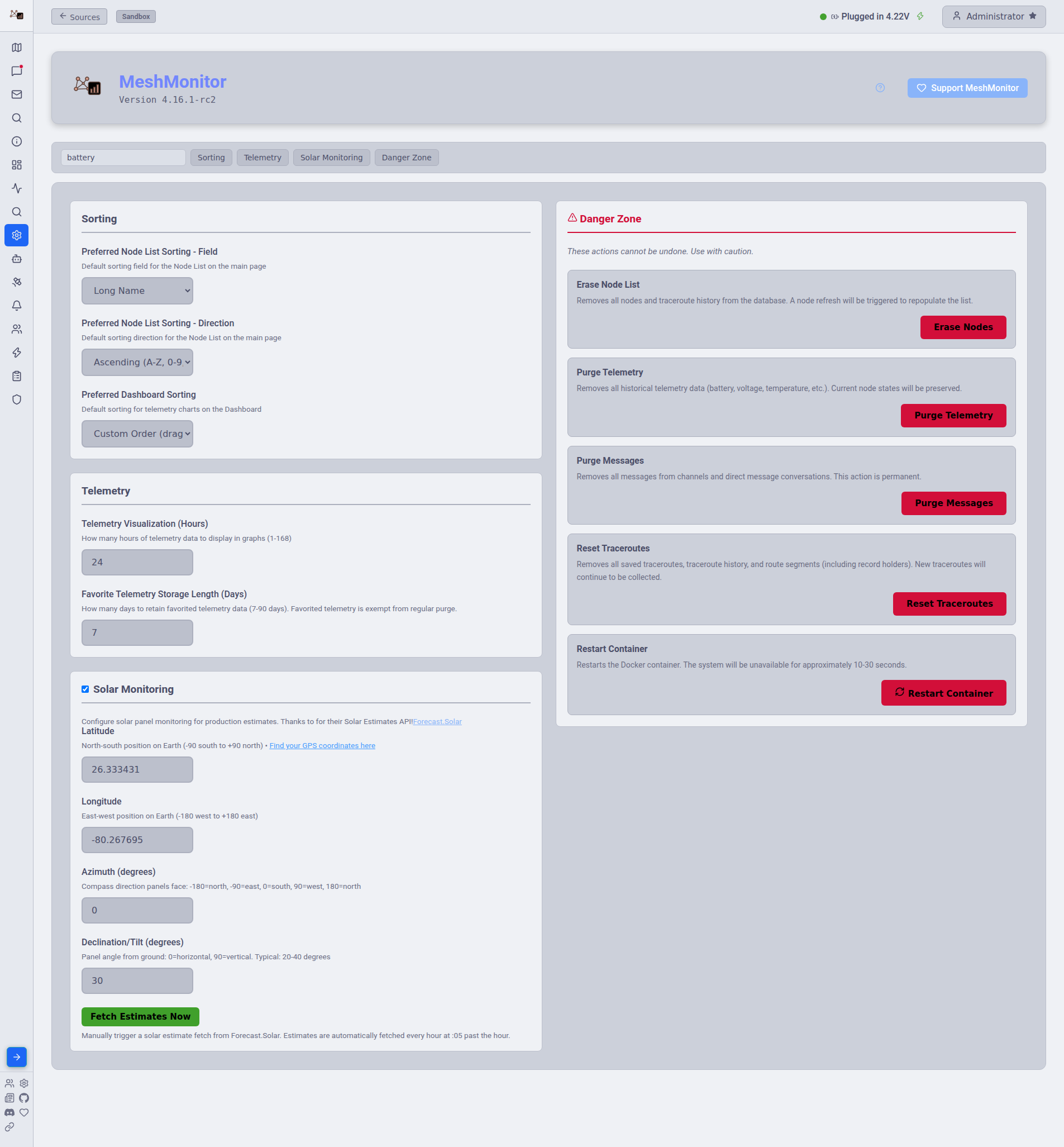
Type into it and the page narrows to the matching sections — both the picker chips and the sections themselves. Clear the box (or press Escape) to bring everything back.
The filter matches anything rendered inside a section, not just its heading. Typing battery on the Settings tab keeps Telemetry, Solar Monitoring and Sorting, because each of those mentions battery somewhere, even though none of them is called "Battery". A handful of synonyms are matched too, so gps finds Position and radio finds LoRa.
A multi-word query narrows rather than widens: every word has to appear. region preset finds LoRa; region battery finds nothing.
Searching across every page
The page filter only knows about the page you are on. To search all of them at once, open the configuration palette:
- Press Ctrl+, (or Cmd+, on macOS) from anywhere, or
- Click Search Settings in the sidebar, at the top of the Configuration group.
Type a word and you get matching sections from every configuration page, each labelled with the page it lives on. Move with the arrow keys, open with Enter, dismiss with Escape.
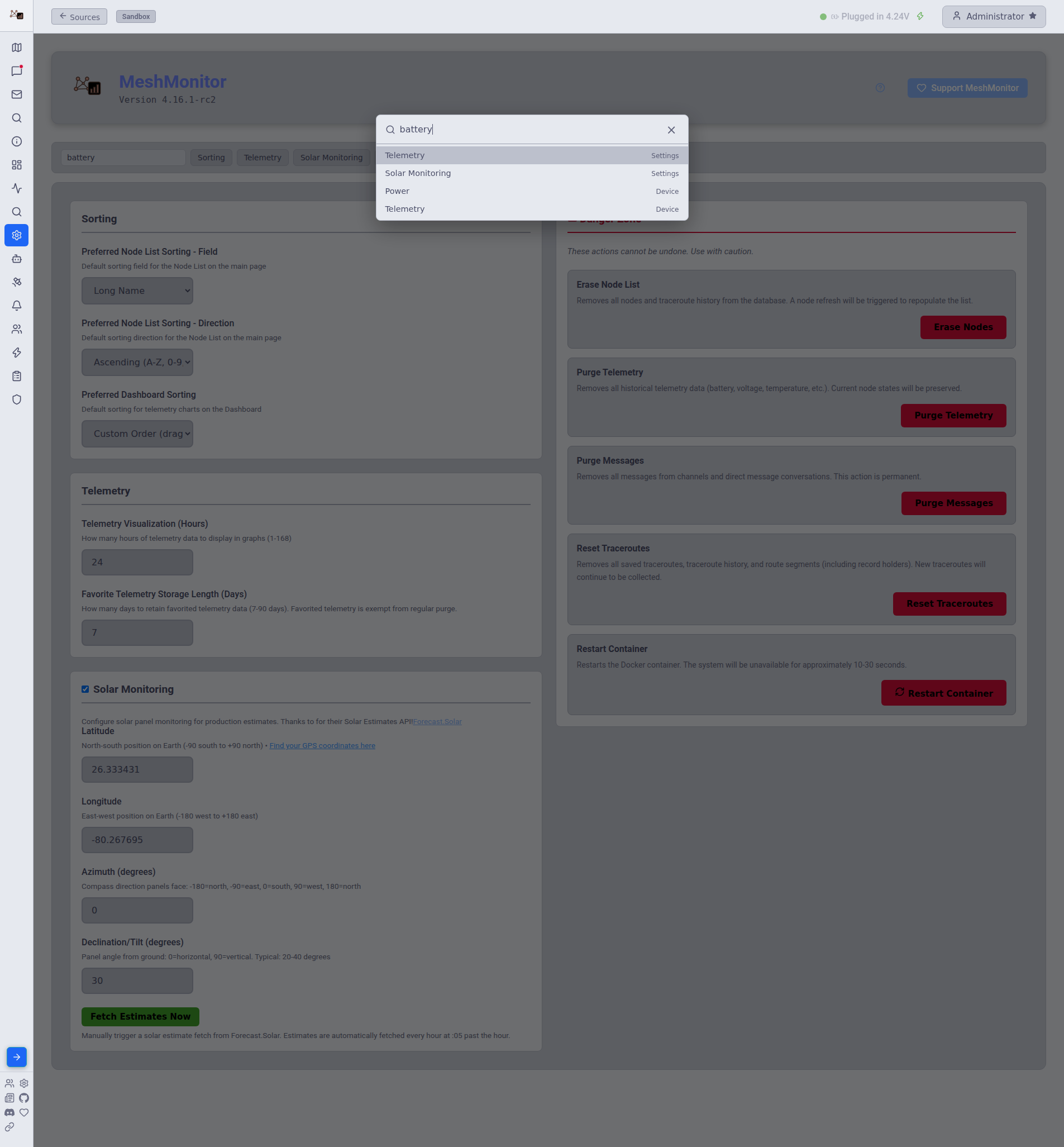
Picking a result takes you straight to that section — it navigates to the page and scrolls the section into view, clear of the header.
Searching backup, for example, turns up System Backup on Global Settings, Backup and Configuration Import/Export on Device, and Import/Export on Admin.
What it searches
The palette searches section names and their synonyms across every page, because it has to answer for pages that are not currently loaded. Once you land on a page, that page's own filter takes over and sees the individual settings too.
What it shows you
Results are scoped to what you can actually reach:
- Sections your account cannot see are not offered. An admin-only panel does not appear for a non-admin.
- Sections that do not apply to your install are not offered either — Database Maintenance only appears on SQLite, Firmware Updates only when OTA is enabled.
- Opened from the standalone Global Settings page, the palette offers only global sections. There is no single "current source" there to send a per-source link to.
Searching messages
Message content has its own search, with filters for channel, sender and date range. See Message Search — it is a separate panel on Ctrl+K.