

Channel Database
The Channel Database feature allows MeshMonitor to store additional channel configurations beyond your device's 8 channel slots. These stored channels can be used for server-side packet decryption, enabling you to monitor encrypted traffic from channels you're not actively participating in.
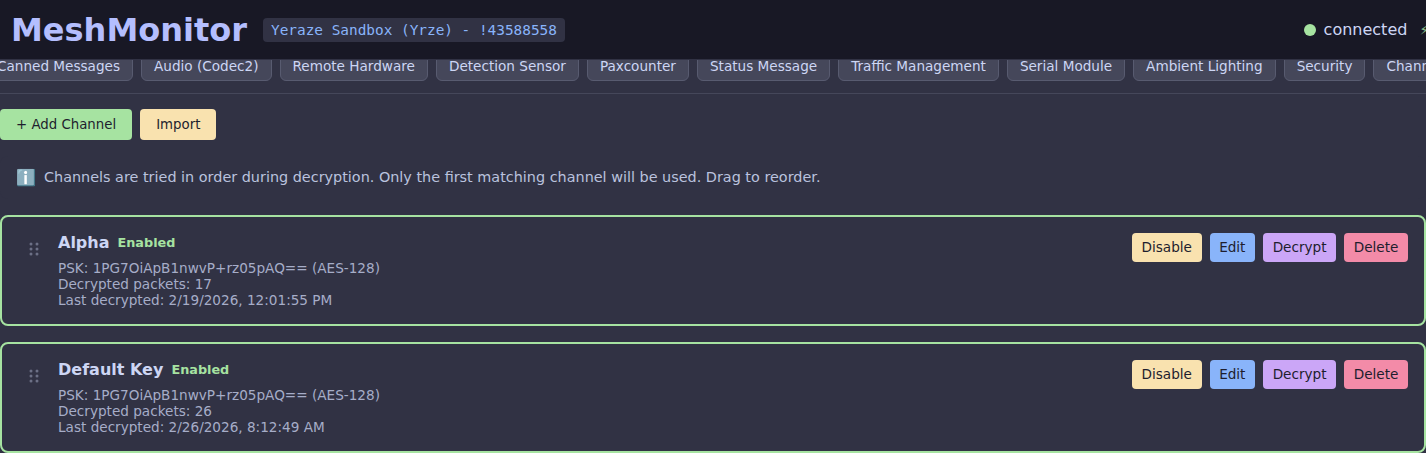
Overview
Meshtastic devices are limited to 8 channel slots, but mesh networks often have many more channels in use. The Channel Database solves this limitation by:
- Storing unlimited channel configurations - Save channel name and PSK combinations in MeshMonitor's database
- Server-side decryption - Automatically decrypt incoming encrypted packets using stored channel keys
- Read-only access - View decrypted message content without transmit capability
- Retroactive processing - When adding a new channel, MeshMonitor processes historical encrypted packets
Read-Only Feature
The Channel Database provides read-only decryption capability. You can view decrypted content but cannot send messages on database-stored channels. To transmit, you must have the channel configured on your connected Meshtastic device.
Accessing the Channel Database
The Channel Database is under Global Settings → Channel Database. Only administrators can open it.
Permissions Required
- Admin users can manage all database channels (add, edit, delete)
- Non-admin users need explicit permissions to view decrypted content from specific channels
Adding a Channel
- Navigate to Global Settings → Channel Database
- Click Add Channel
- Enter the channel details:
- Name - A descriptive name for the channel
- PSK - The Pre-Shared Key (Base64 encoded)
- Description (optional) - Notes about the channel's purpose
- Click Save
PSK Format
Enter the PSK in Base64 format, the same format used by Meshtastic. You can find channel PSKs in your device's channel configuration or exported settings.
Channel Priority and Ordering
Channels in the database are tried in sort order during decryption, with one important refinement: when a packet carries a channel hash, channels whose name+PSK hash matches that packet are tried first, then the rest in sort order. The first channel that successfully decrypts a packet wins. You can control the order using drag-and-drop:
- Navigate to Global Settings → Channel Database
- Drag channels using the handle on the left side of each channel card
- Drop to reorder - channels higher in the list are tried first
- The new order is saved automatically
Decryption Priority
If multiple channels share the same PSK but have different names (e.g. a default-key LongFast plus a custom channel both using AQ==), MeshMonitor uses the packet's channel hash to credit the correct channel — the one whose name+PSK hash matches the packet — rather than simply the first one in sort order. Sort order is only the tiebreaker when no channel's hash matches (in which case the first channel that decrypts is credited, so a packet is never left undecrypted). This matches how Meshtastic firmware distinguishes same-key channels.
Importing and Exporting Channels
The Channel Database supports bulk import and export via JSON files. This is useful for:
- Backup and restore — save your channel configurations before reinstalling
- Sharing — distribute a regional channel list to other operators
- Migration — copy channels between MeshMonitor instances
- Bootstrapping — pre-populate a fresh install with a known set of channels
Exporting Channels
- Navigate to Global Settings → Channel Database
- Click the Export button
- A file named
meshmonitor-channels-<timestamp>.jsonis downloaded to your browser's default download location
The export contains every channel currently in the database, in sort order, with full PSKs.
Exports Contain Secrets
Exported JSON files contain your raw PSKs in Base64 form. Treat them like passwords — store them encrypted, do not commit them to public repositories, and avoid sharing them in untrusted channels.
Importing Channels
- Navigate to Global Settings → Channel Database
- Click the Import button
- Select a
.jsonfile with one or more channel entries - Review the preview and click Import
Each entry is added as a new channel — import never overwrites or merges with existing entries. If you want to replace your channel list, delete the old entries first.
JSON File Format
The import/export format is a JSON array of channel objects (a single object is also accepted on import for convenience):
[
  {
    "name": "LongFast",
    "psk": "AQ==",
    "description": "Default Meshtastic primary channel",
    "isEnabled": true,
    "enforceNameValidation": false
  },
  {
    "name": "Regional Emergency",
    "psk": "1PG7OiApBgr0G/+rz05pAVHc1xPJD9C2c8RNJYBoqjE=",
    "description": "Regional emergency coordination",
    "isEnabled": true,
    "enforceNameValidation": true
  }
]Field Reference
| Field | Type | Required | Description |
|---|---|---|---|
name | string | Yes | Human-readable channel name. Used for display and (when enforceNameValidation is true) for channel-hash matching. |
psk | string | Yes | Pre-Shared Key as a Base64-encoded string. Accepted lengths when decoded: 1 byte (Meshtastic shorthand: AQ== = default key, Ag==–Cg== = simple1–simple9), 16 bytes (AES-128), or 32 bytes (AES-256). PSK value 0 (no encryption) is rejected. |
description | string | No | Free-form notes. Defaults to empty string. |
isEnabled | boolean | No | When true, MeshMonitor uses this channel for decryption. Defaults to true on import. |
enforceNameValidation | boolean | No | When true, only attempt decryption if the packet's channel hash matches this channel's name. Useful when multiple channels share the same PSK. Written on export. The file import does not read it: an imported channel starts with it off, so turn it on by hand if you need it. |
protocol | string | No | meshtastic (the default) or meshcore. Exports write it on every entry. For a meshcore entry, psk is the 16-byte channel secret; see MeshCore Channels. |
Notes
- Sort order is not preserved on import. New channels are appended to the end of the existing list. You can reorder them after import using drag-and-drop.
pskLengthis derived automatically from the decoded PSK and does not need to be specified.- Duplicate detection is not performed on import for Meshtastic entries. If you import the same file twice you will get duplicate entries. MeshCore entries are the exception: a secret that is already stored is refused, and the import stops at that entry.
- The
id,decryptedPacketCount,lastDecryptedAt,createdBy,createdAt, andupdatedAtfields present on exports are ignored on import — the server assigns fresh values.
Example: Minimal Import
If you only have channel names and PSKs, this is the smallest valid file:
[
  { "name": "MediumFast", "psk": "AQ==" },
  { "name": "Mesh-NYC", "psk": "1PG7OiApBgr0G/+rz05pAVHc1xPJD9C2c8RNJYBoqjE=" }
]MeshCore Channels
The Channel Database also holds MeshCore channel keys. A MeshCore entry is a 16-byte channel secret that MeshMonitor uses to decrypt MeshCore channel messages (GRP_TXT) heard by:
- a MeshCore MQTT ingest source, and
- a directly attached MeshCore repeater running a
MESH_PACKET_LOGGINGfirmware build.
The same keys open channel packets (GRP_TXT and GRP_DATA) in the MeshCore Packet Monitor's Packet Decode view, on any MeshCore source. See Decoding channel packets.
A companion radio holds about 40 channels. Keys in the Channel Database are held by the server alone, so that limit does not apply. They are never written to a device.
Adding a MeshCore channel
- Click Add Channel and set Protocol to MeshCore.
- Enter a name.
- Enter the Channel secret: 32 hex characters or Base64 (16 bytes). For a hashtag channel (a name that starts with
#, such as#general), leave the secret empty. MeshMonitor derives it from the name, as the MeshCore apps do.
Each secret is stored once. Adding a secret that is already stored is refused, whatever name it is given.
Import from MeshCore device
Import from MeshCore device copies the channels of one MeshCore device source into the Channel Database. Pick the source and click Import.
- It is a one-time copy. MeshMonitor does not mirror the device: adding, changing or deleting a channel on the device later does not change the Channel Database.
- Channels whose key is already stored are skipped.
Who can read MeshCore channel traffic
New MeshCore entries, added by hand or imported, start with no user access. Until an administrator grants it, only administrators can read messages decrypted with that key. Grant access per user under Users, in the Channel Database permissions list; MeshCore entries are labelled there.
A message decrypted with a key that also sits on a device source can be read by anyone who can read that channel on that device source.
What does not apply to MeshCore entries
- Retroactive processing re-reads the Meshtastic packet log only. MeshCore entries decrypt new traffic from the moment they are added.
- Enforce name validation and priority order are Meshtastic channel-hash features. A MeshCore frame names its key by hash, so order does not matter.
- Meshtastic key rules (1-byte shorthand keys, AES-256) do not apply: a MeshCore secret is always 16 bytes.
How Server-Side Decryption Works
When MeshMonitor receives an encrypted packet:
- The packet is first processed by your connected Meshtastic node
- If your node can decrypt it (channel is in device slots), you see the decrypted content
- If your node cannot decrypt it, MeshMonitor tries each enabled Channel Database entry in sort order
- On successful decryption, the packet content is decoded and displayed
- The Packet Monitor shows a special indicator for server-decrypted packets
Decryption Indicators in Packet Monitor
| Icon | Meaning |
|---|---|
| Green unlock | Decrypted by your Meshtastic node |
| Blue key | Decrypted by MeshMonitor (Channel Database) |
| Red lock | Encrypted (no matching key found) |
Retroactive Processing
When you add a new channel to the database, MeshMonitor automatically processes historical encrypted packets:
- Scans the packet log for encrypted packets
- Attempts decryption with the new channel's PSK
- Updates successfully decrypted packets with their content
- Shows progress during processing
This means you can add a channel key and immediately see historical messages that were previously unreadable.
Security Considerations
Protect Your Channel Keys
Channel PSKs are stored in MeshMonitor's database. Ensure your MeshMonitor instance is properly secured:
- Use strong authentication
- Enable HTTPS in production
- Restrict admin access
- Regular backups include channel keys
Permission Model
The Channel Database uses a permission system to control access:
- Admins have full access to all database channels
- Non-admin users must be granted explicit read permission per channel
- Permissions are managed in the Admin tab
Managing Channels
Enabling/Disabling Channels
Toggle channels on or off without deleting them. Disabled channels are not used for decryption but remain in the database.
Enforce Name Validation
When enabled, this option ensures that a channel will only decrypt packets that have a matching channel hash. This is useful when:
- You want to strictly reject packets that don't match a channel's name+PSK hash
- You're monitoring networks where channel naming conventions matter
Same-PSK channels are disambiguated automatically
You no longer need to enable this just to attribute packets to the correct channel when several channels share a PSK (e.g. default AQ== keys). MeshMonitor already prefers the channel whose name+PSK hash matches each packet (see Channel Priority and Ordering). Enforce Name Validation goes further: it makes a hash mismatch a hard skip, so the channel will refuse non-matching packets entirely rather than serving as a fallback.
WARNING
If the sending device doesn't include channel hash information in packets, enabling this option may prevent decryption even with a valid PSK. Because same-PSK attribution is now handled automatically, leaving this off is the safer default — it preserves decryption of default-key traffic across all modem presets.
Editing Channels
Update the name, PSK, or description of existing channels. Changed PSKs will affect future decryption and can trigger retroactive processing.
Deleting Channels
Remove channels you no longer need. This does not affect already-decrypted packets in the log.
Channel Statistics
Each channel entry shows:
- Decrypted packet count - How many packets have been decrypted using this channel
- Last decrypted - Timestamp of the most recent decryption
- Status - Enabled or disabled
Use Cases
Monitoring Multiple Communities
If your mesh spans multiple communities with different channels, store all channel keys to monitor traffic across the entire network.
Security Auditing
Network administrators can use the Channel Database to audit traffic patterns across all channels without configuring each one on their device.
Historical Analysis
Add channel keys later to decrypt historical traffic that was captured but not readable at the time.
Channel Key Recovery
If you have backup channel configurations, import them into the Channel Database to restore monitoring capability.
API Access
The Channel Database is accessible via the V1 API:
| Method | Endpoint | Description |
|---|---|---|
| GET | /api/v1/channel-database | List channels (filtered by permission). Returns Meshtastic entries by default; add ?protocol=meshcore or ?protocol=all for MeshCore entries |
| GET | /api/v1/channel-database/:id | Get specific channel |
| POST | /api/v1/channel-database | Create new channel (admin only) |
| PUT | /api/v1/channel-database/:id | Update channel (admin only) |
| DELETE | /api/v1/channel-database/:id | Delete channel (admin only) |
Limitations
- No transmit capability - Database channels are read-only
- Requires encrypted packets to be captured - Your node must receive the packets first
- AES decryption only - Standard Meshtastic encryption (AES-128-CTR or AES-256-CTR)
- Performance - Very large numbers of channels may impact packet processing speed
Troubleshooting
Packets Not Decrypting
- Verify the PSK is correct and in Base64 format
- Check that the channel is enabled in the database
- Ensure your node is receiving the encrypted packets
- Verify you have permission to view the channel
Missing Historical Packets
Retroactive processing only works on packets stored in the packet log. If packet logging was disabled or packets were purged, they cannot be recovered.
Performance Issues
If packet processing becomes slow:
- Disable unused channels
- Reduce the number of enabled database channels
- Consider purging old packet log entries