

Admin Commands
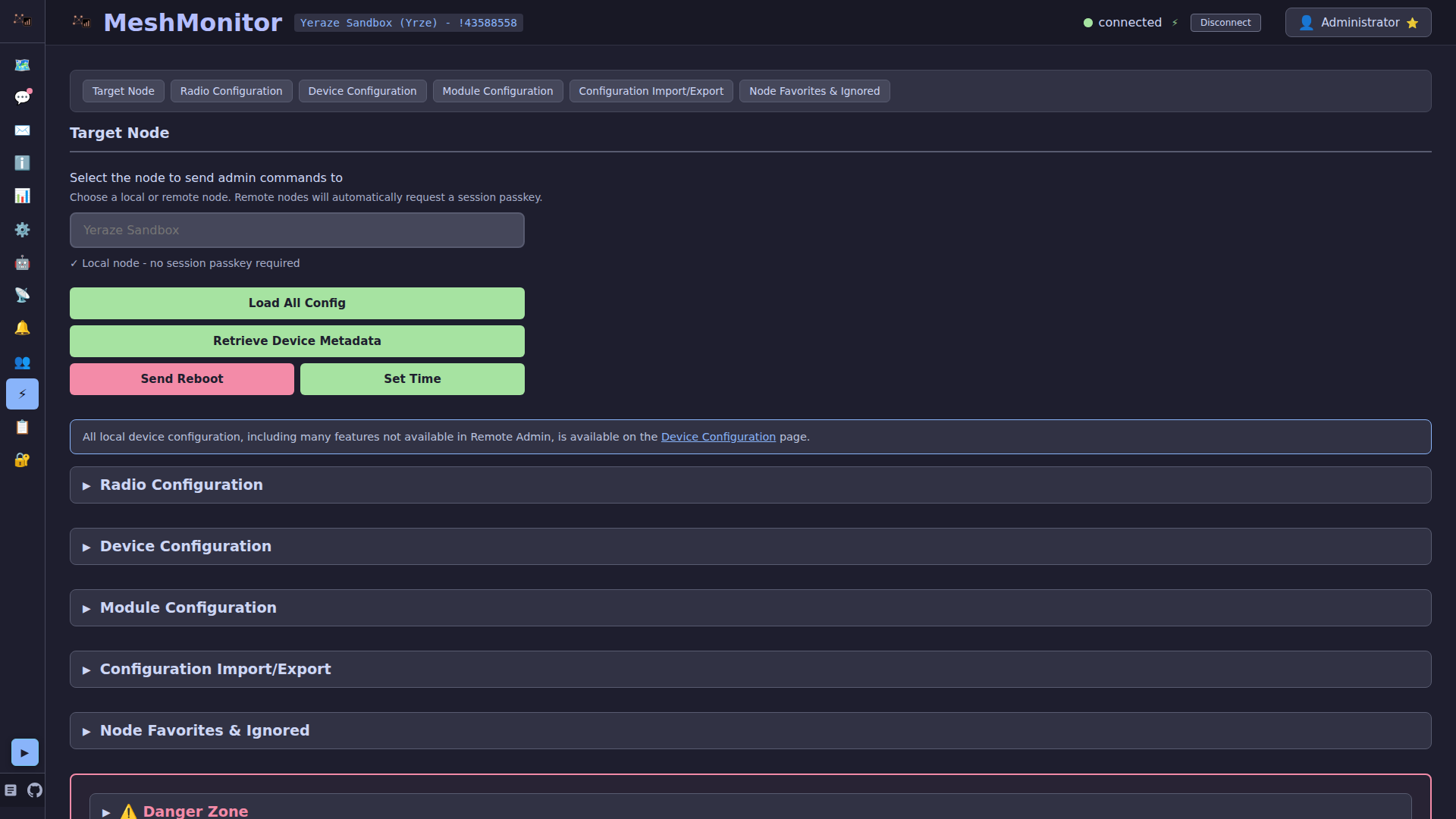
The Admin Commands tab provides comprehensive remote management capabilities for Meshtastic nodes, allowing administrators to configure and control both locally connected and remote nodes in the mesh network.
WARNING
Admin commands directly modify Meshtastic device settings and can affect device functionality or network connectivity. Always ensure you understand the impact of changes before applying them. Some commands (like factory reset, shutdown or purge node database) are destructive and cannot be undone from MeshMonitor.
Access
The Admin Commands tab is available to users with admin privileges only. It appears in the sidebar under the "Admin" section with a ⚡ icon.
Node Selection
Before executing any admin command, you must select a target node:
- Node Dropdown: Click the node selector at the top of the page
- Search Functionality: Type to search for nodes by name or node number
- Node Types:
- Local Node: The node directly connected to your MeshMonitor instance (marked with "Local")
- Remote Nodes: Other nodes in the mesh network that are not directly connected
The selected node's information is displayed, and all commands will target this node.
Device Management Commands
Reboot Device
Reboots the selected node with a configurable delay.
Settings:
- Reboot Delay: 0-60 seconds (default: 5 seconds)
Use Cases:
- Apply configuration changes that require a reboot
- Recover from device issues
- Restart after firmware updates
Side Effects:
- Device will disconnect and reconnect
- All active connections will be lost temporarily
- Configuration changes take effect after reboot
Power and Reset
The Power and reset group sits in the warning section at the foot of the tab, under Reboot and Purge Node Database. It holds four actions. Each sends one admin packet. MeshMonitor never sends it twice, and none can be undone from MeshMonitor.
| Action | Works on | What it does |
|---|---|---|
| Shut down | Local and remote nodes | Powers the node off after 5 seconds. It stays off until someone presses its button. Disabled when the node's metadata says it cannot shut down. |
| Reboot into DFU mode | Local node only | Restarts the node into its bootloader. Only nRF52, RP2040 and STM32 boards respond; ESP32 ignores it. The node leaves the mesh until you flash it or reset it by hand. |
| Reset config (keeps identity key and BLE bonds) | Local node only | Wipes all settings, channels and the node database, then reboots. The node keeps its private key, so it keeps its identity and node number, and its Bluetooth pairings. |
| Full device reset (new identity) | Local node only | Wipes everything, the private key included. The node makes a new key pair; on firmware 2.8 that also gives it a new node number, so the mesh sees a new node. |
DANGER
WARNING: A reset is irreversible. Both resets wipe:
- All device and module settings, including the LoRa region (set back to unset)
- All channels and their keys (PSKs), and the admin keys
- The node database and stored messages
- WiFi and network settings
A full device reset also wipes the private key, the Bluetooth pairings and, on ESP32, all NVS storage. A node MeshMonitor reaches over WiFi or TCP loses its network settings and drops off MeshMonitor until you set it up again over USB or Bluetooth.
Confirmation: every action asks you to confirm. Both resets, and a shutdown of a remote node, also make you type the node's short name (or its node ID when it has no short name).
Local only: DFU and both resets work only on the node the source is connected to. The server refuses them for a remote node, because a remote node in DFU mode or after a reset cannot be reached over the mesh again.
Audit log: reboot, shutdown, DFU and both resets are each written to the Audit Log (Admin section of the sidebar) before the packet leaves, with the user, the source, the node and whether it was local or remote.
Use Cases:
- Preparing device for new deployment
- Resolving severe configuration issues
- Clearing all data before transfer to new owner
- Putting an nRF52 or RP2040 board into its bootloader before a USB flash
Set Owner
Configures the node owner information.
Settings:
- Long Name: Full display name (up to 39 characters)
- Short Name: 4-character abbreviation
- Unmessagable: Prevent receiving messages from other nodes
Use Cases:
- Setting device ownership information
- Configuring node identity
- Privacy settings for specific deployments
Side Effects:
- Owner information is broadcast to the mesh network
- Changes may take several minutes to propagate
- Requires device reboot to take effect
Set Device Config
Configures device role and node information broadcasting.
Settings:
- Device Role:
- CLIENT: General-purpose mode (default)
- CLIENT_MUTE: Receives but doesn't relay packets
- ROUTER: Always rebroadcasts packets (infrastructure mode)
- Node Info Broadcast Interval: How often to broadcast node information (minimum: 3600 seconds). A node that shows 0 uses the 3 hour firmware default; MeshMonitor sends that 0 back as 0, but firmware stores 3600 on any save of this section, so enter 10800 to keep 3 hours
Use Cases:
- Optimizing network topology
- Configuring infrastructure nodes
- Adjusting network update frequency
Side Effects:
- Role changes affect power consumption and network behavior
- ROUTER mode significantly increases power usage
- Requires device reboot to take effect
LoRa Configuration
Configure the LoRa radio settings for the selected node.
Preset Mode (Recommended)
When "Use Preset" is enabled, you can select from the predefined modem presets (LONG_FAST, LONG_TURBO, MEDIUM_FAST and so on). The list only shows presets the target node will accept for its region and firmware version; see Modem Preset for the full table and the rules.
Manual Mode
When "Use Preset" is disabled, you can manually configure:
- Bandwidth: Channel bandwidth (125, 250, 500 kHz)
- Spread Factor: Spreading factor (7-12)
- Coding Rate: Error correction coding rate (5-8)
- Frequency Offset: Frequency offset in Hz
- Override Frequency: Override default frequency
Common Settings
- Region: LoRa region (US, EU433, EU868, CN, JP, ANZ, KR, TW, RU, IN, NZ865, TH, LORA_24, UA433, UA868, MY433, MY919, BN, etc.)
- Hop Limit: Maximum number of hops for packet forwarding (1-7)
- TX Power: Transmission power level
- Channel Number: LoRa channel number
- SX126X RX Boosted Gain: Enable boosted receive gain (for SX126X chips)
Use Cases:
- Optimizing range vs. data rate
- Complying with regional regulations
- Adjusting network topology
- Fine-tuning radio performance
Side Effects:
- Changes affect communication range and reliability
- Incompatible settings may break network connectivity
- Requires device reboot to take effect
Position Configuration
Configure how the device broadcasts its position.
Settings:
- Position Broadcast Interval: How often to broadcast position. Firmware does not enforce a minimum for this setting, but MeshMonitor clamps values below 32 seconds. When Smart Position is enabled, firmware will not rebroadcast more often than every 5 minutes (300 seconds). A node that shows 0 uses the firmware default, and MeshMonitor sends that 0 back as 0 so the default stays in place.
- Smart Position: Enable intelligent position broadcasting (reduces broadcasts when stationary)
- Fixed Position: Lock device to a fixed location
- Fixed Latitude: Latitude coordinate
- Fixed Longitude: Longitude coordinate
- Fixed Altitude: Altitude in meters
Use Cases:
- Reducing battery usage for stationary nodes
- Setting up fixed infrastructure nodes
- Optimizing position update frequency
Side Effects:
- Smart position reduces broadcasts when device is stationary
- Fixed position prevents GPS-based position updates
- Requires device reboot to take effect
MQTT Configuration
Configure MQTT broker settings for the device.
Settings:
- Enabled: Enable/disable MQTT functionality
- Address: MQTT broker address (e.g.,
mqtt.example.com:1883) - Username: MQTT broker username
- Password: MQTT broker password
- Encryption Enabled: Enable TLS/SSL encryption
- JSON Enabled: Use JSON message format
- Root: Root topic prefix for MQTT messages
Use Cases:
- Integrating with external MQTT infrastructure
- Enabling cloud connectivity
- Bridging mesh networks
Side Effects:
- MQTT connection affects device power consumption
- Network connectivity required for MQTT to function
- Requires device reboot to take effect
Security and Module Sections
The tab also carries the node's other config sections, each with the same fields as Device Configuration. Among them:
- Security: admin keys and the Protection Level picker for the firmware 2.8 packet signature policy. See Protection Level. Setting a remote node to Strict can cut it off from older peers you reach it through.
- Status Message: see Status Message.
- Traffic Management: see Traffic Management. The Estimate impact panel is not here, since MeshMonitor has no packet log for a remote node.
- TAK: team and role, firmware 2.8.0 or newer. See TAK Configuration.
Loading a Node's Config
A section shows the node's real values only after you load them. Until then it shows defaults, and saving a section you have not loaded can write those defaults to the node. The MQTT and Security sections refuse to save until loaded.
- Load All Config reads every section in turn.
- Load on one section reads that section alone.
Each click sends one request per section (one per channel slot for Channels). MeshMonitor does not re-send on its own when a remote node stays silent: the section shows an error and is not marked as loaded. Click again to retry.
Channel Management
Loading Channels
For remote nodes, you must first load channels before viewing or editing them:
- Select the target node
- Click "Load Channels" in the Channel Management section
- Wait for channels to load (progress is shown)
- Channels will appear in the list below
Note: Local nodes automatically show their channels, but you can still use "Load Channels" to refresh the list.
Viewing Channels
Channels are displayed in a table showing:
- Slot ID: Channel slot number (0-7)
- Name: Channel name
- Encryption: Whether channel is encrypted (🔒) or unencrypted
- Role: PRIMARY, SECONDARY, or DISABLED
- Uplink/Downlink: Direction indicators (↑ ↓)
- Actions: Edit and Export buttons
Editing Channels
- Click "Edit" next to the channel you want to modify
- Configure channel settings:
- Name: Channel name
- PSK: Pre-shared key for encryption (leave empty for unencrypted)
- Role: PRIMARY, SECONDARY, or DISABLED
- Uplink Enabled: Allow sending messages on this channel
- Downlink Enabled: Allow receiving messages on this channel
- Position Precision: Position precision bits (0-32)
- Click "Save Channel" to apply changes
Use Cases:
- Adding new channels
- Modifying existing channel settings
- Enabling/disabling channels
- Changing encryption keys
Side Effects:
- Channel changes affect mesh network connectivity
- Incorrect PSK will break encrypted communication
- Requires device reboot to take effect
Importing Channels
Import channel configurations from Meshtastic URLs:
- Click "Import Channel" button
- Select target slot (0-7)
- Paste Meshtastic configuration URL
- Review decoded channel information
- Click "Import" to apply
Supported Formats:
- Meshtastic configuration URLs (meshtastic.org/e/...)
- Channel-only URLs
- Full configuration URLs (includes LoRa settings)
Use Cases:
- Copying channels between devices
- Restoring channel configurations
- Sharing channel settings
Exporting Channels
Export individual channel configurations:
- Click "Export" next to the channel
- Generated URL and QR code are displayed
- Copy URL or scan QR code with Meshtastic app
Use Cases:
- Sharing channel configurations
- Backing up channel settings
- Transferring channels to other devices
Configuration Import/Export
Full Configuration Import
Import complete device configuration (channels + LoRa settings) from a Meshtastic URL:
- Click "Import Configuration" button
- Paste Meshtastic configuration URL
- Review decoded configuration
- Select which channels to import
- Choose whether to import LoRa settings
- Click "Import" to apply
What Gets Imported:
- Selected channels (all settings: name, PSK, role, uplink/downlink)
- LoRa configuration (if selected)
- Device settings (if included in URL)
Use Cases:
- Complete device setup from backup
- Cloning device configuration
- Restoring from configuration backup
Full Configuration Export
Export complete device configuration to a Meshtastic URL:
- Click "Export Configuration" button
- For remote nodes, channels and LoRa config are automatically loaded
- Select which channels to include
- Choose whether to include LoRa settings
- Generated URL and QR code are displayed
- Copy URL or scan QR code
What Gets Exported:
- Selected channels (all settings)
- LoRa configuration (if selected)
- Compatible with official Meshtastic apps
Use Cases:
- Creating configuration backups
- Sharing complete device setup
- Transferring configuration between devices
Database Management
Purge Node Database
Removes all nodes from the device's node database.
DANGER
WARNING: This operation is irreversible. All stored node information will be permanently deleted. The device will need to rediscover nodes through normal mesh network operation.
What Gets Deleted:
- All stored node information
- Node positions
- Node metadata
- Connection history
What Stays:
- Device configuration
- Channel settings
- Owner information
Use Cases:
- Clearing stale node data
- Resolving node database corruption
- Starting fresh node discovery
Side Effects:
- Device will need to rediscover all nodes
- Temporary loss of node information
- Network topology may be affected until rediscovery completes
Remote Node Support
The Admin Commands tab supports managing nodes that are not directly connected to your MeshMonitor instance:
How It Works
- Session Passkey Management: MeshMonitor automatically handles authentication with remote nodes using session passkeys
- Per-Node Storage: Configuration data is stored separately for each node to prevent conflicts
- Asynchronous Execution: MeshMonitor accepts a valid remote command immediately, then acquires the session passkey and transmits outside the browser's original HTTP request
- Completion Polling: The Admin Commands tab stays in its existing loading state while it checks the protected operation endpoint for completion
- Mesh Communication: Commands are sent through the mesh network to reach remote nodes
Local-node commands remain synchronous. A remote command can legitimately take over a minute of mesh time — up to 45 seconds acquiring the session passkey, plus up to 30 seconds awaiting a routing ACK — and holding an HTTP request open that long is unreliable behind a reverse proxy or CDN, which is what this split avoids.
Remote POST /api/admin/commands requests return 202 Accepted with an opaque operation ID. Progress is read from GET /api/admin/operations/:id; both endpoints require admin authentication, and an operation is visible only to the administrator who started it. Session-passkey acquisition (POST /api/admin/ensure-session-passkey) and remote configuration import (POST /api/admin/import-config) follow the same pattern: an uncached passkey acquisition returns 202 and completes in the background, while a request for a passkey that is already cached answers 200 immediately, since no mesh round-trip is needed.
Operation records hold only the command name, the source and destination identifiers, the requesting administrator, lifecycle state, and timestamps. Command parameters and session keys are never retained.
Remote operations move through pending, awaiting_passkey, sending, and awaiting_ack before reaching a terminal succeeded or failed. Not every command visits every state — a configuration import, for example, goes from awaiting_passkey straight to its terminal state, since it sends a sequence of packets rather than awaiting a single routing ACK. Terminal results stay readable for ten minutes, so a browser whose polling was interrupted can still recover the outcome. Operation state lives in memory only: after a server restart a lookup returns OPERATION_NOT_FOUND, which the web client reports as an interrupted operation rather than a success.
Failure codes distinguish session-passkey timeout (PASSKEY_TIMEOUT), a source with transmit disabled (TX_DISABLED), a failed configuration import (IMPORT_CONFIG_FAILED), and missing or expired operation state (OPERATION_NOT_FOUND).
Confirmation Semantics
Favorite, unfavorite, ignore, and unignore commands sent to a remote node wait for a routing ACK:
- Confirmed — the remote node processed the packet, and the interface updates to match.
- Rejected — an explicit routing rejection. The command did not apply, so the interface leaves its local favorite/ignore state unchanged.
- No ACK (timeout) — genuinely uncertain. The packet may still have applied, so MeshMonitor keeps the optimistic update and shows a warning rather than claiming either outcome.
These three outcomes are also the operation's terminal status, not just a field inside its result:
status | meaning | retried? |
|---|---|---|
succeeded | the destination ACKed | no |
rejected | the destination answered with a routing error | no — it already answered |
timed_out | no answer within the ACK window | yes, up to the attempt limit |
failed | the command could not be sent at all | no |
Before this split, rejected and timed_out both settled as succeeded with the real outcome buried in result.ack, so a caller reading status alone could not tell them apart. result.ack is still populated exactly as before, so existing consumers keep working.
Auto-retry
A command that times out is retried automatically, up to adminRetryAttempts (Settings, 1–10) or a per-request retryAttempts override. Backoff is linear — 5s, 10s, then 15s — because the ACK window is already 30s and an exponential curve would push a third attempt minutes out.
The default is 1, i.e. a single attempt and exactly the previous behaviour. Retrying is opt-in on purpose: every extra attempt is real airtime on a shared band, which is not a cost to impose on every operator by default.
Only a timeout is retried. A rejection means the node received the command and refused it — resending re-asks a question already answered — and a failure means the packet never reached the radio, which a retry will not change.
Other remote commands await no routing ACK and are reported as successful once transmitted, matching their previous behavior. That is not the same as never failing: a command still fails if it cannot be sent at all — for example when transmit is disabled on the source (TX_DISABLED).
A remote configuration import reports both what landed and what did not: a partial import returns the channels it imported and the count and names of any that failed, so "1 channel" is distinguishable from "1 of 2 channels".
Remote Node Operations
Most admin commands work with remote nodes:
- Device management (reboot, shut down, set owner, set configs)
- Channel management (load, edit, import, export)
- Configuration import/export
- Database management
Reboot into DFU mode and both factory resets are for the local node only. See Power and Reset.
Limitations
- Network Connectivity: Remote nodes must be reachable through the mesh network
- Response Time: Commands may take longer to execute on remote nodes
- Reliability: Success depends on mesh network connectivity and node availability
Best Practices
Before Making Changes
- Backup Configuration: Export current configuration before making changes
- Test on Non-Critical Nodes: Test commands on non-essential nodes first
- Understand Impact: Review what each command does before executing
- Check Network Status: Ensure mesh connectivity is stable
Configuration Management
- Document Changes: Keep notes of configuration changes
- Version Control: Export and save configurations regularly
- Test After Changes: Verify device functionality after configuration changes
- Monitor Network: Watch for network issues after applying changes
Security Considerations
- Admin Access Only: Ensure only trusted administrators have access
- Secure Passwords: Use strong passwords for MQTT and other services
- Encryption Keys: Protect channel PSKs and never share them publicly
- Session Security: Admin commands require valid authentication
Troubleshooting
Commands Not Executing
- Check Node Selection: Ensure a node is selected
- Verify Connectivity: Check mesh network connectivity
- Check Permissions: Verify you have admin privileges
- Review Error Messages: Check toast notifications for specific errors
Remote Node Issues
- Network Connectivity: Ensure remote node is reachable through mesh
- Session Passkey: MeshMonitor handles this automatically, but network issues may prevent authentication
- Timeout: Remote commands may take longer; wait for completion
Configuration Not Applying
- Reboot Required: Many changes require device reboot
- Check Settings: Verify settings were saved correctly
- Export/Compare: Export configuration to verify changes were applied
Related Documentation
- Device Configuration - Local device configuration
- Settings - General MeshMonitor settings
- Meshtastic Official Documentation - Meshtastic protocol documentation