

MeshCore Support
STILL EARLY
MeshCore support is still new and basic. The core capabilities are stable and shipping incrementally — but expect rough edges, missing pieces compared to the Meshtastic side, and a fast-moving feature surface. If something doesn't behave the way you'd expect, open an issue.
Overview
MeshCore is an alternative LoRa mesh networking protocol that runs on much of the same hardware as Meshtastic. In MeshMonitor 4.5+, each MeshCore device is a first-class source — it lives in the Sources sidebar next to your Meshtastic nodes, has its own per-source permissions, its own page, its own telemetry, and contributes contacts with valid coordinates to the unified dashboard map.
A single MeshMonitor deployment can run multiple MeshCore sources alongside multiple Meshtastic sources and gate access to each one independently. MeshCore sources are added from the UI and support both USB (Companion or Repeater) and TCP (Companion) transports.
When a MeshCore source is connected, you get:
- Per-source MeshCore page — Nodes, Channels, Node Details, Configuration, and a Node Info page in a single multi-pane layout
- Dashboard integration — MeshCore sources appear as styled cards in the dashboard sidebar with their own logo, status, and node count
- Unified map — MeshCore contacts with GPS appear on the dashboard map alongside Meshtastic nodes
- Local-node telemetry — Battery, radio stats, packet rates, and duty-cycle graphs from the connected companion or repeater
- Repeater sources — A repeater on a serial cable fills Nodes, the Packet Monitor and channel Messages from its own serial log (see What a Repeater Source Shows)
- Trace SNR history — Per-hop SNR from every trace the radio hears, with charts over 24 hours to 90 days
- Per-node remote telemetry — Scheduled cross-mesh telemetry pulls from other MeshCore nodes, written into the same telemetry store as Meshtastic
- Radio preset selector — Pick from the official MeshCore preset list instead of hand-tuning freq/bw/sf/cr
- Contact-detail panel — Hops, RSSI/SNR, last heard, position, and the full public key shown next to DM threads
- Contact management — Remove contacts from the device, export as
meshcore://URLs for sharing, import from pasted URLs or hex blobs - Repeater neighbour list — Query a repeater's neighbour table with SNR and last-heard timestamps, with results rendered on the map
- Path visualization — Show route lines on the map colored by hop count, with Discover Path buttons for manual route establishment
- Position history — Per-node movement trails on the map, with a configurable retention window
- Auto-pathfinding — Scheduled path discovery and neighbor collection across your entire mesh
- Region / scope tagging — Stamp outgoing flood traffic with a named region so meshes that drop un-scoped packets (e.g.
region denyf *) forward it; per-channel, per-source default, and per-message override - Room server support — Login, post, and auto-sync with MeshCore room servers (BBS-style message boards)
- @mention highlighting — Messages mentioning your name are visually highlighted, and an opt-in Mentions notification alerts you
- Delivery status — Your own DMs and room posts show whether the other end acknowledged them; channel posts show which repeaters relayed them
- Clickable contact names — Names in messages navigate to that contact's DM thread
- Mobile-responsive layout — Full MeshCore page works on mobile with list/detail toggle
- Device time sync — One-click RTC sync from the Node Info page
- Device management — Reboot device, backup/restore Ed25519 private key (danger-gated with confirmation)
- Telemetry-mode configuration — Toggle base / location / environment telemetry on the device itself
- UI permission gating — Write controls are disabled (not just rejected) for users without the right permission
Source Types
MeshCore sources are added through the UI. The Sources sidebar lets you pick a device type of Companion (native JS backend via meshcore.js) or Repeater (direct serial), and a transport of USB or TCP.
Room Server
Room Server devices use the same Companion path — when present they're auto-detected on connection. There's no Room Server option in the device-type selector; pick Companion and the device will be identified correctly.
Requirements
- A MeshCore device — A LoRa device flashed with MeshCore firmware (Companion, Repeater, or Room Server)
- Serial port access — If connecting via USB serial, the device must be mapped into the container with
devices:. MeshMonitor opens it as the unprivilegednodeuser; the entrypoint grants that user the device's group automatically. See USB serial devices and the non-root user if you run the container withuser:.
Adding a MeshCore Source
Add MeshCore sources from the UI — they hot-connect immediately without a restart.
- Open the Sources sidebar on the dashboard (admin only)
- Click the + button next to the Sources header
- Pick MeshCore as the source type
- Choose the transport — USB (enter the serial port, e.g.
/dev/ttyACM0) or TCP (enter the host and port; see TCP Transport below) - Pick the device type — Companion for full-featured devices, Repeater for direct-serial repeaters (USB only)
- (Optional) Set a Heartbeat interval in seconds (0 = off). When set, MeshMonitor periodically probes the node and automatically reconnects with exponential backoff if the link drops — the same setting Meshtastic sources have. It works for Companion and Repeater devices. On a Repeater the probe is a
clockcommand on the serial console: it uses no airtime, and three missed replies in a row reopen the port. A Repeater whose serial port closes (USB unplug, device reset) reconnects on its own even with the heartbeat off. - Save — the source connects immediately if Auto-connect is on
Sources you create from the UI are wired into the per-source MeshCore manager registry the same way Meshtastic TCP sources are, so create / update / delete / connect / disconnect all work without a process restart.
TCP Transport
Added in 4.5.1. MeshCore Companions can now be reached over TCP directly from the UI — no env-var bootstrap, no container restart. Pick TCP in the transport selector when adding or editing a MeshCore source.
| Field | Default | Notes |
|---|---|---|
| Host | (none) | Hostname or IP of the device or proxy reachable from the MeshMonitor container |
| Port | 5000 | Where the companion listens. WiFi and Ethernet builds use 5000. Change it for a native-TCP build (4403) or a ser2net/esp-link proxy. |
Common ways to put a MeshCore Companion on TCP:
- WiFi / Ethernet firmware — the common case, and what the port field expects. These builds listen on
5000. Put the device on your network and point MeshMonitor at it. - Native TCP firmware — a different Companion build that speaks the binary protocol straight over TCP. It listens on
4403, so change the port when you add the source. ser2net— Bridge a serial-attached MeshCore device on another host to a TCP port. Useful when the companion is plugged into a Pi or workstation that isn't running MeshMonitor.esp-link— ESP8266/ESP32-based serial-to-WiFi adapter wired to the companion's UART. The same binary protocol flows transparently over the link.
Container networking
TCP sources connect from inside the MeshMonitor container, so the host must be reachable from there — use the device's LAN IP (or your gateway hostname), not localhost or 127.0.0.1. If the companion is on the same host as MeshMonitor, use host.docker.internal (already configured in docker-compose.dev.yml) or the host's LAN IP.
Companion only
TCP is a Companion-class feature. Repeater devices are still USB-only — pick the USB transport when adding a Repeater source.
Tuning Environment Variables
A couple of background-scheduler tuning knobs are still environment-driven:
| Variable | Default | Description |
|---|---|---|
MESHCORE_TELEMETRY_INTERVAL_MS | 300000 | How often (ms) to poll the local companion for telemetry. Default 5 minutes. |
MESHCORE_REMOTE_TELEMETRY_TICK_MS | 30000 | How often (ms) the remote-telemetry scheduler walks each source and picks an eligible node. |
Headless installs: first-boot env vars
To get a MeshCore source with no clicks in the UI, set these before the first start. They create a source named Default MeshCore, with the same config the Add Source form would save:
services:
  meshmonitor:
    environment:
      # TCP Companion (WiFi/Ethernet build)...
      - MESHCORE_TCP_HOST=192.168.1.60
      - MESHCORE_TCP_PORT=5000            # optional, defaults to 5000
      # ...or a USB device instead:
      # - MESHCORE_SERIAL_PORT=/dev/ttyACM0
      # - MESHCORE_BAUD_RATE=115200       # optional
      # - MESHCORE_DEVICE_TYPE=repeater   # optional: companion (default) or repeater
      - MESHCORE_ENABLE_VIRTUAL_NODE=true # optional, Companion only
    # devices:                            # needed for MESHCORE_SERIAL_PORT
# - /dev/ttyACM0:/dev/ttyACM0- First boot only. The vars apply when MeshMonitor first creates its sources. An install that already has sources never grows a MeshCore source because you added them later, and later restarts never change the source.
- Independent of Meshtastic.
MESHTASTIC_NODE_IPstill creates the Meshtastic "Default" source. Set either, both, or neither. With only the MeshCore vars, the disabled Meshtastic placeholder is skipped. - TCP or serial. Set
MESHCORE_TCP_HOSTorMESHCORE_SERIAL_PORT. Both set: MeshMonitor warns and uses TCP. A Repeater needs serial;MESHCORE_DEVICE_TYPE=repeaterwith a TCP host warns and creates no source. - Serial in Docker needs the device mapped into the container with
devices:(see Requirements). - Virtual Node (
MESHCORE_ENABLE_VIRTUAL_NODE,MESHCORE_VIRTUAL_NODE_PORT, default port5000): Companion only, with admin commands and PKI export/import off. See Virtual Node → MeshCore Virtual Node. - The full list is in Environment Variables → MeshCore Default Source.
3.x env vars
3.x had a MeshCore env-var bootstrap that 4.6 removed. These vars reuse most of its names, but only seed a source on first boot. MESHCORE_ENABLED is gone, and MESHCORE_FIRMWARE_TYPE is now MESHCORE_DEVICE_TYPE (the old name logs a warning and is ignored).
TIP
ENABLE_VIRTUAL_NODE is the Meshtastic Virtual Node var. It has no effect on MeshCore sources; use MESHCORE_ENABLE_VIRTUAL_NODE for the MeshCore one.
Device Types
MeshMonitor automatically detects the device type on connection:
| Device Type | Description | Connection Method |
|---|---|---|
| Companion | Full-featured device with binary protocol support | Native JS backend (meshcore.js, serial or TCP) |
| Repeater | Lightweight relay with text CLI interface | Direct serial |
| Room Server | Chat room server for group messaging | Native JS backend (meshcore.js) |
What a Repeater Source Shows
A Repeater source talks to the repeater's text console over USB. It cannot send messages or traces, but it reads a good deal, and none of it costs airtime.
Stock repeater firmware gives you:
- Zero-hop neighbours in Nodes. MeshMonitor reads the repeater's
neighborstable every 5 minutes. Each entry that matches exactly one node MeshMonitor already knows (on any source) is listed with a Neighbour tag. - Local telemetry. The same poller that serves companions reads the repeater's
stats-core,stats-radio,stats-packets,clock,verandboardconsole verbs. Node Info shows health and graphs for the repeater. See Local-Node Telemetry. - The device console, the heartbeat probe and auto-reconnect.
A firmware build with packet logging on (-D MESH_PACKET_LOGGING=1) prints every frame the repeater hears, and MeshMonitor reads those lines. That adds:
- Nodes from adverts. Every advert the repeater hears becomes a node on this source, with its name, type and position. These nodes fire no automation trigger. New-node notifications are on for Repeaters but limited by a 48 hour learning period and a cap of 10 per hour (see Notifications).
- Hop counts. Each of those nodes records how many hops its advert took to reach the repeater (0 = heard direct). One advert usually arrives several times by different routes; the shortest one counts, and the node's next advert replaces it. A node whose advert has not been heard since the upgrade shows its hops as unknown.
- Packet Monitor. Each received frame is logged once you turn capture on. See Packet Monitor.
- Channel Messages. The repeater holds no channel keys, so MeshMonitor decrypts channel text (
GRP_TXT) with a key from any of your other MeshCore sources, or from a MeshCore entry in the Channel Database. These channels are read-only on the repeater source. A user sees a message only if they can read a channel that holds its key. - Trace SNR. Per-hop readings from traces the repeater overhears. See Trace SNR History.
On stock firmware the Nodes and Packet Monitor tabs say what is missing and why. Direct messages never appear on a repeater source: they are encrypted to their recipient. The Analyzer Observer still needs a Companion.
Repeater settings
When a Repeater source is connected, Configuration reads its settings through the console and lets you change them. Each save sends only the fields you changed, then reads them back. A field the repeater refused shows its own error.
| Setting | Range | Airtime effect |
|---|---|---|
| Location | lat −90…90, lon −180…180 | none; rides in the next advert |
| Zero-hop advert interval | Off, or 60–240 minutes | 1 transmission per interval; repeaters don't forward it |
| Flood advert interval | Off, or 6–168 hours (48 before firmware 1.12) | repeated by every repeater that hears it, up to 8 hops |
| Flood max | 0–64 hops | lower forwards fewer floods; 0 forwards none |
| Repeat | on / off | off stops all forwarding; nodes that rely on this repeater lose coverage |
| Airtime factor (af) | 0–9 | caps transmit duty at 1/(1+af); below 1 means more than 50% duty |
| RX delay, TX delay, direct TX delay | 0–20, 0–2, 0–2 | timing only; same packet count |
| Admin / guest password | 1–15 bytes / 0–15 bytes | none |
| Allow read-only | on / off | none |
The warning beside each interval shows the cost with this repeater's own radio settings. One advert is about 125 bytes, roughly 0.5–1.2 s on air depending on the preset. With flood adverts off, nodes beyond direct range only learn about the repeater when they hear it directly.
Passwords are write-only. MeshMonitor never reads the admin password and never shows the guest password; leave a field blank to keep it. After you change the admin password, saved remote-admin logins for this repeater stop working. The Clock section syncs the repeater's clock to the server; the firmware cannot move its clock backwards.
The danger zone on a Repeater offers reboot, power off (firmware 1.15 or later; the board stays off until someone power-cycles it), and private-key backup and restore (export from firmware 1.8, restore from 1.9). Power off and restore are for admins only and ask you to type the device name. A restore writes the key, then reboots; peers see a new node, and MeshMonitor records the expected key change in the audit log instead of raising a key-change alert. Companions get the same power off (firmware 14 or later) and the same admin-only restore.
All of these are console commands to the radio on its USB link; none of them transmit. Repeater passwords and keys never appear in MeshMonitor's logs.
Export / import. Export settings saves the values already on the form as JSON. It never includes passwords, and leaves out name, position and radio unless you tick Include name, position and radio. Import settings fills the form from such a file and skips anything this device can't take; nothing changes until you press Save.
Remote settings
From a Companion source you can read and change a remote Repeater or Room Server's settings with the same form, without typing commands. Open the node, log in as admin in its remote console, then expand Settings. You need the remote_admin:write permission on the source and a remembered admin login: the form never logs in on its own.
Every value is one encrypted message to the node and one reply, over the mesh. MeshCore has no way to read or write several settings in one message, so the form is careful with airtime:
- Nothing is read until you press Read on a group (Identity & radio, Adverts & forwarding, Access). Each group shows what the read costs before you press it.
- A save sends only the fields you changed, then reads those back.
- Commands go at least 1 second apart, one node at a time, at most 40 per source every 10 minutes.
- If a command gets no reply, the run stops. Fields it never reached show Not sent; fields sent before the stop show Sent, not verified. Nothing retries.
| Radio preset | Read 1 value, direct | Save 1 value | 15 values direct | 15 values over 3 hops |
|---|---|---|---|---|
| 62.5 kHz / SF7 / CR5 | 0.36 s | 0.44 s | 5.3 s | 22.5 s |
| 250 kHz / SF10 / CR5 (default) | 0.47 s | 0.58 s | 7.1 s | 30.8 s |
| 250 kHz / SF11 / CR5 | 0.86 s | 1.08 s | 13.0 s | 56.8 s |
| 62.5 kHz / SF8 / CR8 | 0.83 s | 1.08 s | 12.5 s | 54.0 s |
With no known path to the node, every message floods: each repeater that hears it sends it again. On a mesh with 50 repeaters that is 18–45 s of mesh airtime per value. The form warns when the path is unknown; learn the path first (a trace, or wait for an advert) when you can.
What the remote form offers differs from the local one:
- Identity & radio: name (1–31 bytes), position and TX power can be changed. Lowering TX power can cut the node off from you. The radio (frequency, bandwidth, SF, CR) is shown read-only, because a change needs a reboot and a wrong one strands the node.
- The admin password is not in the form; change it from the console with
password <new>. - A Room Server has no forwarding: repeat, flood max and the delays are hidden.
Each save writes one line per changed setting to the CLI history, with passwords masked.
The MeshCore Page
Each MeshCore source has its own multi-pane page accessible by clicking the source in the dashboard sidebar. The sidebar lists Map, Channels, Rooms, Node Details, Telemetry, Packet Monitor, Node Info, Device Configuration, Automations, Notifications and Settings. A tab shows only when you hold the read permission its data needs on that source. The main views:
Map
The Map tab (called Nodes before 4.17.2, and named Map on every source type) holds a map of every contact with valid coordinates, plus a styled row list aligned to the same visual vocabulary as the Meshtastic nodes view. The map honours zoom-based label visibility and falls through to the dashboard map when the source is selected at the dashboard level. A search/filter bar lets you quickly find contacts by name or public key prefix.
The list header has two rows: search and filters on the first, sort and view controls on the second.
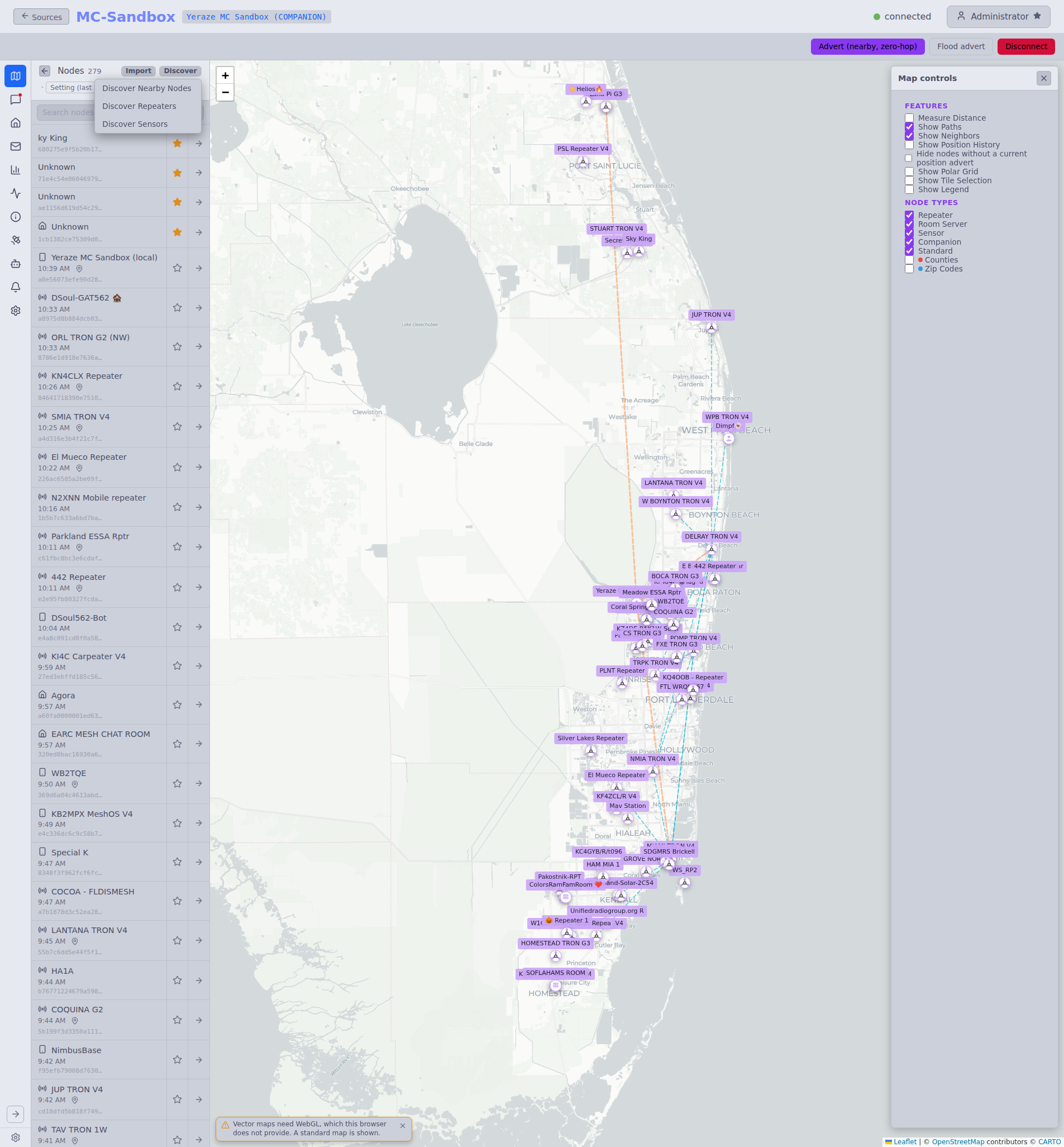
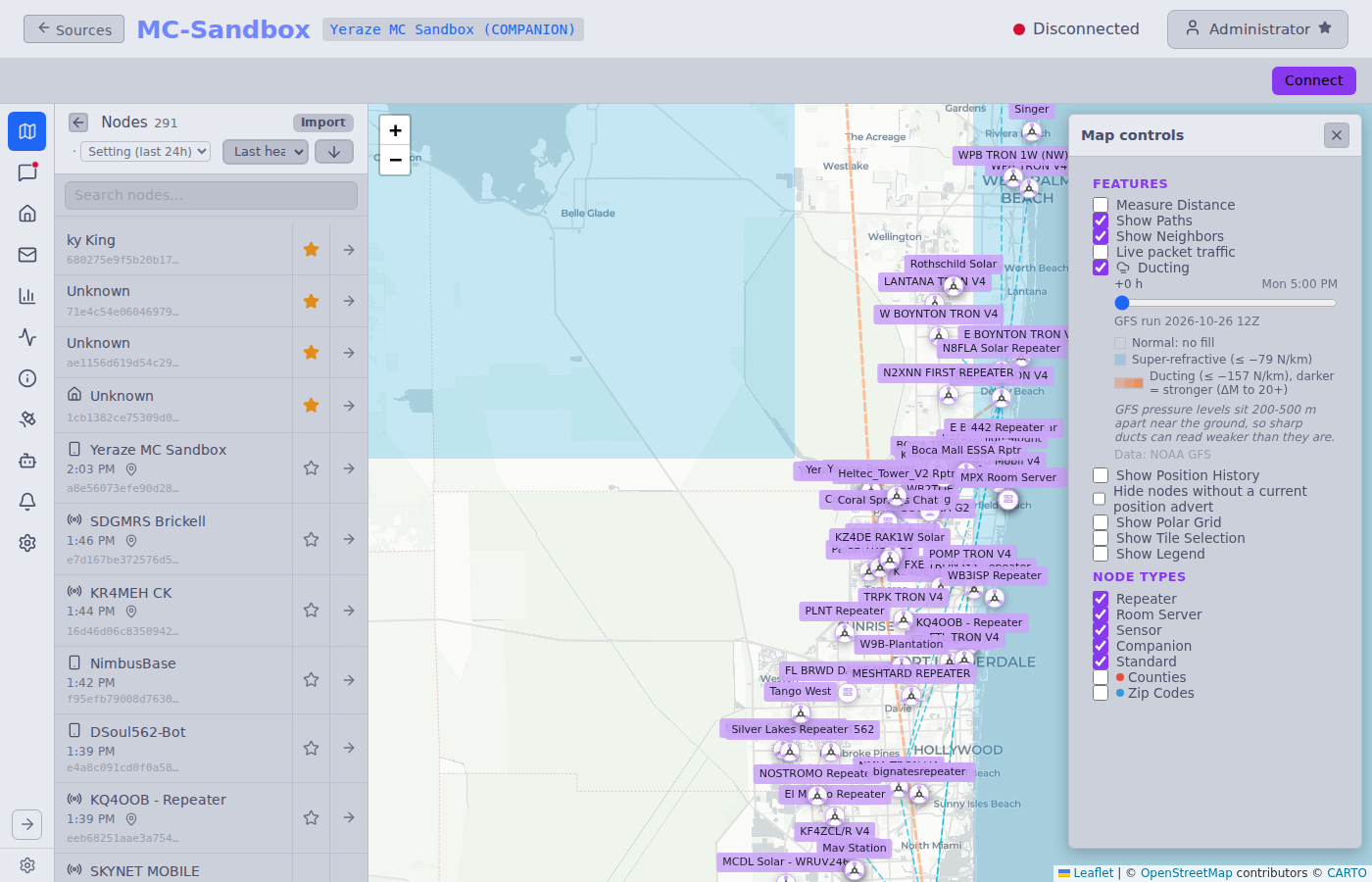
Live packet traffic in the map's Features panel shows packets as your companion hears them, as dots flying from the last hop (or the sender) to your node. It works with the Packet Monitor log off. See Live packet traffic.
Ducting, in the same panel, shades where the lower air bends radio further than usual, from a NOAA forecast. It appears once an admin turns the overlay on, and the forecast covers this source's contacts. See Tropospheric ducting overlay.
On mobile, the node list and the map share the screen, and the map shows first, as on Meshtastic. Node list above the map opens the list, and the collapse button in the list header goes back to the map. On desktop, a collapse button collapses the list to a thin sidebar (preference persisted to localStorage).
Channels
The device's channels with the most recent message stream. Channel-message senders are now extracted from the "Name: body" prefix that MeshCore embeds in the text body, so the sender column and the message body are no longer collapsed into one string.
Message time and order — direct and channel messages show, and sort by, the time MeshMonitor received them. Every MeshCore node keeps its own clock and nothing keeps them in step, so a sender whose clock is a few minutes off would otherwise land out of sequence. When the sender's clock differs from receipt time by 5 seconds or more, the gap shows in parentheses after the time, as receipt time minus sender time: 8:00:00 PM (+15m30s) means the sender's clock read 7:44:30 PM, and (-15m30s) means it read 8:15:30 PM. Hover the gap for a tooltip. No gap shows when the message carries no sender time, or when the sender's time is more than a day from receipt (an unset or broken clock). Unread markers use receipt time too. The same rules apply to messages from Companion, Repeater and MQTT sources, to the MQTT source's channel list, and to MeshCore messages on Unified Messages, where a message heard by several sources shows the earliest receipt time.
Room posts are the exception. A room server sends its backlog when you log in, so the receipt time of a replayed post is the login time. Room posts keep the sender's time and order, and show no gap.
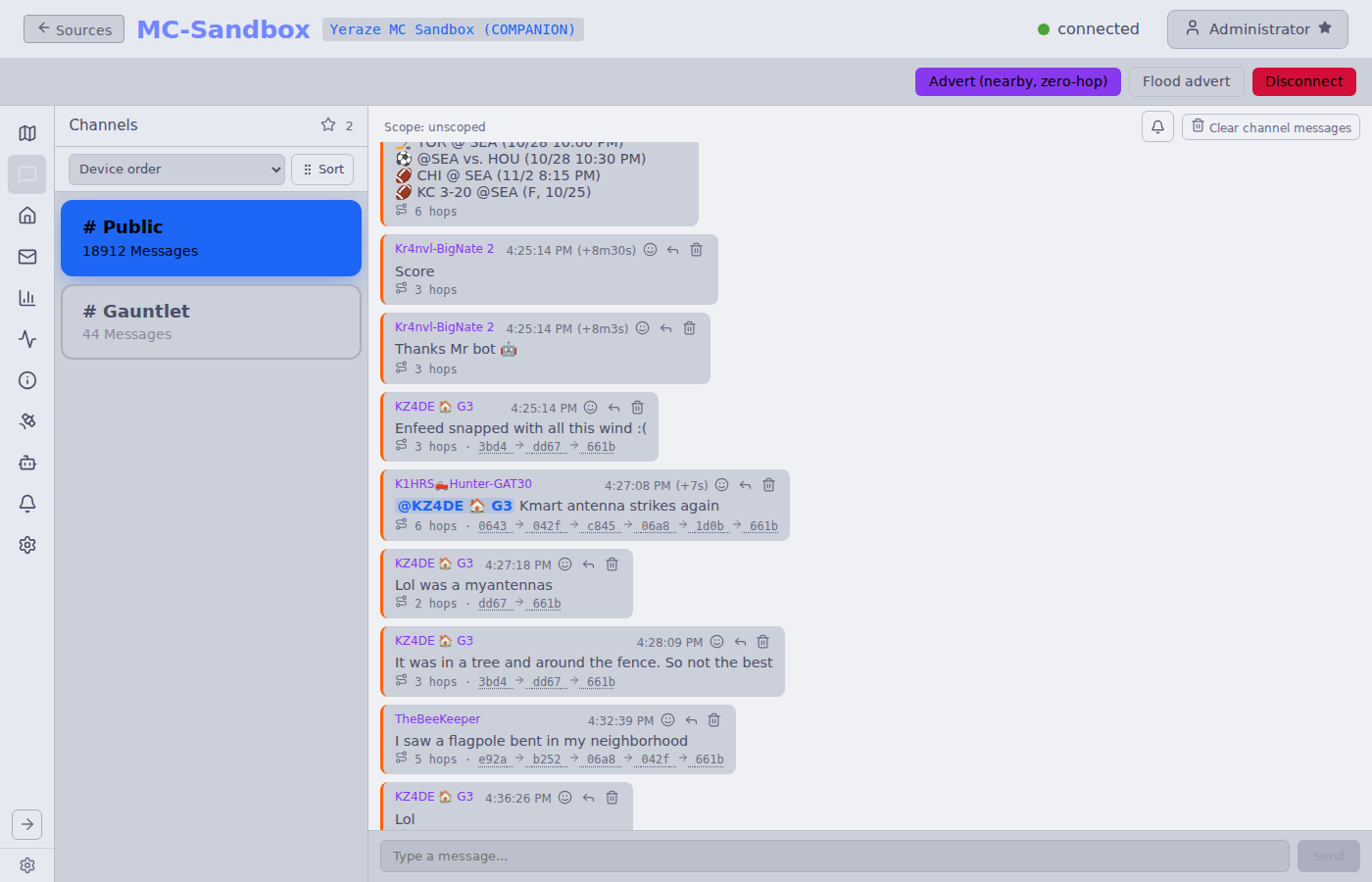
Unread indicators — channels with messages newer than the last time you opened them show an unread dot and a bold name in the channel list. A header badge counts how many channels currently have unread messages, and an optional "unread first" sort toggle (persisted) floats those channels to the top. Opening a channel marks it read up to the newest visible message. Read markers are saved on the server, per user and per source, so they follow your account to another browser or device. The browser keeps a copy in localStorage so the list paints at once, and falls back to that copy when you are signed out.
Mute — a signed-in user can mute a channel with the bell button beside the message box. A muted channel shows no unread dot and does not count in the header badge. The mute is yours alone, on this source.
Protocol stripe — each message carries a thin left border in the MeshCore colour (orange), the same stripe Unified Messages uses to tell MeshCore from Meshtastic and Reticulum. See Source picker.
Reply — received channel messages carry a Reply button. Clicking it prefills the composer with the sender's MeshCore mention (@[Sender]: ) and sends the reply on the scope the original message arrived on, so a threaded answer stays in the same region. The button appears only on incoming channel messages — not on your own messages, and not in 1:1 DMs.
Heard repeaters — outgoing channel posts show a heard badge (a signal icon and a count) with an expandable list of the repeaters that re-flooded the message and the SNR each was heard at. This is populated best-effort by self-echo correlation: when a repeater re-floods your GRP_TXT packet, MeshMonitor hears it inbound and attributes the relay hashes to the most recent matching channel send within a ~30-second window. Channel sends carry no protocol ACK, so this is a heuristic, not a delivery receipt. Correlation runs on the raw inbound packet before the opt-in packet-monitor gate, so it works regardless of whether the packet monitor is enabled. Relay hashes are resolved to repeater names where known; otherwise the raw hash is shown.
Each copy you hear back counts on its own, so when two repeaters both relay a post, both appear. Each repeater also shows its hop count: how many relays sat between you and it (a repeater that heard you directly shows 0 hops; one that only heard another repeater's copy shows 1 hop). The list is sorted by hops, then SNR. The SNR shown is the strongest signal at which MeshMonitor heard that repeater directly; a repeater seen only further back in a relay chain shows no SNR. Posts sent before this feature have no hop counts and sort last.
Sent to radio — a channel post that no repeater has been heard relaying shows Sent to radio in place of the badge. It means your radio accepted the message for sending, and no more. A MeshCore radio does not tell MeshMonitor when it transmits, so the mark does not prove the message went out on the air, and it says nothing about who heard it. If a repeater is heard relaying the post, the mark gives way to the heard badge. A send that the radio refuses, or that receive-only mode blocks, shows an error and adds no message at all. Click the mark to open Delivery Details.
Direct messages and room posts — these carry a real acknowledgement, so your own message moves through up to three marks:
| Mark | Direct message | Room post |
|---|---|---|
| Sent to radio | Your radio accepted it. MeshMonitor is waiting for the recipient's radio to acknowledge it. | Your radio accepted it. MeshMonitor is waiting for the room server to acknowledge it. |
| Double tick | The recipient's radio acknowledged it. | The room server acknowledged it, so it holds the post. This does not show which members have fetched or read it. |
| Warning icon (Not confirmed) | No acknowledgement after all retries (two on the known path, one flood). | No acknowledgement in the time the radio estimated. MeshMonitor does not resend room posts. |
Not confirmed is not proof of loss: the message may have arrived while the acknowledgement was lost on the way back. A room server also sends none when you are not logged in or have read-only access. An acknowledgement that arrives late still turns the mark into the double tick. As with channel posts, no mark says the radio transmitted, and a send the radio refuses adds no message. The marks survive a page reload and a restart. One limit: if MeshMonitor restarts or the radio disconnects while a message is still waiting, the wait is lost, and the message keeps Sent to radio with a tooltip saying no acknowledgement is on record.
Resend — if no repeater was heard relaying one of your channel posts, a Resend button appears next to it 30 seconds after you sent it. Click it and confirm to send the same packet again. The resend carries the original text and the original timestamp, so a repeater that already relayed the first copy drops the resend, and recipients never see the message twice. The resend adds no new message to the stream, and it fires no automations or notifications. If a repeater relays the resend, the heard badge appears on the original message.
Limits, to protect the mesh:
- At most 3 resends per message.
- 30 seconds between the send and the first resend, and between resends.
- Only messages under 1 hour old.
- The button stays hidden while the automatic channel retry is still waiting on that message, and on messages sent before MeshMonitor stored send timestamps (older than this feature).
- You need Messages: write on the source, and the button is hidden while the source is in receive-only mode.
The resend count lives in the database, so restarting MeshMonitor does not reset it. Direct messages don't get this button: they already retry on their own until the recipient acknowledges them.
Channel order
The Channels page has a Sort channels by dropdown with five choices: Device order, Channel name, Last message, Message count and Custom. Last message puts the most recently active channel first and shows how long ago each channel's last message arrived. Message count puts the busiest channel first. Channels with no messages sink to the bottom in both. Pick Custom and click Sort to drag channels (or use the arrows) into the order you want. MeshMonitor saves the sort choice and the custom order in your browser, per source. This changes only how MeshMonitor lists the channels. The slots on the device stay as they are.
Reordering channel slots on the companion
To change the slots stored on the device, open the source's Device Configuration tab, go to Channels, and click Reorder slots on device. Drag channels into the order you want, then click Save order to device.
- MeshMonitor packs channels into slots 1, 2, 3 and so on, which closes empty slots. Public stays in slot 0.
- It writes each slot over the serial or TCP link and reads it back to check it. It sends nothing over the radio. Keep the device connected until it finishes.
- If a write fails, MeshMonitor writes the original layout back. If it cannot confirm the undo, it tells you to reconnect the device and run the reorder again.
- Message history, unread markers, scopes, per-channel permissions, and the auto-ack, auto-announce, auto-responder and timer settings follow each channel to its new slot. A channel that moves to slot 8 or higher loses its per-channel permission grants, because those slots have none.
- Apps connected through the Virtual Node disconnect, so they reload the new channel list.
- Automations that name a raw channel number are not changed. MeshMonitor lists them so you can check that they still point at the right channel.
Node Details
Per-contact DM view (renamed from "Direct Messages" to reflect that it also surfaces node details, not just DMs) with a contact-detail panel that mirrors the Meshtastic NodeDetailsBlock. It surfaces:
- Contact name and type (companion / repeater / room server)
- Hops away (
pathLen) - RSSI and SNR
- Last heard and last advert
- Position (if known). A note under the Position card says when a location override is in use.
- Show on Map button under the Position card — opens the Nodes map on this node, zooms in and opens its popup. It shows only when the map would draw the node, so it is hidden for a node with no position, a 0/0 fix, an ignored or blocked node, or a node hidden by Hide nodes without a current position advert. Works on Companion and Repeater sources.
- Full public key
- Discover Path button — triggers firmware CMD 52 to establish/refresh the route to a companion contact. The button then counts down while it waits for the reply (20 to 60 seconds, from the radio's own estimate) and ends with Path updated and the hop count, or No response from the contact. The countdown sends nothing and never retries.
- Trace Path button — sends one trace along the contact's stored path and lists the SNR at each hop. It shows only when the contact has a known path of at least one hop. MeshMonitor waits 8 to 60 seconds for the reply, as the radio suggests, and never retries a trace. With Auto return path ticked (the default, saved per browser) the trace comes back along the same route, so you get SNR in both directions: it loops through a repeater or room server, and turns at the last repeater for a companion. The return leg costs about twice the airtime. Results also feed Trace SNR History.
- Define Path editor — manually set the route to a contact when you already know the relay hops, instead of probing for it. Add hops in order and pick the per-hop hash width (1, 2, or 3 bytes) — the selector is pre-filled from the current path, and changing the width clears the hop list since the encoding differs. The hop count is capped at 63. Use this when Discover Path can't reach the contact but you know the topology.
- Delivery status — your own DMs show Sent to radio, a double tick, or Not confirmed (see the table under Channels)
Discover Path and the other action buttons need Nodes: write on the source, and a Companion source. Trace Path needs Traceroute: write instead, because it sends a packet.
The star in the panel header, and the one on each row of the Nodes list, toggles a contact's favorite. It needs Nodes: write and works for every contact type. The favorite syncs to the firmware's favourite bit on the device, in both directions. MeshMonitor is the source of truth: to un-favourite a contact, do it in MeshMonitor rather than on the device.
Contact location override
Click Override location in the contact's details to pin the contact to a position you choose. The map, the node list and the other maps then use that position in place of the one in its adverts. It needs Nodes: write on the source.
- The override lives in MeshMonitor only. MeshMonitor sends nothing to the radio, so it works for Companion and Repeater sources, and while the source is disconnected.
- A new advert does not move a pinned contact or clear the override.
- Mark the override private to show it only to signed-in users who hold the Private Positions permission on the source. Everyone else sees the advertised position.
- Cross-source links, the Coverage Report and the other features that read a contact's position use the override too.
It matches the location override on Meshtastic nodes.
Contact names in messages are clickable — clicking a name navigates directly to that contact's DM thread. Messages containing @YourName are visually highlighted.
The panel is collapsible with state persisted to localStorage.
The per-node remote-telemetry config panel hangs off the contact-detail panel (see Per-Node Remote Telemetry below).
Repeaters have no DM composer
MeshCore repeaters (advType=2) can't hold a conversation, so they no longer expose a message composer. The message button is hidden on repeater rows, and selecting a repeater shows its node detail and telemetry/graphs instead of an (empty) conversation pane. The repeater stays listed in the contact sidebar — only the chat surface is dropped. The Meshtastic side does the same for nodes flagged unmessagable.
Message route line
Received channel and DM messages show a route line beneath the body, derived from the packet's relay path:
- direct (with a pin icon) — heard with zero hops (direct RF). The SNR and RSSI of that link follow it.
- N hops and the chain a3 → 7f → 02 (with a route icon) — relayed; the chain lists each relay's hash in order.
Clicking the hash chain opens a route-detail popup with the message's reception details (sender, time, hops, scope, text) and the route expanded per hop into repeater / room-server names from the contact list. Only relay infrastructure ever appears in a MeshCore path — each forwarder appends the leading bytes of its public key at the hash width the original sender chose (1–3 bytes) — so matching is limited to those contacts. Unknown hashes stay as raw hex; when several repeaters share a hash prefix, the popup best-guesses the one closest to the neighbouring hops' positions and labels it as such.
When every relay hop resolves to a contact with a known position, the popup also shows a Packet flow mini map: a dashed line tracing the packet geospatially across the relays, each hop marked and labeled (#1 Hilltop, #2 Downtown, …). The sender and your local node are added as endpoints when their positions are known. If any hop is unknown or unpositioned the map is omitted entirely — a partial line would misrepresent the path.
Naming hops from other sources. When a relay hash matches none of this source's contacts, MeshMonitor can look it up in the MeshCore nodes of other sources you can read, including MQTT feeds. Turn it on with Use other sources to resolve unknown hops under Settings → MeshCore Messaging. It is off by default. It changes only what you see: nothing goes over the air.
- Your own contacts always win. Other sources fill in only hops with no match of your own.
- A single match reads
Name (via Source). When several nodes share the hash, the popup shows the nearest as a guess, such asName? (via Source, 3 candidates), and lists all candidates, nearest first. A guess never appears on the Packet flow map. - A node from a device-backed source counts as soon as that source knows it. A node from an MQTT feed counts only after its signed advert checks out. MeshMonitor checks MQTT adverts only while this setting is on, so each MQTT node becomes usable when it sends its next advert.
- You see only nodes from sources you can read. A private or hidden position never ranks a guess for you.
Room-server posts and messages with no recoverable path show no route line.
Send bar
Below every MeshCore composer (channel and DM) a live <bytes>/<limit> counter shows how much of the packet budget the current draft uses. Counting is UTF-8 byte-accurate, not character-based, so emoji and CJK characters cost more than one byte each. Limits are per-context:
| Context | Limit |
|---|---|
| Channel message | 160 bytes minus your node name and 2 (127 for the longest name) |
| Direct message | 160 bytes |
The counter appears only once the draft is non-empty, turns yellow at 90% of the limit and red when over, and the Send button is disabled while over the limit (the backend rejects an over-budget send as well).
Send under another name (API)
An API caller can send a channel message under a name of its own (senderName on the send endpoints, see the REST API). This is off by default and needs a source admin to set it up.
Setup. Open Device Configuration, API sender names on a companion source. Turn on Allow API callers to send under these names and list up to 16 names, one per line. Saving needs configuration:write on the source. Each name is 1 to 31 bytes, with no :, no control characters and no leading #.
What it sends. MeshMonitor builds the channel packet itself and hands it to the radio as a raw packet, so the name in the message is the name you chose. The radio's own name is not used.
- Needs companion firmware 1.16 or later. Older firmware answers
FIRMWARE_UNSUPPORTED. - Needs client repeat off on the companion. With it on, the radio would send its own raw packet a second time, so MeshMonitor refuses.
- Scope works as for a normal send: a per-message scope, else the channel's scope, else the source default, else the node's own default region.
- The text limit is 5 bytes lower than a normal channel send: 155 minus the name's bytes minus 2.
- The message shows once, with a Sent as
<name>line on the bubble. The radio's own copy of the packet is dropped, so Auto-Acknowledge, Auto-Responder, Forwarding and notifications never answer it. On a second source on the same channel the message counts as ours for the next 30 minutes, so nothing there answers it either. - Resend goes out raw under the same name and the same time stamp. It is refused if the name was removed from the list or the feature was turned off.
- Receive-only mode blocks it like any other send.
Impersonation
MeshCore does not prove who sent a channel message. Anyone with write access to the channel, on a source that allows a name, can post as that name. Receivers, MeshCore apps and MeshMonitor's own block list cannot tell the difference. List only names you want your API callers to use. Every send is in the audit log (meshcore_message_sent_as, no message text), and so is each list change (meshcore_sender_names_updated).
Reactions
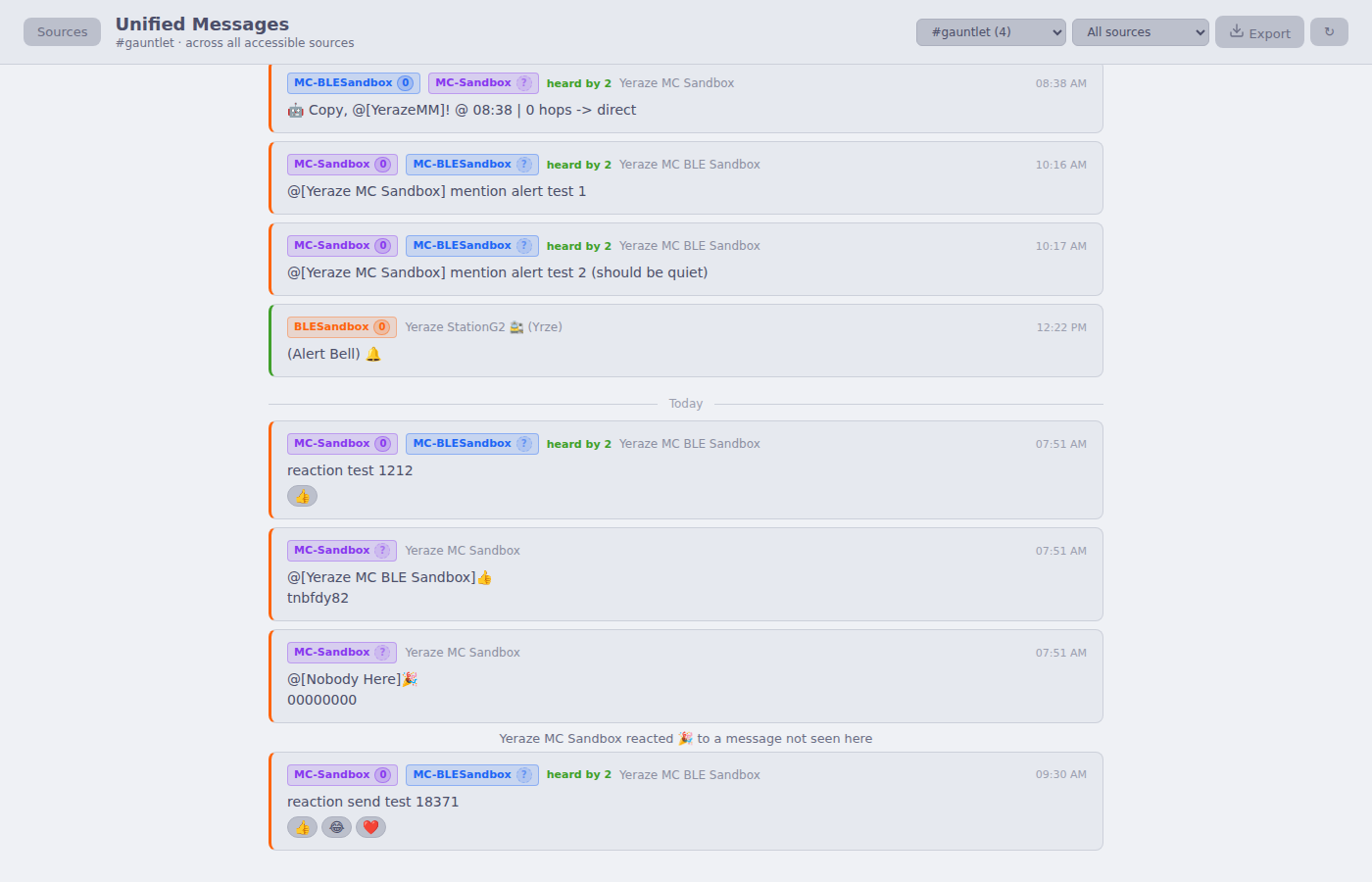
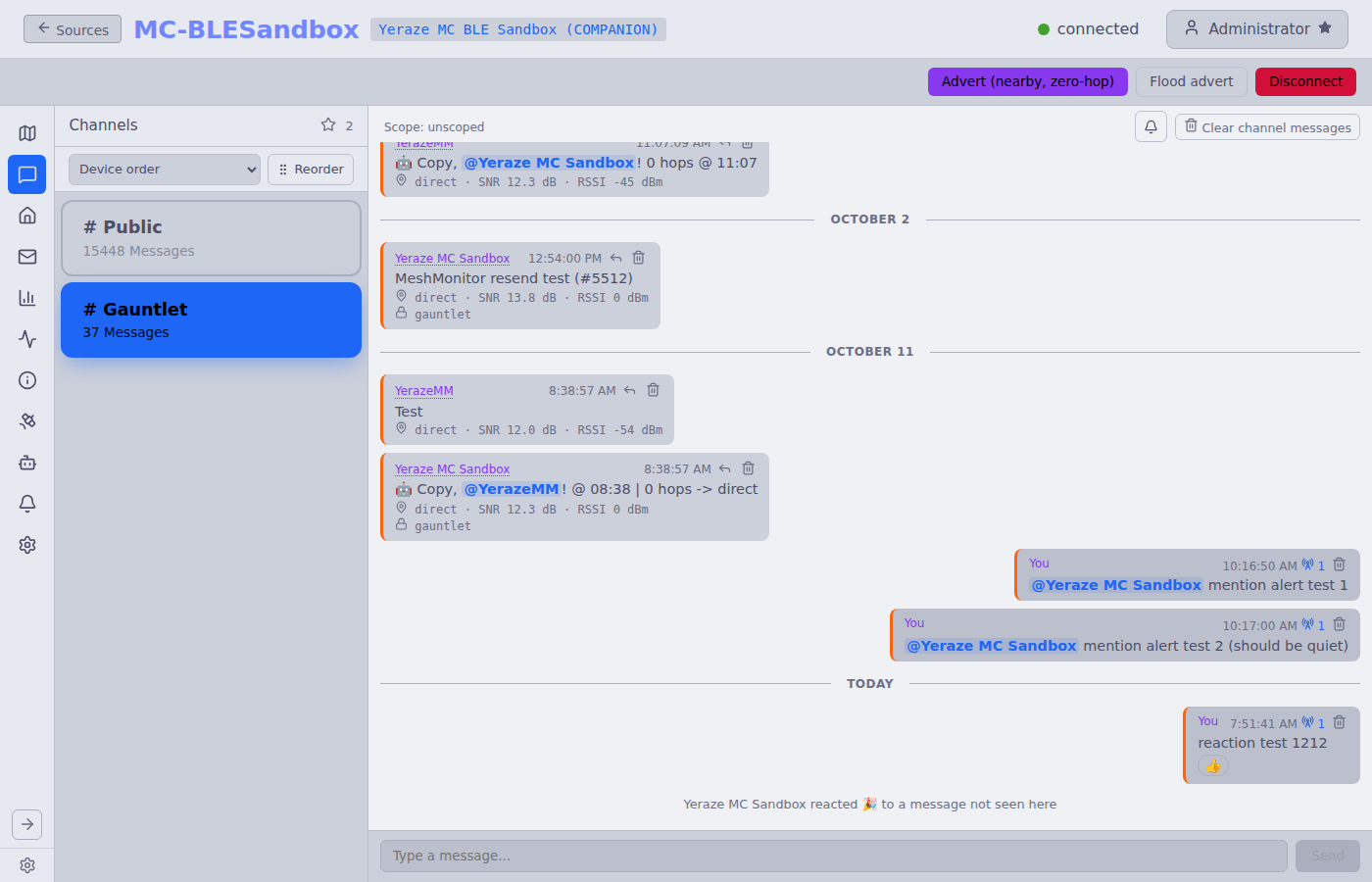
MeshMonitor reads emoji reactions sent by MeshCore One (1.4.1 and later) and meshcore-open. MeshCore has no reaction packet: these apps send a short text message that names the target by a hash, so without this support a reaction shows as a line like @[Alice]👍 followed by eight odd characters.
A reaction shows as a chip under the message it answers. The chip carries a count when more than one node sent the same emoji; hover it for the names.
When this source never heard the target message, the reaction shows as one dim line: "Bob reacted 👍 to a message not seen here". Hover it for the original text. If the target arrives later, the line turns into a chip.
A reaction is not a message. It does not mark a channel or DM unread, raise a mention alert, or trigger Auto-Responder or Forwarding. It fires an automation only when that rule has Also fire on MeshCore reactions ticked (see Automation Engine).
Reactions are matched per source. A reaction heard on one source does not attach to a message only another source heard.
Unified Messages shows the same chips on the merged message. A reaction heard on several sources counts once. You see only what the sources you can read have matched, and chips there are read-only: send reactions from the source's own MeshCore page.
CSV export leaves reactions out unless you tick Include emoji reactions. A reaction row has
reaction= 1 andreply_to_id= the id of the message it answers.Search leaves reactions out.
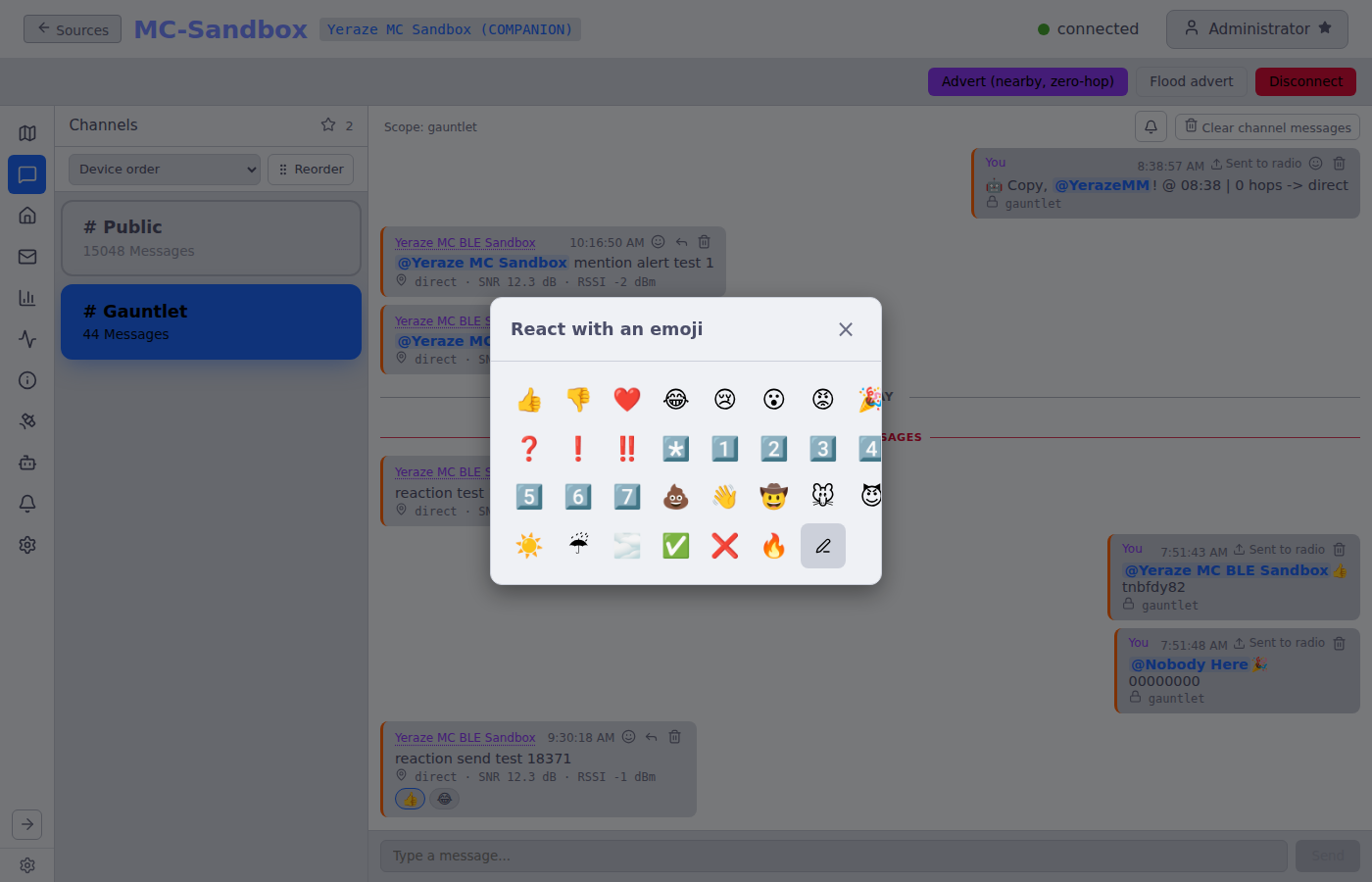
To send a reaction, use the react button on a message and pick an emoji, or click a chip another node left to add the same one. Your own reaction shows with an accent border. MeshMonitor sends the MeshCore One format.
You can send each emoji once per message. A reaction is never resent, and there is no way to take one back (MeshCore One has none either).
You cannot react to a room post, to another reaction, or to a message stored before reactions were supported.
Three switches sit under MeshCore → Settings → Reactions:
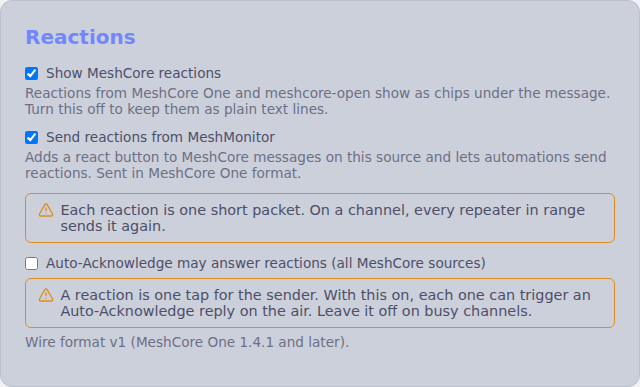
| Setting | Scope | Default | Effect |
|---|---|---|---|
| Show MeshCore reactions | This source | On | Off stores and shows reactions as plain text, as before. |
| Auto-Acknowledge may answer reactions | All MeshCore sources | Off | On lets a reaction that matches your Auto-Acknowledge rules trigger a reply. |
| Send reactions from MeshMonitor | This source | On | Off hides the react button, makes the API refuse, and makes automations skip their reaction. |
The Auto-Acknowledge switch covers the built-in Auto-Acknowledge only. It has no effect on automations.
Airtime
A reaction is one tap for the sender. With the second switch on, each one can trigger an Auto-Acknowledge reply on the air. Leave it off on busy channels.
Each reaction you send is one short packet. On a channel, every repeater in range sends it again. Sends share the normal message rate limit, and receive-only mode blocks them.
Node Info
A dashboard-style view of the connected local companion or repeater. It graphs the data collected by the local-telemetry poller (see Local-Node Telemetry below) across 1h / 6h / 24h / 3d / 7d ranges, plus identity (firmware version, build, model), current radio settings, current health, and cumulative counters.
This view is only available when the page is mounted from a per-source URL — the legacy app-shell mount path does not have a sourceId and hides the Node Info entry.
Configuration
Where you change the device's settings:
- Identity — Name and advert
- Location — Position and advert-location policy. Type the coordinates or click the map to drop a pin (drag it to move it, or use Use this device's location), then press Save location.
- Radio — Frequency, bandwidth, spreading factor, coding rate (now with a preset selector)
- Telemetry mode — Which telemetry classes the device emits (see Telemetry Modes)
- Default path hash size and Default region / scope — separate sections after Telemetry
- Radio contact list and Device actions — contact list, adverts, and node discovery
- Bluetooth PIN (Companion) — keep the firmware default (
0) or set a fixed six-digit PIN (100000–999999). The radio applies it at the next boot, and only Bluetooth builds use it. - Multi-ACKs (Companion, firmware 1.7.4 or later) — on or off. When on, the radio sends one extra ACK for each direct message it receives, and every hop on the return path repeats it: about one extra transmission per hop per DM. Leave it off on a busy mesh.
- Factory reset (Companion, firmware 1.7.3 or later, admins only) — in the danger zone. Type the device name to confirm. It erases the identity key (the node gets a new public key, so peers lose it), every setting, all channels, the contact list and the WiFi credentials, then reboots. MeshMonitor keeps its own history and records the new key in the audit log instead of raising a key-change alert. Export the private key first if you may want it back. On a WiFi or TCP source you may lose network access to the radio.
Share a channel
Each channel card has a Share button. It shows a QR code and a link in the format the MeshCore app accepts:
meshcore://channel/add?name=<name>&secret=<32 hex chars>[®ion_scope=<scope>]The link includes the channel secret, so sharing needs Configuration: write on the source. Import from URL in the channels header reads such a link, shows the name, a masked secret, the scope and the target slot, then writes it to the lowest free slot (never slot 0). If the radio already has that secret, it reports the existing slot instead. A hashtag channel link may leave out the secret; MeshMonitor derives it from the name. See the MeshCore QR code reference.
Companion Backups
A MeshCore Companion source has the same Backup section as a Meshtastic source, on its Configuration page. Each source has its own files, schedule and retention (see Device Configuration Backup for the permissions and file rules). Repeaters and Room Servers have no backup section; use their settings export instead.
What a backup holds
- The device name, radio parameters (frequency, bandwidth, spreading factor, coding rate), TX power and coordinates
- The "other parameters": the manual-add flags, the three telemetry sharing modes, the advert location policy, and multi-ACKs when it is 0 or 1
- Auto-add options, the default path hash size and the BLE PIN (when the radio reports one)
- Every configured channel slot with its secret key, and each channel's region scope
- A fixed set of MeshMonitor settings for the source: default region, default path hash size and "respond to discovery"
A backup never contains the radio's private key or its contacts. To bring an identity back, use Private key import in Device Management. The file is plain YAML, so treat it as a secret: it is saved with mode 0600, kept out of system backups, and downloading it needs configuration:write on the source.
Creating a backup
Creating a backup reads the radio over its local serial or TCP link. Nothing is transmitted over the air. It needs a connected Companion. Scheduled backups skip a source that is offline or busy with a restore.
What a restore changes
A restore runs best effort, one section at a time, and reports what failed or was skipped. It also never transmits. The order is: name and coordinates, other parameters, auto-add, path hash size, BLE PIN, channels, the MeshMonitor settings, TX power, and the radio parameters last.
- The radio applies at once. If the backup is for another frequency or preset, the node leaves its mesh until you change it back. The confirmation shows the current and the backup radio side by side and warns when they differ.
- TX power is limited to what the connected radio supports. When it is clamped, the result says so; when the radio's maximum is unknown, TX power is skipped.
- Channels: only the slots in the backup are written. Slot 0 (reserved) is never written, slots past the radio's capacity are skipped, and every other slot stays as it is. Overwriting a slot changes which channel that slot's message history, notification rules and
channel_Npermissions refer to, the same as editing the slot by hand. - BLE PIN: a changed PIN takes effect after the radio's next boot.
- Multi-ACKs above 1 is not restored (airtime cost), and it is skipped on firmware older than code 7.
- Identity: the restore compares the file's public key with the connected radio. A different key is flagged but does not block, so you can restore settings onto a replacement or freshly reset radio. The radio keeps its own identity.
Telemetry
MeshMonitor collects three kinds of telemetry from MeshCore sources, all written into the same telemetry table the Meshtastic side uses (just with mc_* type names) so the graphing UI works the same way.
Local-Node Telemetry
A module-level singleton polls every connected companion every MESHCORE_TELEMETRY_INTERVAL_MS (default 5 minutes). It calls GetStats core / radio / packets, GetDeviceTime, and DeviceQuery — none of which transmit on the air — and writes batched rows stamped with sourceId and prefixed mc_. tx/rx duty-cycle and packet rates are computed as deltas vs the prior sample.
A directly attached Repeater source is polled on the same timer. MeshMonitor reads the repeater's serial console (stats-core, stats-radio, stats-packets, clock, ver, board) and writes the same mc_* rows. These are local serial reads, and none of them transmits. The repeater's clock reply gives hours and minutes only, so clock drift is measured to the minute. The one-click time sync on Node Info stays Companion-only.
This drives the Node Info view.
Telemetry Modes
You can toggle which telemetry classes the device itself emits over the air:
- base — Battery, voltage, uptime
- loc — Position
- env — Environmental sensors (where supported by the hardware)
Set these from the Configuration view; the device-side flag is persisted on the companion.
Per-Node Remote Telemetry
Each row in meshcore_nodes can opt in to periodic req_telemetry_sync requests with a per-node interval. The remote-telemetry scheduler walks every registered manager every MESHCORE_REMOTE_TELEMETRY_TICK_MS (default 30s), picks at most one most-overdue eligible node per source, decodes the LPP response, and writes mc_<lpp-type-name> rows into the same telemetry table.
A global 60-second minimum spacing between any two scheduled mesh ops on the same source is enforced through MeshCoreManager.lastMeshTxAt, so future scheduled operations on the same manager (auto-traceroute, periodic adverts, etc.) coordinate against a single field instead of each owning their own throttle.
You configure this from the contact-detail panel in the Node Details view:
- Open the DM with the target contact
- Open the contact-detail panel
- Toggle Remote telemetry on
- Set the interval (minutes)
- Save
The config requires configuration:write on the source. Read-only users see the panel with controls disabled and a banner explaining why.
On-demand polling
Alongside the scheduled config, the panel has two buttons to pull telemetry from a node right now instead of waiting for its interval:
- Poll Status — requests battery / uptime / counters (repeater- and room-server-oriented).
- Poll Environment (LPP) — requests a Cayenne-LPP environment reading (companion-oriented).
Both transmit on the mesh, so they share the per-source 60-second mesh-TX gate — if another scheduled or manual op fired too recently the request is refused with HTTP 429 and a Retry-After, surfaced as a throttle message on the button. Each button shows a pending state and reports how many telemetry rows were written. On-demand polling requires only nodes:read on the source (and returns 409 if the source isn't connected).
The composite primary key on meshcore_nodes is (sourceId, publicKey), so the same device advertising under two different sources is tracked independently.
Node Display: hide incomplete nodes and map dimming
The Node Display section of the MeshCore Settings tab also holds two per-source options that follow the Meshtastic ones. Both save with the source you are viewing and need settings:write on it.
- Hide Incomplete Nodes hides nodes that have no advertised name, or whose device type is unknown, from both the Nodes list and the map. Favorites and your own node always show.
- Dim old nodes on the map fades map markers as a node goes quiet. A marker is fully opaque until Start dimming after (hours), then fades in a straight line down to Minimum opacity at the end of the node's age window. That window is Maximum Age of Infrastructure Nodes for Repeaters and Room Servers, and the Node list & map window for everything else. Only map markers dim; the Nodes list does not. With a window of 0 (show all), nothing dims. Your own node never dims.
Telemetry settings and cleanup
The MeshCore Settings tab has two telemetry controls, both scoped to the source you are viewing.
- Telemetry section: Telemetry Visualization (Hours) (1-168) sets the graph window, and Favorite Telemetry Storage Length (Days) (7-90) sets how long favorited telemetry is kept. They save per source, so they never change another source. A source with no saved value follows the global default set on the Meshtastic side. Saving needs
settings:writeon the source. - Telemetry data section (admins only): Purge telemetry (this source) deletes the stored telemetry of this source and leaves every other source alone. Clean outliers... opens the outlier dialog for this source to preview and remove bad readings for one metric.
Regions / Scopes
Some MeshCore meshes restrict which flood traffic their repeaters forward. A repeater running region denyf * drops any un-scoped flood packet — so a message MeshMonitor sends without a scope simply never propagates past those repeaters. The Germany mesh is the most common example.
A scope (also called a region) is just a named tag — e.g. germany or muenchen — that MeshMonitor stamps onto outgoing flood traffic. Repeaters configured to allow that region then forward it. The wire value is derived purely from the name (a hash of #<name>), so two operators only have to agree on the text of the region name to interoperate; there's no shared key to exchange.
One global scope on the device
The MeshCore companion firmware exposes only a single, global flood scope, not a per-channel one. MeshMonitor owns the per-channel/per-source scope mapping itself and asserts the right scope on the device immediately before each send, serializing those operations per source. If the scope can't be asserted, the send is aborted rather than leaked un-scoped.
Setting a scope
There are three layers, resolved most-specific-first (channel scope → source default scope → unscoped):
- Per-channel Region / Scope — each channel's settings has a Region / Scope field. Traffic on that channel is stamped with this scope.
- Per-source default scope — the MeshCore Device Configuration page has a default-scope section (after Default path hash size) backed by the
meshcoreDefaultScopesetting. Channels without their own scope fall back to this, so you can scope a whole source with one value. - Unscoped — leave both blank and MeshMonitor asserts a truly unscoped flood (companion firmware v12+ accepts a raw
SetFloodScopepayload that clears the device's default), so the packet leaves your radio with no region tag regardless of any default the device itself has configured. On older firmware that lacks the raw form, MeshMonitor falls back to the node's default; upgrade the companion firmware if you rely on unscoped sends from a source whose device is set to a default region.
Channel-settings and the per-message override both offer a region-picker datalist drawn from your saved + discovered regions (see below); free typing is still allowed. Region names are normalized (leading # stripped; letters, digits, and hyphens kept).
What gets scoped
Originated flood traffic is scoped end-to-end. That covers channel messages, DM messages, adverts, remote-admin login, remote telemetry requests, and remote CLI commands. Operations that are never flood-forwarded — node discovery (zero-hop), local/config-only commands, and direct-routed traffic — are intentionally left alone.
Discover Regions
In the default-scope section of MeshCore Device Configuration, the Discover regions from repeaters button asks nearby repeaters which regions they serve:
- It runs a 0-hop sweep first and queries only the repeaters (and room servers) that answer in direct RF range, in arrival order — not every repeater you've ever heard.
- If the first sweep finds nothing it retries once.
- It distinguishes the two empty cases: no nearby (0-hop) repeaters were found vs. repeaters answered but reported no regions.
Discovered region names render as chips you can click to fill the scope field, and each chip has a save (+, ✓ once saved) button to add it to the catalog.
Why 0-hop
A repeater only answers a regions query over a direct route, so MeshMonitor installs a zero-hop path to each responder before asking. A benign set_out_path ack-timeout during this step is expected and logged at debug level — it doesn't mean the discovery failed.
Per-message scope override
Next to the channel compose box is an optional one-off scope/region override. It applies to that single message and is never persisted to the channel — your next normal send re-asserts the channel/default scope. It defaults to the channel's resolved scope, offers the same discovered/saved-region datalist, and resets when you switch channels. Leave it blank/whitespace to send that one message explicitly unscoped.
Scope of sent and received messages
Channel and DM messages show a scope line so you can tell which region a message used — on both received messages (how it reached you) and your own sent messages (which scope it went out on). MeshMonitor recovers the scope by recomputing each of your known region names against the packet (the raw name can't be reversed out of the wire value):
- A lock icon and muenchen — scoped to a region you know; the name is shown.
- A lock icon and #a3f2 — scoped, but to a region not in your known set; the raw code is shown as hex.
Un-scoped messages show no scope line at all — the absence of a badge is itself the signal that the message flooded without a region.
Saved regions catalog
The MeshCore Settings view has a Saved regions section — a catalog of region names (with optional notes) you've saved, so you don't have to retype them. The catalog is global (shared across all MeshCore sources, not per-source). Saved regions feed the region-picker datalists on the channel scope field and on the per-message override (the override list is the de-duplicated union of saved + discovered regions). Add regions inline (or via the + on a discovered-region chip) and delete them per-item.
Radio contact table vs MeshMonitor
A MeshCore companion radio and MeshMonitor each keep their own list of nodes, and the two can drift apart:
- MeshMonitor's node list holds every node MeshMonitor has heard about on this source: adverts, messages, packets, and contacts read from the radio. Favourites live here.
- The radio's contact table is stored on the device itself and holds a limited number of contacts (the firmware reports the limit). The radio can only log in to, poll telemetry from, request status from, or message a node in this table. A node missing from it fails at once; nothing goes on the air.
Auto-add contacts
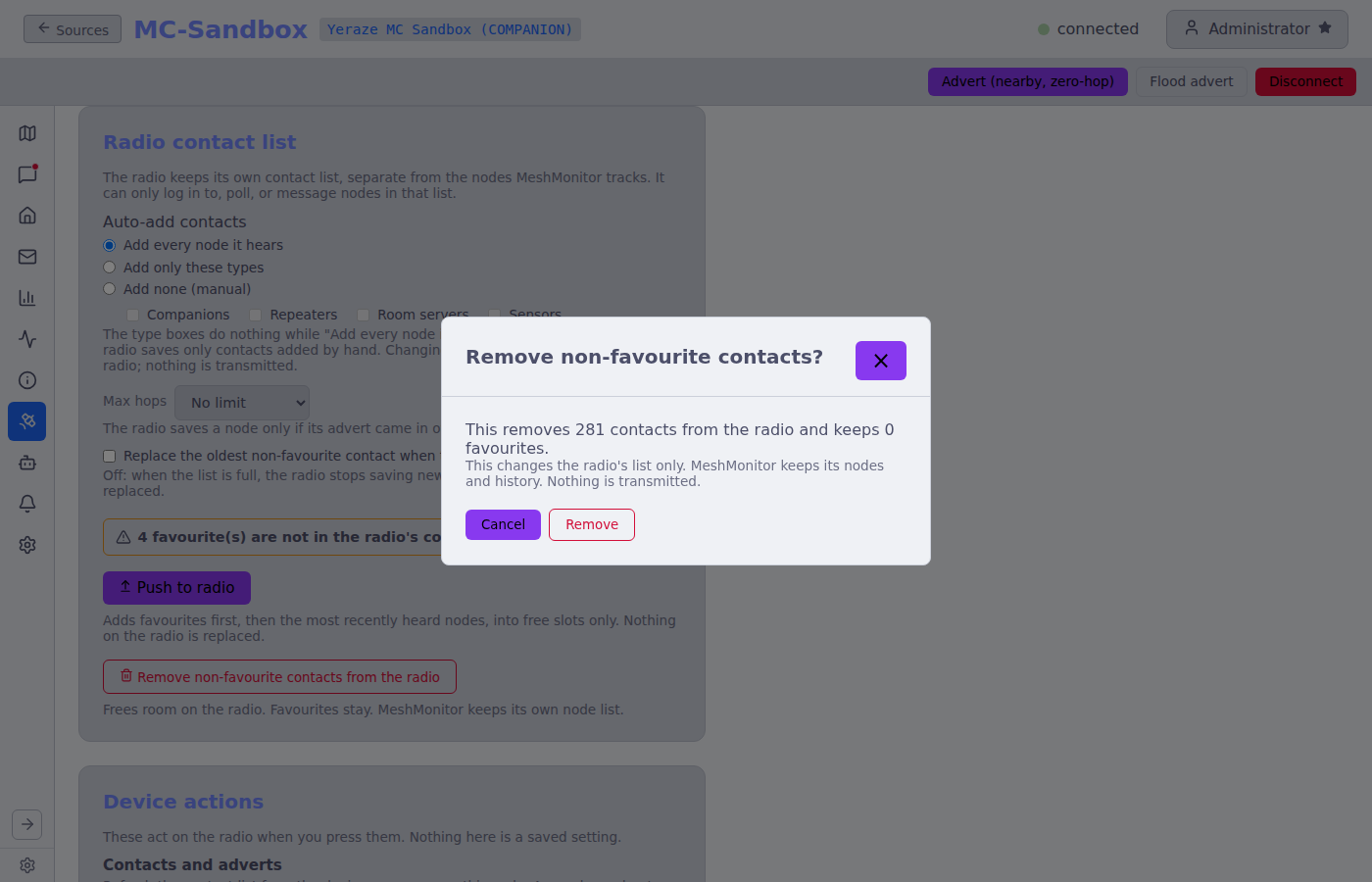
The radio has three ways to treat the nodes it hears. Pick one in MeshCore → Device Configuration → Radio contact list (needs configuration:write):
- Add every node it hears (the usual default): the radio saves each node that adverts, until the table fills. The type boxes are ignored in this mode.
- Add only these types: the radio saves only the types you tick: Companions, Repeaters, Room servers, Sensors.
- Add none (manual): the radio saves only contacts added by hand. Nodes it hears still show up in MeshMonitor, but the radio never saves them.
Two more options apply to the first two modes:
- Max hops: the radio saves a node only if its advert came in over that many hops or fewer. No limit, Direct only, or up to 1 to 8 hops (the radio can hold values up to 64; one set elsewhere stays in the list).
- Replace the oldest non-favourite contact when the list is full: off by default. Off, a full radio stops saving new nodes. On, it drops its oldest contact that is not a favourite to make room.
These write settings to the radio over the serial or TCP link. Nothing is transmitted. Each change sends only the field you changed; the radio's other bits (and the telemetry and advert-location settings that share a firmware command) stay as they were. Firmware too old to know these options shows This firmware does not support auto-add options; the older on/off toggle still works there.
What "favourite" protects
A contact is a favourite when the radio's favourite flag is set or MeshMonitor marks the node as a favourite. Favourites are never replaced by the option above and never removed by the bulk remove below. Marking a node as a favourite in MeshMonitor also sets the flag on the radio.
Remove non-favourite contacts
Remove non-favourite contacts from the radio (needs nodes:write) frees room on a full radio. A dialog shows how many contacts it will remove and how many it keeps. It then removes them one at a time from the radio's table and shows Removed N, kept N, failed N. This changes the radio's list only: MeshMonitor keeps its node rows and history, and the nodes come back on the radio the next time they advert (or with Push to radio). Only one run can go at a time. A local write; nothing is transmitted.
Symptoms when the two are out of step
- MeshMonitor shows the node, even marked as a favourite, but logging in to it is refused with "not in the radio's contact list".
- Telemetry and status requests to it do nothing, while the radio still hears its adverts.
- The server log at connect says
N locally-favourited node(s) not in the device contact table. When auto-add is off the message says so. - The Device Configuration page shows a banner: N favourite(s) are not in the radio's contact list.
Two fixes
- Turn auto-add on. The radio then stores nodes as it hears their next advert. Nodes it already missed come back only when they advert again.
- Push to radio. The Push to radio button in the same section (needs
nodes:write) copies MeshMonitor's nodes into the radio's table straight away, in this order: favourites first (most recently heard first), then the other nodes by most recently heard. It fills free slots only: it never replaces a contact already on the radio. It skips the local node, nodes whose type is not known yet (wait for an advert), and nodes on the Ignore / Block list. If the radio's capacity can't be read, it pushes favourites only. A summary lists what was added, what was already there, what was skipped and why, and how many free slots remain. Like auto-add, this is a local write; nothing is transmitted. If the radio is full, turn on replacing the oldest contact or remove non-favourite contacts first.
To add a single node, open it in Node Details and use Add to radio on the "Not in the radio's contact list" notice.
Remote Administration
Added in 4.7
The MeshCore Remote-Administration console ships in 4.7 — gated on the new per-source remote_admin permission. See the internal architecture doc (docs/internal/dev-notes/MESHCORE_REMOTE_ADMIN.md in the repo) for the protocol-level architecture; this section is the operator-facing summary.
MeshCore's remote-admin protocol is CLI text sent as an encrypted DM — the same PAYLOAD_TYPE_TXT_MSG packet a chat message uses, distinguished by a single txt_type byte (CliData = 1 vs Plain = 0). The remote node dispatches the text into its CommonCLI::handleCommand handler and replies with one packet of text. MeshMonitor wraps the wire-level traffic behind two consoles.
Remote console (per contact)
For any Repeater (advType=2) or Room Server (advType=3) contact in your MeshCore source, the contact-detail panel surfaces a Remote administration section. The user with remote_admin:write on that source can:
- Log in with the node's admin password (or blank for guest access). Optionally tick "Remember this password" — see Credential store below.
- Send arbitrary CLI commands (e.g.
ver,stats,neighbors,set radio …) and see the reply inline in the transcript. - Click quick-action buttons that pre-fill the input for the most-common commands.
Rebootis flagged danger — see Danger commands below. - Read live stats in a structured panel (battery, queue, packet counts, air time, last SNR / RSSI) auto-refreshed every 30 s while logged in.
- Manage the ACL via a
setpermform: paste a 64-char hex pubkey, pick Remove / Guest / ReadWrite / Admin, click Apply. The built command (setperm <pubkey> <level>) lands in the same transcript as free-typed commands.
The login console renders for Repeater / Room Server advTypes. Companion contacts on firmware 1.18.0 and later use a login-free console instead (see Companion remote CLI). Replies are single-packet (≈130 – 180 byte MTU) and there is no chunking — long output is truncated at the firmware level.
Login timing and retries
A login to a repeater or room server can take a while on a busy mesh. MeshMonitor waits for a reply for twice the firmware's time estimate, but never less than 10 s and never more than 90 s. If a login gets no reply, the admin buttons try again, up to 3 attempts in all, with a 2 s pause between them. At the 10 s floor, three silent attempts take about 34 s; a slow path with a larger estimate takes longer, so give a reverse proxy a generous timeout.
MeshMonitor never retries when the node refuses the password. It shows the refusal at once, because sending the same password again cannot help.
Every login screen (remote console, contact details, direct messages and rooms) shows live progress, such as "Attempt 2 of 3: waiting for a reply (14 s left)". Click Cancel to stop the login.
Resuming a session
A repeater keeps you logged in until its client table fills up; there is no idle timeout, and an admin login even survives a reboot of the repeater. So MeshMonitor remembers each successful admin login, per source and per node, in its database. The record survives a MeshMonitor restart or upgrade. A guest login (blank password) is not remembered, because a repeater ignores commands from a guest; it also replaces any admin login remembered before it.
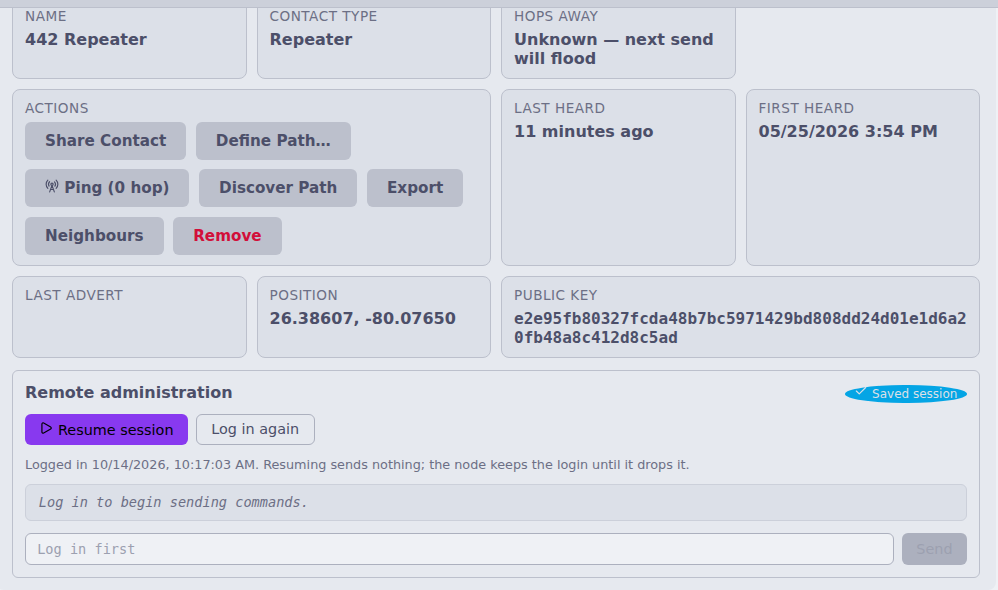
When you open the console and a login is remembered, it shows Resume session. Resume turns the console on without sending anything over the air. Log in again does a fresh login (with the saved password, or the password dialog when none is saved).
The console never logs in or resumes on its own. You always click.
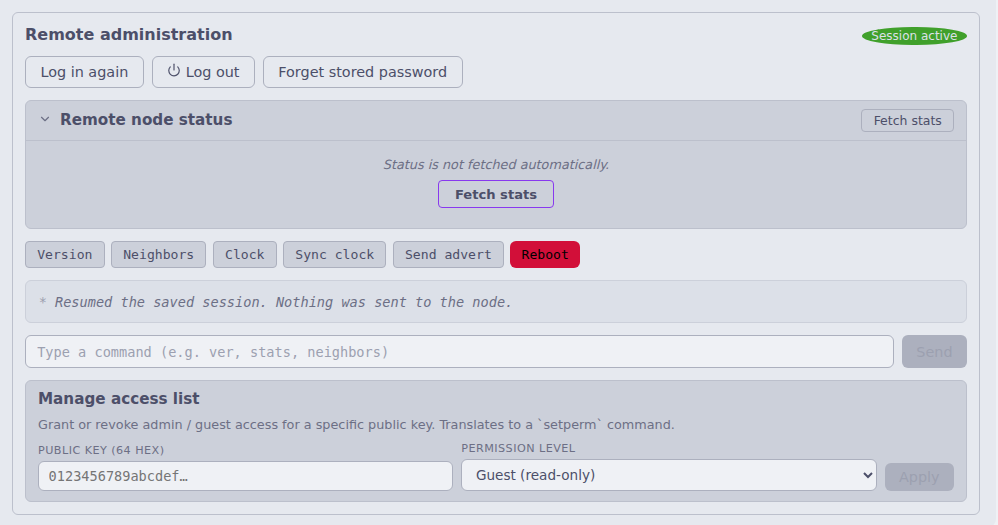
Log out forgets the remembered login on this server. It sends nothing to the node: MeshCore has no logout command, so the node keeps you in its table until it drops you or someone removes you with
setperm.A remembered login only counts for the radio that made it. If you swap the companion radio on a source, you need to log in again.
If the node has dropped you (for example it rebooted within a few seconds of your login, or its table filled up), it ignores your commands without a reply. The transcript then says "No reply. If the node rebooted or dropped the session, log in again." A single missed reply can also be a lost packet, so MeshMonitor keeps the record until you log in again or log out.
A refused password, or Forget stored password, also forgets the remembered login.
Scheduled jobs reuse the same record. A scheduled clock push to a repeater with a remembered login costs 2 packets (the command and its reply) instead of 4. If the repeater does not answer, MeshMonitor forgets the record, logs in once with the saved password and tries once more, then gives up until the next scheduled run.
Local console (Configuration view)
The Device Configuration tab gets a Device console for the locally connected node. Dispatch depends on the firmware:
| Local firmware | Console behavior |
|---|---|
| Repeater / Room Server | Forwards to the device's native serial CLI via sendRepeaterCommand. Same command set as a remote Repeater. |
| Companion, firmware 1.18.0 and later (protocol v14) | Sends each line to the firmware's own CLI (CMD_RUN_CLI_COMMAND) over the serial or TCP link. Nothing is transmitted. The firmware knows config get and set, ver, board, reboot and poweroff or shutdown. stats, clock, advert, advert.zerohop, help and version still use the interpreter below. Quick-action buttons: Version, Stats, Clock, Radio, TX power, Time zone, Zero-hop advert, Help and a danger Reboot. |
| Companion, older firmware | A small synthetic interpreter on the server side maps ver / stats [core|radio|packets] / clock / advert.zerohop / advert / help to existing companion-protocol bridge commands and formats the response as text. Mutating verbs (set name, set radio …) are intentionally NOT in the synthetic CLI — the existing form fields on the same Device Configuration tab handle those with proper validation. |
Companion remote CLI
Companion firmware 1.18.0 and later can also run CLI commands that another Companion sends over the air. There is no login. The target allows it for each contact:
- Allow this contact to run CLI commands on this radio (under Remote CLI in a Companion contact's details, needs
configuration:write) sets flag0x10on that contact in your radio. It needs protocol v14 and a contact the radio holds. MeshMonitor reads the flag back from the radio after each change. - A Companion contact then gets a remote console that needs Remote admin: write on the source. It uses the same danger guard and rate limit as the repeater console. A target that has not allowed your radio stays silent, and the console says so when the reply times out.
- Allowing a contact lets it run any command on your radio, including reboot and radio settings, and each command makes your radio reply over the air. MeshMonitor cannot limit this.
- A CLI command from a contact you have not allowed is logged and dropped. MeshMonitor does not store it as a direct message.
No login flow: the connection is physical (USB serial or direct TCP), so there's no admin password concept. Gated on the existing configuration:write permission.
Credential store
When the user ticks "Remember this password" at login, the plaintext is encrypted with AES-256-GCM using a key derived from SESSION_SECRET via HKDF and stored in meshcore_nodes.adminCredential (added by migration 070). Each envelope includes a 4-byte kid fingerprint of the current secret; on later visits the console offers a one-click Log in with saved password button when kid matches (it never logs in by itself). If SESSION_SECRET rotates, the mismatched kid triggers a yellow banner asking the user to re-enter the password — never a silent auth-tag failure.
Capability gating
When SESSION_SECRET was auto-generated rather than explicitly configured, the "Remember password" checkbox is disabled with a tooltip explanation. Persisting against an ephemeral key would lose every saved password on every restart, which is worse than re-prompting. Set SESSION_SECRET=$(openssl rand -hex 32) in your environment to enable credential persistence.
Security boundary: the credential store defends against a DB-file-only exfil (someone grabs meshmonitor.db without the host environment). It does not defend against a host compromise — anyone running code on the host has SESSION_SECRET and the DB. Same posture as the existing channel-PSK storage. The plaintext password never leaves the server process: the auto-login route reads the encrypted envelope, decrypts in-process, and calls loginToNode(pubkey, plaintext) without echoing the password to the client. A test canary in meshcoreRoutes.test.ts walks every audit-emitting login code path and asserts the plaintext is absent from each response body and audit row.
Danger commands
Destructive verbs matching /(reboot|erase|clkreboot|factory)/i are gated by a typed-name confirmation modal: the user must type the contact name (or local device name) exactly to enable the Confirm button. The same regex is mirrored server-side — POST /admin/cli and POST /cli both reject without confirm: true in the body with code: DANGER_CONFIRM_REQUIRED. Mirrored deliberately so a script bypassing the modal still gets the prompt-as-requirement.
Audit log
Every CLI command, login outcome, and credential mutation writes an audit_log row through a new auditMeshcoreEvent helper. Distinct action values per outcome:
| Action | When |
|---|---|
meshcore_remote_login / _failed | manual /admin/login success / auth failure |
meshcore_remote_login_saved / _failed | auto-login via saved credential (failures carry the specific code) |
meshcore_remote_cli / _failed / _blocked | per-CLI command on a remote node |
meshcore_local_cli / _failed / _blocked | per-CLI command on the local node |
meshcore_credential_forget | DELETE /admin/credentials/:pubkey |
meshcore_message_sent_as / _denied | channel send under an API sender name (no text stored) / refused attempt (#6282) |
meshcore_sender_names_updated | the per-source sender-name list changed (#6282) |
The details JSON captures sourceId, publicKey (where relevant), the command text, reply length, and elapsed milliseconds. MeshMonitor masks passwords and keys in the command text before it stores it (see CLI command history). The plaintext password never appears in audit details, verified by the canary test referenced above.
CLI command history
MeshMonitor records every CLI command a person sends through it, with a timestamp, and shows the list in the consoles and on the Audit Log page.
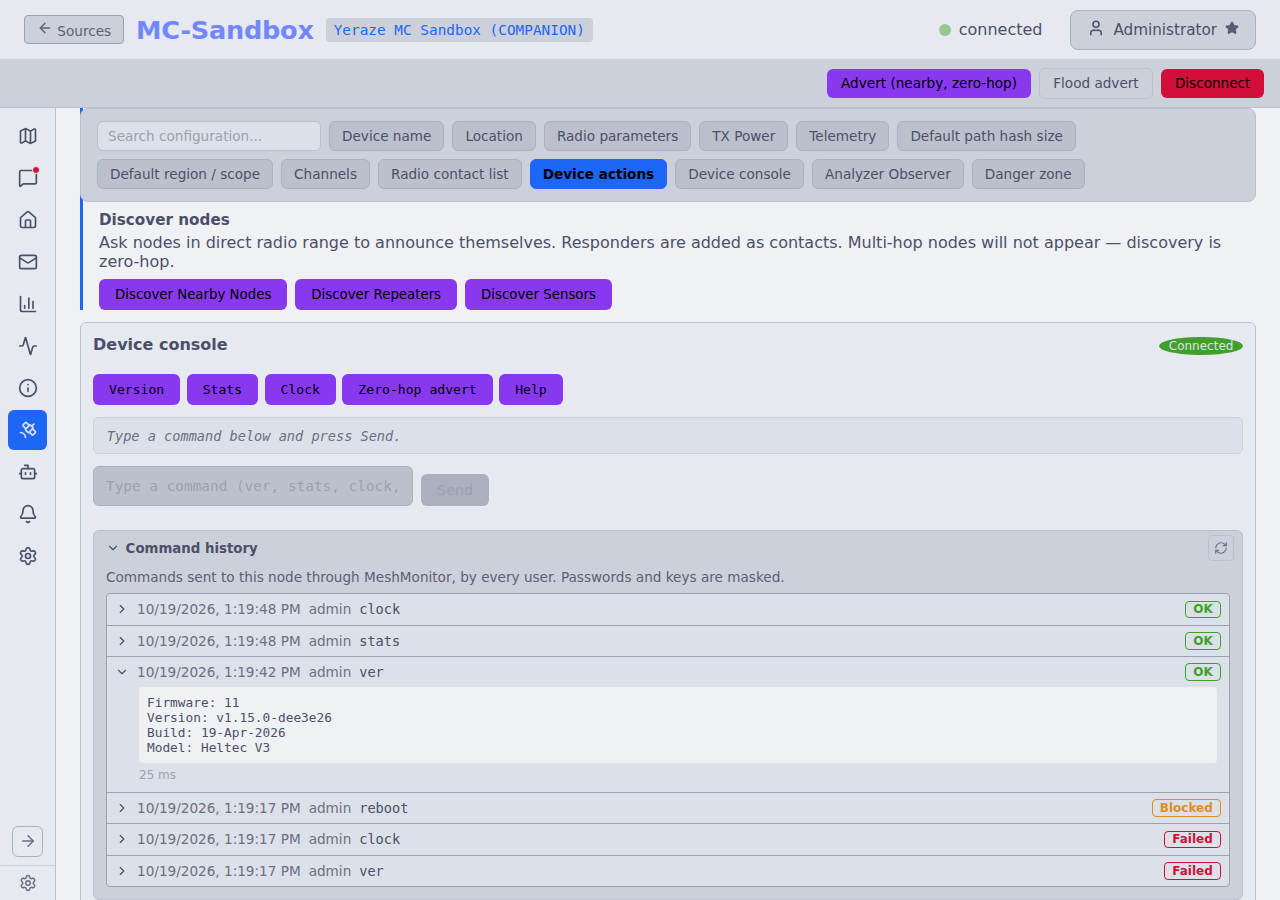
What it records. Commands from four places:
- The remote console, including the Companion remote console.
- The local console.
- The time-sync button (stored as
clock sync). - A Virtual Node app that relays a CLI command. These rows show
vn:<client>as the user, and the app's IP address.
Background use is not recorded: stats and neighbor polls, config refreshes, the time-sync scheduler and automations.
Outcome. Each row shows OK, Blocked (the danger guard or receive-only mode stopped it, and nothing was sent), Failed or Timed out, with the reply or error and the time taken.
Where to see it.
- The Command history panel under the input of the Local, Remote and Companion remote consoles. Click a row to see its reply. Load more pages back.
- The MeshCore CLI activity tab on the Audit Log page, across every source you can read, with filters for source, target, user and date range.
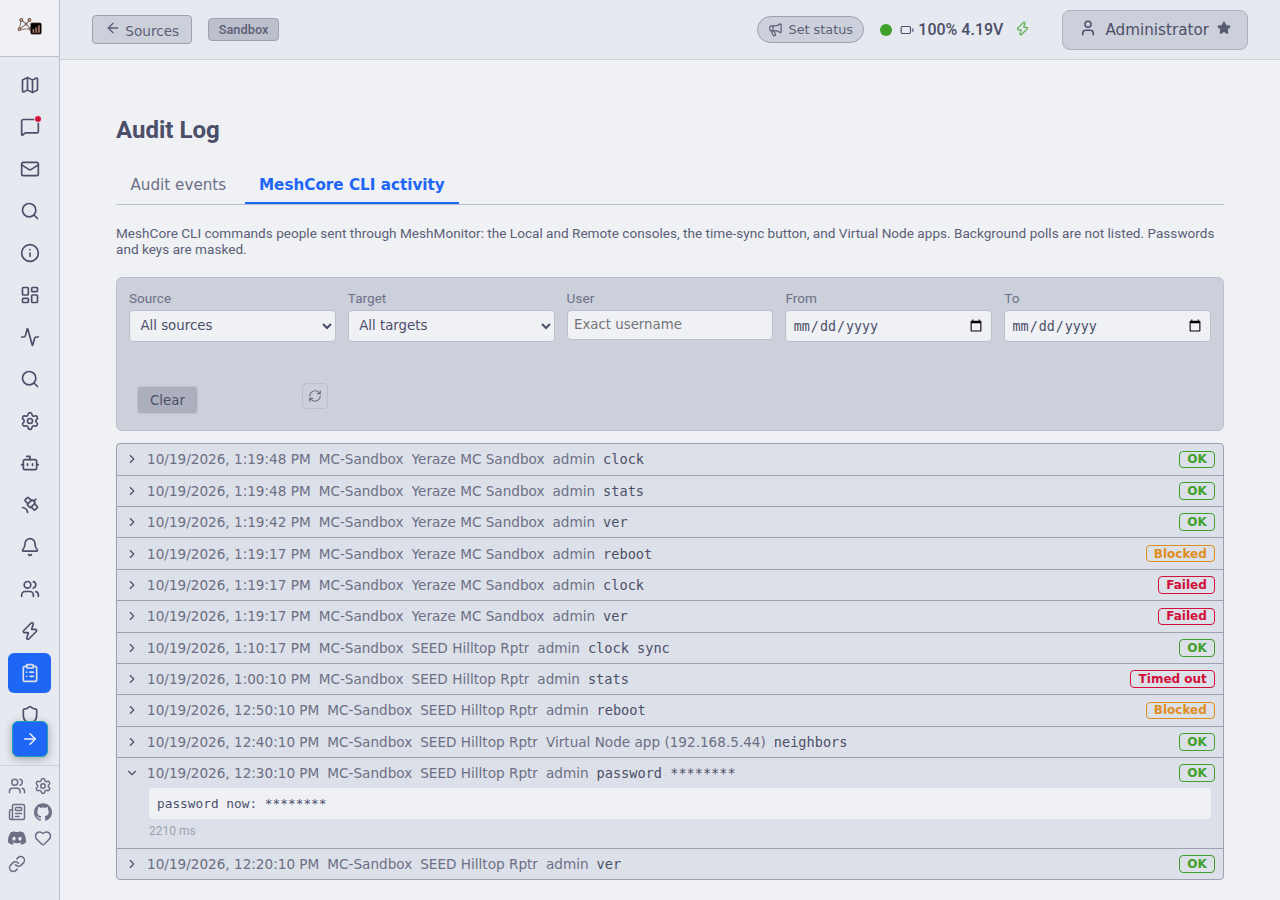
Permissions. Remote rows need remote_admin:read on the source. Local rows need configuration:read. Admins see all rows.
Redaction. MeshMonitor masks passwords and keys in commands and replies before it stores them, in the history and in the audit log. It masks the argument of password, passwd and login, the value of set for any password, key, PSK or secret setting (such as set guest.password or set prv.key), and the reply to get of those settings. The radio still receives the real text.
Retention. The nightly database maintenance deletes history older than MeshCore CLI History Retention (default 90 days, range 7 to 365). See Settings.
Analyzer Observer
Added in 4.14 (#4457)
A Companion source can publish the packets it hears to one or more MeshCore Analyzer MQTT brokers, so your node shows up as a regional observer. One-click presets cover MeshMapper, LetsMesh, meshcore.ca and RF Lab; any compatible broker works too.
It's observation-only — MeshMonitor never subscribes to the broker or transmits on your behalf. Enable it in the source's edit modal, then fetch or paste the signing key on the Configuration page. See the MeshCore Analyzer Observer guide for setup, a troubleshooting table, and what data leaves your network.
Path Visualization
The MeshCore map can render route lines between your local node and each contact, colored by hop count:
- Green — direct (0 hops), drawn solid
- Blue — 1 or 2 hops, drawn dashed
- Orange — 3 or more hops, drawn dashed
- Grey — hop count unknown
Toggle path visibility with Show Paths in the map's Map controls panel. Paths are populated by the Discover Path button in the contact-detail panel (sends firmware CMD 52) or automatically by the Auto-Pathfinding scheduler. When the firmware responds with path discovery results (push code 0x8D), the route is stored and rendered immediately.
Map markers
- Repeater glyph. A MeshCore repeater draws as a relay glyph: one hub linked to three peers. Meshtastic routers keep the tower glyph, so you can tell the two apart on the Unified map, in legends and on the 3D map.
- Hide nodes without a current position advert. A node that stops sharing its position keeps its last stored spot on the map. This toggle, in Map controls, hides a node whose latest advert carried no position. It is off by default. See MeshCore Nodes Without a Current Position Advert.
Trace SNR History
A MeshCore trace records, for every hop on its path, how well each node heard the one before it. MeshMonitor stores these per-hop readings from every trace your source's radio hears. It sends nothing to collect them.
Both MeshCore source types fill it:
- Companion — every completed trace the radio reports: the replies to traces you send from a contact's page, and traces other nodes run that finish within range of your radio.
- Repeater — every trace packet in the repeater's serial packet log, at whatever point of its trip the repeater heard it. This needs a firmware build that logs packets (
MESH_PACKET_LOGGING), the same one the Packet Monitor needs on a repeater. A repeater source cannot send a trace, so all of its readings are overheard.
Open a contact in Node Details to see Trace SNR history: one row per link direction, with the latest SNR, the average and range, the number of samples and a small trend line.
Below it, Trace SNR over time draws the same readings as full-size charts, one per link direction, with a time axis and a tooltip that gives the SNR in dB and the time of each sample. The two directions of a link sit side by side in two colours. Pick 24h, 7d, 30d or 90d to set the window. The line breaks where two samples are more than three hours apart. Each chart draws the newest 1,000 samples in the window.
- Direction matters. "A heard B" and "B heard A" are separate rows; the two readings are different measurements.
- Hops are identified by a 1- or 2-byte hash of a node's public key. A hash that matches exactly one of your contacts is shown by name. One that matches none shows as unknown, and one that several contacts share is marked as shared; MeshMonitor does not guess.
- The first sender of an overheard trace is unknown. The trace does not carry who started it. For a trace you sent, it is your own node.
- Per source. Each source keeps what its own radio heard. Reading the history needs Traceroute: read on that source.
- Kept for 90 days. Included in system backups. Deleted with the source.
- Clear one link. With Traceroute: write on the source, each row of the Trace SNR history card has a trash button to the right of its graph. After you confirm, it deletes every stored reading that row draws: one direction of one link ("Hilltop heard this contact"), on that source, at any age. The reverse direction is its own row and stays, as do the other links and other sources. It sends nothing over the radio.
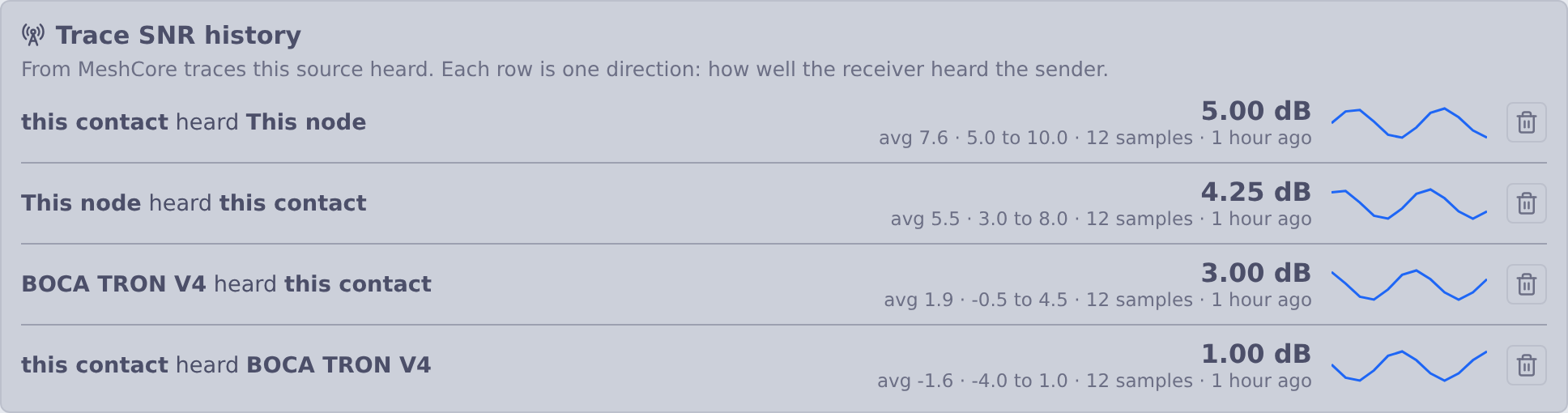
What a repeater source stores from a trace it hears part-way:
- Only the hops that have reported. A trace packet gains one SNR at each hop. A copy heard after two of five hops holds two readings, and MeshMonitor stores those two. If the repeater hears later copies of the same trace, it adds the new hops and stores no link twice.
- The link into the repeater itself. Whichever hop sent the copy, the repeater heard that hop, so that reading is stored as "this node heard that hop". The repeater's log gives this SNR in whole dB; the readings inside the packet are in quarter dB.
- Not the first leg. A copy heard straight from the node that started the trace names no sender, so the repeater's own reading of it is dropped.
MQTT ingest sources do not collect trace readings.
To keep the history fresh without clicking Trace Path by hand, an automation can trace chosen contacts on a schedule, each on its own interval, through a Companion source. One source sends at most 12 scheduled traces an hour. See Trace MeshCore paths on a schedule for the setup and the limits.
Position History
The MeshCore map can render a per-node movement trail, mirroring the Meshtastic Position History feature:
- Show Position History toggle and a history length slider (1h–7d, default 24h) in the map's Map controls panel, persisted per-browser.
- Trails render as a gradient polyline per node, oldest fix to newest.
- Keep history (days) — a retention control (default 7 days) wired to the shared
/api/settingsendpoint; a scheduled hourly sweep prunes fixes older than the configured window.
Points come entirely from existing MeshCore GPS sources — contact adverts and the remote telemetry poll — recording only fixes that actually moved (sub-epsilon jitter and Null Island are dropped), so stationary nodes don't accumulate noise. No firmware changes are involved.
Ignore and Block
MeshCore firmware has no block or mute, so MeshMonitor filters messages in the server. You can filter by node or by text pattern. Each entry has one of two modes:
| Mode | What happens |
|---|---|
| Ignore | MeshMonitor stores the message but does nothing else with it. It sends no notification and runs no automation, auto-ack or auto-responder. It does not forward the message or relay it to Virtual Node apps. The message list folds a run of ignored messages into one row, such as "3 ignored messages", that you can expand. |
| Block | MeshMonitor drops the message when it arrives and never stores it. |
If a message matches both an Ignore and a Block entry, Block wins.
Ignoring nodes
Open a contact's detail panel in the direct messages view and use the Ignore / Block row. Pick Ignore or Block, or remove the entry. Block asks you to confirm first.
The Ignored and blocked nodes section in the MeshCore source's Settings lists every entry with its mode, hit count and last hit. You can remove entries there.
Channel messages match by name
A channel message carries only a sender name, not a key. MeshMonitor matches it to the node by advert name. Anyone can use any name, and two nodes can share one. Direct messages match by key.
Text rules
The Message filters section in the MeshCore source's Settings holds text rules. Each rule has:
- Pattern (up to 256 characters)
- Match type: Exact, Wildcard or Regex
- Checks: Sender name, Message text, or Name and text
- Mode: Ignore or Block
- Case sensitive and Enabled switches
Exact and wildcard patterns must match the whole field. In a wildcard, * matches any run of characters and ? matches one character. A regex matches anywhere in the field. Regexes run on RE2, so lookaround and backreferences are not supported, and MeshMonitor rejects them when you save.
Each rule shows how often it matched and when it last matched. Counts save to the database about every 30 s, so a crash can lose a few.
Ignore and Block send nothing over the radio. Saving a list never triggers a send.
Neighbor Discovery
Repeaters maintain a neighbor table of other repeaters heard via zero-hop adverts. MeshMonitor can query this table and display the results:
- Contact-detail panel — a "Get Neighbours" button appears for repeater contacts. Results show each neighbor's name (resolved from pubkey prefix), SNR, and last-heard time.
- Map rendering — neighbor links appear on the map as dashed lines between repeaters.
- Map Analysis — the inspector panel in Map Analysis mode includes a MeshCore neighbor links layer with transport-type filtering (RF / UDP / unknown).
- Database persistence — neighbor data is stored in
meshcore_neighbor_infoand survives page refreshes.
Neighbor queries require authentication to the repeater (guest or admin login). See the MeshCore protocol details for auth requirements.
Fetching the whole table
A repeater sends at most 10 neighbours per reply, and its table can hold 50. The Contact Details neighbour button and Poll Neighbours fetch up to 5 pages, so you see the whole table.
- MeshMonitor logs in once before page 1. Later pages skip the login.
- Each page waits 60 s after the last radio send, so the fetch cannot flood the mesh. A full 5-page fetch takes about 4 minutes.
- A progress line shows the page, the neighbours collected so far, and the wait for the next page.
- Cancel stops the fetch. Neighbours you already have stay stored, and the pages that arrived update them.
- If a page gets no reply, MeshMonitor shows the neighbours it has and keeps the stored list.
The scheduled autopoll fetches 1 page, strongest signal first. It merges the result into the stored list, so the list never shrinks.
Active Node Discovery
Beyond passively reading a repeater's neighbor table, MeshMonitor can actively probe the airwaves for nearby MeshCore devices (added in 4.8.3). The MeshCore Device Configuration page, under Device actions → Discover nodes, exposes three buttons:
- Discover Nearby Nodes — sweep for any MeshCore node in zero-hop (direct RF) range, matching the mobile app's discovery behaviour. Responders are added/refreshed as contacts.
- Discover Repeaters — the same sweep scoped to repeater-class devices.
- Discover Sensors — the same sweep scoped to sensor-class devices.
Discovery is direct-range only (zero-hop) — it surfaces devices you can hear without relaying.
Being discoverable in the other direction is opt-in. Companion firmware does not answer discovery requests on its own, so other nodes find your source in the same sweep only when you tick Respond to discovery requests under Answer discovery requests in the source's MeshCore Settings. It is off by default, needs configuration:write, and its replies are zero-hop and rate-limited.
Auto-Pathfinding
The Automations view (in the MeshCore page sidebar) provides scheduled path discovery and neighbor collection:
- Path Discovery — periodically sends Discover Path requests to all companion contacts to keep route information fresh.
- Neighbors for Repeaters — periodically queries the neighbor list from all repeater contacts and persists results to the database for map rendering.
- Configurable schedule — set the delay between individual requests (3 to 60 minutes, default 5) and how often the full cycle repeats (1 to 168 hours, default 24).
- Independent toggles — enable/disable path discovery and neighbor collection independently.
- RF-aware throttling — requests are spaced by the configured interval to avoid flooding the mesh. A global 60-second minimum spacing between any two scheduled mesh operations on the same source is also enforced.
Retrieved neighbor data is automatically resolved (pubkey prefixes mapped to full contact records) and persisted to meshcore_neighbor_info for map rendering and the Map Analysis inspector panel.
Target filtering
By default Auto-Pathfinding processes every Companion and Repeater contact each cycle. On a large contact list that spends mesh airtime and cycle time on nodes you may not care about. Enable Filter target contacts to narrow which contacts are targeted — it is fully opt-in, so leaving it off keeps the original "everything" behavior. A single filter list covers both sub-features (path discovery still targets companions, neighbor queries still target repeaters).
The filter combines several optional controls, each independently toggleable:
- Limit to selected contacts — a searchable checklist (with Select All / Deselect All and a running count) of the specific contacts to include.
- Filter by name (regex) — include contacts whose name matches a regular expression.
- Limit by last heard — only contacts heard within the last N hours.
- Limit by hop range — only contacts whose cached route hop-count falls within a min–max range. Contacts with an unknown route (i.e. the next send would flood) are excluded while this is on.
- Limit by signal quality — only contacts at or above a minimum RSSI (dBm) and/or SNR (dB). Leave a threshold at its floor value to ignore it.
The controls combine intuitively: last heard, hop range and signal quality first narrow the pool of contacts, then the selected-contacts list and name regex include any contact matching either of them. If you turn the filter on without configuring a selected-contacts list or a name regex, every contact surviving the narrowing filters is targeted. A live matching targets preview shows how many contacts the current settings would target, updating as you edit. All settings are per-source and saved from the shared MeshCore Automations save bar.
Adverts
An advert announces this node so others can add it as a contact. MeshMonitor sends two kinds:
- Zero-hop reaches only nodes in direct radio range. No repeater forwards it, so it costs one transmission (roughly 0.4–1.3 s of channel time).
- Flood is forwarded by every repeater within 8 hops. With 20 repeaters in reach that is about 9 s (US presets) or 25 s (EU presets) of shared channel time for a single advert.
The status bar and Device Configuration → Device actions offer Advert (nearby, zero-hop) as the main button. Flood advert sits beside it and asks you to confirm, stating the cost, before it sends. In the device console, advert.zerohop sends a zero-hop advert and advert sends a flood; the console's quick-action button sends the zero-hop one.
Repeater firmware that predates the advert.zerohop CLI verb floods when asked for a zero-hop advert. MeshMonitor spots this from the repeater's reply, reports that a flood went out, and refuses further zero-hop requests to that repeater until it reconnects. Update the repeater firmware to fix it.
Automated flood limit
Automated adverts (the auto-announce advert burst, timer triggers, and the automation Announce self (advert) action) can pick zero-hop or flood. New settings default to zero-hop. Settings saved before this choice existed keep flooding, as they always did.
Automated floods are limited to one per hour per source. The time of the last flood lives in the database, so restarting MeshMonitor or saving settings does not reset it. Any flood counts toward the hour, including a manual one. When an automated flood falls inside the hour, MeshMonitor skips it (it does not send a zero-hop advert instead) and logs why; a timer trigger records the reason as its last error, and an automation step fails with it. Zero-hop adverts have no such limit, and a manual flood is never blocked.
Auto Ping
On a Companion source, the Automations view also has an Auto Ping section: a contact DMs ping N and the companion pings it back N times, recording each ping's round trip, timeout, and whether it went direct or by flood. Repeater sources do not have it. See Auto Ping on MeshCore.
Auto-Announce
The Automations view also hosts a per-source Auto-Announce that periodically broadcasts a status message to one or more MeshCore channels:
- Scheduling — choose either a simple interval (every N hours, 1–168) or a standard 5-field cron expression. An optional announce on connection fires a single message whenever the source reconnects.
- Message template — the message body supports token expansion. Available tokens:
{VERSION},{DURATION},{CONTACTCOUNT},{COMPANIONCOUNT},{REPEATERCOUNT},{ROOMCOUNT},{NODE_NAME},{NODE_ID}. A live preview shows the rendered text, and clickable token buttons insert at the cursor. - Target channels — the announcement is broadcast to every selected channel each run.
- Optional advert burst — fire a MeshCore advert N seconds (0–600) after each announcement so neighbours rediscover the node. Choose Zero-hop (default) or Flood; see Automated flood limit.
- Send Now — manually fire the configured announcement for testing without waiting for the schedule.
Auto-Responder
Auto-Responder matches incoming messages against operator-defined patterns and replies automatically:
- Per-trigger pattern — match incoming text with per-channel filtering, DM listening, and a per-sender cooldown to avoid loops. Each trigger has a Match mode, the same as on Meshtastic (see Match mode): Pattern (the Meshtastic syntax, whole message,
{name}captures that fill the reply and reach a script asPARAM_<name>) or Regex (case-insensitive, matches anywhere in the message,(?<name>…)captures). New triggers start as Pattern; triggers saved before match modes existed stay Regex. Both modes take emoji and other non-ASCII text. - Per-trigger pre-send delay — wait a configurable number of seconds (0–120,
0= immediate) after a match before replying, so a relaying repeater can finish its own transmission before your reply floods. Mirrors the Auto-Acknowledge pre-send delay; the wait applies once per fire, ahead of both text and script responses. - Two actions — reply with a text response (same token expansion as Auto-Announce) or run a script (with token-expanded script args). Script execution reuses the shared script runner, with
MESHCORE_*environment variables injected so a script can branch on which stack invoked it. - Reply scope/region — choose which region the reply floods to: Inherit the channel/source default, Match the triggering message's scope (answer back on the same region it arrived on), send Unscoped, or pick a specific region. This mirrors the MeshCore scope control in the Automation Engine.
Triggers work the same way as on Meshtastic: each one is a card with its own on/off switch, a summary and tags. Click Add trigger or Edit to open a card, then Done, then Save. Delete asks first. The Test a message box shows which triggers a sample message fires, each in its own match mode, and their reply text with captured values filled in and tokens such as {VERSION} left as written. It sends nothing and does not apply channel filters.
Route tokens
Auto-Acknowledge and Auto-Responder templates can quote the path the triggering message took:
| Token | Meaning | Example |
|---|---|---|
{ROUTE} | Relay-hash chain the message took | a3→7f |
{ROUTE_NAMES} | Same chain, with each hop resolved to the repeater or room-server name where known | Hilltop→7f |
{HASH_SIZE} | Per-hop path-hash width in bytes (1–3), as the sender stamped it | 1 |
A hop MeshMonitor cannot resolve stays as raw hex. When several repeaters share a hash prefix, MeshMonitor picks the one closest to the neighbouring hops' positions — a best guess, not a certainty. The same resolution backs the clickable route line on a received message (see Message route line).
Forwarding
Forwarding copies matching incoming DMs or channel messages to one contact or another channel on the same MeshCore source, with an on/off checkbox per rule. It uses the same rules and fixed limits as Meshtastic forwarding (5 forwards per rule per minute, 200 characters, no loops) and stays read-only in receive-only mode. A master switch in the section header, and the FWD pill on the source's sidebar card, turn all forwarding on that source on or off at once. See Forwarding for details.
Timer Triggers
Timer Triggers schedule recurring actions independent of incoming traffic:
- Per-trigger schedule — each trigger runs on its own cron or interval.
- Three actions — send a text message (token expansion supported) to a channel or contact, fire a MeshCore advert (zero-hop by default, or flood; see Automated flood limit), or run a script (token-expanded args).
- Last-run telemetry — the UI surfaces the last fire time and outcome per trigger.
Security
The Security tab works on MeshCore sources. It lists dead contacts, path-hash collisions, advert signature results, names reused under a new key, and own-key changes. It also flags nodes that send more than 30 packets an hour (turn on the Packet Monitor to measure this) and nodes whose clock is off by more than 30 minutes or was never set. It has a scanner, a daily Apprise digest, CSV/JSON export, and a draft-only "Send notification" DM for Companion sources. See Security Features for details.
Automated Channel-Send Auto-Retry
MeshCore channel (broadcast) messages are unacked, fire-and-forget floods — unlike a direct message, there is no firmware ACK to confirm delivery. MeshMonitor instead listens for nearby repeaters re-flooding your own packet (the "heard repeaters" signal, see Channels). When no repeater is heard, the message likely reached no one.
The MeshCore Messaging section of global Settings hosts an opt-in toggle, Auto-retry automated MeshCore channel sends (default off). When enabled:
- An automated channel send that hears zero repeaters within 30 seconds is resent exactly once.
- It applies only to automated senders: the Automation Engine
Send messageaction, Auto-Acknowledge, the Auto-Responder, Auto-Announce, and Timer Triggers. - User-initiated sends are never retried automatically — a message you type into the send bar goes out once regardless of this setting. To send it again yourself, use the Resend button (see Channels).
- It is one-shot: the resend is never itself retried, so at most one extra transmission ever occurs per logical send.
- The resend does not create a second message bubble and does not re-enter the automation event bus, so it can never trigger a fresh automation.
A split Auto-Acknowledge reply (see Long Replies on MeshCore; Auto Responder, Timer, Auto Announce and Automation Engine splits work the same way) counts as one automated send per part, so each part can be resent once.
This is distinct from the direct-message retry, which is always on and follows the firmware's own same-path/flood ACK cadence. Because a channel send has no delivery ACK, the retry can only guess from the heard-repeater signal — so with this enabled you may occasionally see a duplicate on the mesh if a late echo arrives right around the 30-second mark. Leave it off if duplicates are unacceptable for your deployment.
Room Servers
Room servers (advType=3) are BBS-style MeshCore nodes that store posts and push-sync them to connected clients. The Rooms view in the MeshCore page lists discovered room servers and provides:
- Login / auto-login — enter a password to join a room, or save credentials for automatic login on future visits. Login retries up to 3 times automatically to handle RF packet loss.
- Post stream — read and send posts in the room's message board.
- Auto-sync — configure periodic re-login to fetch new posts on a schedule (1h to 24h intervals). The auto-sync setting is persisted per-room and loaded when the room is selected.
- Credential persistence — saved room passwords are AES-256-GCM encrypted via the same credential store used for remote admin passwords.
Multi-Source Dashboard
MeshCore sources appear as styled cards in the dashboard sidebar — same visual language as Meshtastic sources, with a MeshCore logo and per-source status.
Dashboard widgets
A MeshCore source's Dashboard offers the same Add Widget choices as a Meshtastic source: Node Status, Traceroute, Hop Distribution, Distance Distribution, Hop Distance Heatmap and Live Mesh Activity.
- Node Status shows a MeshCore node's battery voltage from its stored battery reading.
- Traceroute draws the latest trace you started to the node on the shared route map. A MeshCore trace has no return leg.
- Hop widgets use each node's path length as its hop count.
- Live Mesh Activity lists the senders the source heard in the window. It reads the MeshCore packet log, so turn on the MeshCore packet monitor for the source. See Live Mesh Activity.
API, metrics and embeds
- The v1 API reads MeshCore nodes, messages, channels, packets, traces and network data, and can send messages. See the API reference (section "MeshCore sources on v1").
- The Prometheus endpoint exports MeshCore gauges, including a per-payload-type packet count. See the API reference (section "Get Prometheus Metrics").
- Embed maps draw MeshCore neighbor links and trace paths. See Embed Maps.
The aggregate dashboard map and /api/nodes endpoint enumerate every connected MeshCore manager and include contacts that have valid (latitude, longitude) (zeros are rejected). Each contact gets a synthetic nodeId of mc:<sourceId>:<pubkeyPrefix> so cross-source duplicates don't collide on React keys, and getNodeLatLng resolves either the flat {latitude, longitude} shape or the nested position shape.
Permissions
In 4.5 the global meshcore permission is gone. Migration 058 expanded every legacy meshcore grant into the per-source resource set, matching how Meshtastic resources are scoped:
| Resource | Scope | Description |
|---|---|---|
connection | Per-source | Connect/disconnect, status, the Node Info tab |
configuration | Per-source | Identity, radio, telemetry mode, location, per-node remote-telemetry config |
nodes | Per-source | Node list, contacts, map data. nodes:write covers favorites, Discover Path, the location override and Push to radio |
messages | Per-source | Read and send DMs / channel messages; resend a channel post |
channel_0 to channel_7 | Per-source | Read one channel slot without full messages:read |
traceroute | Per-source | traceroute:read shows Trace SNR history. traceroute:write lets you run Trace Path and clear one link's Trace SNR history |
packetmonitor | Per-source | Read the Packet Monitor. Clearing its log is for administrators |
remote_admin | Per-source | The remote console for repeaters and room servers |
automation | Per-source | The Automations tab |
dashboard | Global | The Telemetry tab |
settings | Per-source | The Settings tab |
Each tab in the source's sidebar shows only when you hold the matching read grant (on that source, for a per-source resource). The Notifications tab needs a signed-in user, since its preferences are per user.
Anonymous users can view MeshCore data on sources where the anonymous user has the relevant *:read permission. Changing config and toggling remote telemetry require configuration:write; sending messages requires messages:write.
UI Permission Gating
Write controls in the MeshCore UI are now disabled in place for users without the right permission — not just rejected on submit. The Configuration view, Channels view, DM compose box, and remote-telemetry toggle all dim themselves and surface an explanatory banner, mirroring how the Meshtastic side handles permission gating.
See Per-Source Permissions for the full model.
Receive-Only Mode
New in 4.14. A per-source Receive-only mode toggle in MeshCore Settings blocks every transmission from that source — messages, adverts, remote admin, path discovery, and every transmitting automation — while receiving, the packet log, the Analyzer Observer, and local serial configuration keep working. MeshCore firmware has no radio-level transmit switch, so MeshMonitor enforces this in software; it cannot stop link-layer acknowledgements or an on-device advert schedule configured outside MeshMonitor. See MeshCore Receive-Only Mode for the full picture, including Virtual Node behavior and the firmware limitation.
Per-Source Settings
Alongside the receive-only toggle, MeshCore Settings and Device Configuration expose a small set of per-source controls that shape how MeshMonitor talks to the mesh through that specific source:
- Default Path Hash Size (on Device Configuration) — how many bytes of a route's next-hop identity to include when sending direct messages that carry a cached route. The default matches the companion firmware default; lower values shave a byte or two off each direct send, higher values reduce ambiguity on very dense networks. Leave it alone unless you have a specific reason to tune it.
- Maximum infrastructure node age (hours) — a separate age window for repeaters and room servers. The main Node list & map window setting applies to all MeshCore nodes; this second slider lets you keep infrastructure nodes on the map for longer than mobile companions. Two views honor it: the map's node-list, and the neighbours summary. Set it to
0to inherit the main age window. - Telemetry time window — the telemetry panel in a MeshCore node's details view exposes a time-window selector so you can flip the charts between the last hour, day, or week without leaving the panel.
Autopoll Neighbours
Beyond the periodic Auto-Pathfinding neighbours cycle (see above), MeshMonitor also runs a per-node retrieval scheduler that keeps a specific repeater's neighbour list fresh on its own schedule instead of waiting for the next global cycle. This is helpful when you care about one link's health more than the full mesh and want its neighbours refreshed every few minutes.
The scheduler shares the global 60-second minimum spacing between mesh operations on the same source, so a per-node autopoll never overlaps a hand-triggered send or an Auto-Pathfinding cycle. Enable it per contact from the contact detail panel.
Radio Configuration
Use the Configuration view's Preset dropdown to pick from the official MeshCore preset list, or choose Custom to manually set:
- Frequency (100-1000 MHz)
- Bandwidth (125, 250, 500 kHz)
- Spreading Factor (5-12)
- Coding Rate (5-8)
DANGER
Changing radio parameters will disconnect you from nodes using different settings. Make sure all nodes in your mesh use the same radio configuration.
Saved radio params are now persisted authoritatively: the backend propagates device-side errors back instead of silently returning success, and the manager optimistically updates localNode.radio* then refreshes from the device so the next snapshot reflects the real device state.
Packet Monitor
The MeshCore page includes a Packet Monitor tab that surfaces raw OTA frames. This is the MeshCore analogue of the Meshtastic Packet Monitor. Where the frames come from depends on the source:
- Companion: the companion's
LogRxData(0x88) push. No firmware change is needed. - Repeater: the repeater's serial packet log. This needs a firmware build with
-D MESH_PACKET_LOGGING=1. Stock repeater firmware prints no packets over serial, and the tab says so. - MQTT ingest: every observer's copy of each frame on the region feed. See MeshCore MQTT Ingest.
Capture is opt-in. The view exposes an Enable toggle and retention controls (max packet count, max age in hours) inline; no separate settings page is required. Once enabled, the monitor shows:
- Timestamp — when the packet was received
- Route type — direct / flood / etc. (decoded from the OTA frame)
- Payload type — message type in human-readable form where known, raw hex otherwise
- Relay chain — the relay-hash sequence from the packet
- Hop count, SNR, and RSSI
- Raw hex dump — the full OTA frame, accessible via the detail modal
New packets stream in live over the existing Socket.io connection (no separate subscription is needed). The view can be paused and exported (.jsonl format) for offline analysis. Filtering by payload type and route type narrows the display.
Decoding channel packets
Click a row to open Packet Decode. Adverts, ACKs and control packets decode in full. Channel packets (GRP_TXT and GRP_DATA) are encrypted, so the modal asks the server to open them:
- The server tries every channel key it holds: this source's channels, channels on your other sources, and MeshCore entries in the Channel Database.
- A
GRP_TXTpacket shows the channel name, sender, the sender's timestamp and the text. AGRP_DATApacket shows the channel name, the data type and a hex + ASCII dump of the body. - The modal says where the key came from: this source, another source by name, or a virtual channel.
- You see the plaintext only if you could read that channel's messages anyway (
channel_N:readormessages:readon a source that holds the key, or Read on the virtual channel). Otherwise the modal shows Unknown channel (hash 0xNN), the same as when the server has no matching key. Signed-out viewers always see that.
Decryption happens when you open the modal. The packet list, the live feed and the .jsonl export stay ciphertext, no plaintext is stored in the packet log, and channel keys never leave the server.
Clearing the log needs packetmonitor:write. The Users page offers only a read grant for the Packet Monitor, so in practice that means an administrator. settings:write is required to toggle capture on/off and adjust retention.
Notifications
Each MeshCore source has its own Notifications tab, delivered by Web Push, Apprise or desktop notifications. It covers direct messages and room posts, channel messages, keywords, successful traces and path discoveries, Low Battery, Inactive Node, Newly Found Nodes, Server Events and Mentions, with the same rules as Meshtastic. A Repeater source offers channel messages and the node alerts only. Settings are saved per user and per source, and the Settings view has per-channel sounds.
Mentions alerts you when a channel message or room post names the source's own node as @[Name]. A reply to you starts with @[Name]:, so it alerts too. It is off until you turn it on. One sender can alert at most once every 5 minutes per source, and that limit is stored, so a restart does not reset it. Direct messages, your own messages, and senders you ignore or block never alert. It sends nothing over the radio.
See MeshCore Sources in the Notifications guide for the full list and the rules.
Still Early
MeshCore support has come a long way since 4.5 — remote administration, path visualization, neighbor discovery, auto-pathfinding, room servers, and a mobile-responsive layout are all shipping. But there are still gaps:
Known gaps and limitations:
- Repeater / Room Server per-source parity is behind Companion. A Repeater source is USB only, cannot send messages or traces, and cannot run the Analyzer Observer. Most of what it shows beyond neighbours and local telemetry needs a packet-logging firmware build (see What a Repeater Source Shows).
- Companion-only telemetry mode toggles — Repeaters report what they report; the base/loc/env toggle is meaningful on Companions.
The roadmap is incremental: keep landing MeshCore features each release, keep aligning the UI vocabulary with Meshtastic, and gradually close the remaining parity gap.
Troubleshooting
MeshCore source can't be added or connection fails
- For USB sources: Verify the serial port is accessible inside the container (check
devices:mapping in docker-compose). The entrypoint auto-grants thenodeuser access to mapped tty groups (look forGranted node user access to /dev/...in the container log); if you mounted a device after the container started, restart it. APermission deniedopening the port means the grant did not happen: see USB serial devices and the non-root user. - For TCP sources: Verify the host is reachable from inside the container (the MeshMonitor process resolves it, not your browser). Use a LAN IP rather than
localhost/127.0.0.1, orhost.docker.internalwhen the device shares a host with MeshMonitor. Check the port first — a wrong port is the usual reason a MeshCore TCP source never connects. Use5000for a WiFi/Ethernet build,4403for a native-TCP build, or whatever port yourser2net/esp-linkproxy uses. - Check MeshMonitor logs for
[MeshCore]entries for detailed error messages.
Runtime-added MeshCore source idle until restart
This is fixed in 4.5 — source create/update/delete/connect/disconnect endpoints all wire MeshCore into the per-source registry. If you're seeing this on an earlier 4.x version, restart the container as a workaround and upgrade.
No nodes appearing
- Verify your MeshCore device is properly flashed and operating.
- Check that the radio frequency and parameters match other nodes in your mesh.
- Try sending an advert to announce your presence on the network. A zero-hop advert reaches nodes in direct range; use a flood advert only if distant nodes need to find you.
Can't log in to or poll a node MeshMonitor shows
The node is probably missing from the radio's own contact table, often because auto-add contacts is off on the radio. See Radio contact table vs MeshMonitor.
Radio parameter changes "revert" on save
Earlier 4.x versions had a hook-dependency bug where Phase 3 push events overwrote staged radio/location edits before Save fired. Fixed in 4.5.
Reporting Issues
If you hit a problem, please open an issue with:
- Your MeshCore device type and firmware version
- MeshMonitor version
- Relevant log output (look for
[MeshCore]prefixed messages) - Steps to reproduce the issue