

Reticulum Bridge Deployment
MeshMonitor can attach to a Reticulum Network Stack (RNS) deployment through a small sidecar image, meshmonitor-rns-bridge. This page covers deploying that sidecar with Docker Compose and Kubernetes/Helm. For the bridge's own architecture, wire protocol, and full environment-variable reference, see bridge/README.md in the repository, this page is the deployment-focused companion to it.
Why a separate image
rns/lxmf are distributed under the Reticulum License, a source-available license that is not OSI-approved (it restricts certain uses and carries redistribution terms incompatible with MeshMonitor's BSD-3 codebase). To keep that license entirely out of the main application:
meshmonitor-rns-bridgeships as its own image, built frombridge/Dockerfile, published from its own CI workflow (.github/workflows/reticulum-bridge.yml) never from the main image's build/publish workflow.- RNS/LXMF are never added to
package.jsonand never imported fromsrc/**. - The bridge talks to MeshMonitor's Node backend only over a local WebSocket (JSON protocol), no RNS/LXMF code or license obligation crosses that boundary.
Full disclosure: bridge/NOTICE.
Two connection modes
attach(recommended if you already run Reticulum), the bridge attaches to your existingrnsd/shared Reticulum instance as a client. Needs a readable RNS config directory (typically~/.reticulum) and, because the shared-instance RPC socket binds to127.0.0.1, host networking. Safe by design: client instances never open interfaces themselves, so attaching cannot double-open a serial port or otherwise disturb your runningrnsd.tcp_peer, the bridge runs its own standalone RNS instance and dials out to one or moreTCPClientInterfacepeers. No localrnsd, no config-dir mount, no host networking — but you lose the interface-stats/RSSI data that only a shared instance's local interfaces expose.
Docker Compose
An opt-in overlay, docker-compose.reticulum.yml, adds the meshmonitor-rns-bridge service alongside your existing docker-compose.yml:
BRIDGE_TOKEN=changeme docker compose -f docker-compose.yml -f docker-compose.reticulum.yml up -d(Or set BRIDGE_TOKEN in your .env file instead of the shell, the overlay requires it and fails fast with a clear message if it's unset.)
The overlay ships pre-configured for attach mode. It changes two services:
services:
  meshmonitor-rns-bridge:
    image: ghcr.io/yeraze/meshmonitor-rns-bridge:latest
    network_mode: host
    user: "${RNS_UID:-1000}:${RNS_GID:-1000}"
    volumes:
      - ${HOME}/.reticulum:/rns
    environment:
      RNS_MODE: attach
      RNS_CONFIG_DIR: /rns
      BRIDGE_HOST: 127.0.0.1
      BRIDGE_PORT: "8765"
      BRIDGE_TOKEN: ${BRIDGE_TOKEN:?set a token}

  meshmonitor:
    network_mode: host
    ports: !reset []
    environment:
ALLOWED_ORIGINS: ${ALLOWED_ORIGINS:-http://localhost:3001}Then, in MeshMonitor (Dashboard → Sources), add a Reticulum source pointing its bridge URL at ws://127.0.0.1:8765 with the same token as BRIDGE_TOKEN.
Attach mode puts MeshMonitor on host networking
The bridge needs host networking to reach rnsd's shared instance on 127.0.0.1. MeshMonitor must share the same network namespace, or 127.0.0.1 inside the meshmonitor container points at the container itself and the source fails with failed to open WebSocket connection to bridge (BRIDGE_UNREACHABLE). The overlay moves meshmonitor onto network_mode: host for you. That changes a few things:
- The UI is on port 3001, not 8080. Host networking does not publish ports, so the base file's
8080:3001mapping is dropped (the!resettag needs Docker Compose 2.24.4 or later). The container's start-up config pinsPORT=3001, so settingPORT=on themeshmonitorservice has no effect. Put a reverse proxy in front if you need another port. ALLOWED_ORIGINSmust use:3001. The overlay defaults it tohttp://localhost:3001. SetALLOWED_ORIGINSin your shell or.envto override it, e.g.http://192.168.1.10:3001or your reverse-proxy origin.- Other listeners move to the host too. The embedded MQTT broker (1883) and any Virtual Node ports must be free on the host.
The RNS config dir must be writable by the bridge
RNS writes into <configdir>/storage even as a shared-instance client, so the overlay mounts ~/.reticulum read-write. A :ro mount fails at attach with [Errno 30] Read-only file system: '/rns/storage'.
The bridge image runs as its own unprivileged user, so the overlay runs it as the uid:gid that owns the config dir instead (normally the user that runs rnsd). Set RNS_UID and RNS_GID in your shell or .env:
- your own
~/.reticulum:RNS_UID=$(id -u)andRNS_GID=$(id -g)(the default is1000:1000) - a root
rnsdusing/root/.reticulum:RNS_UID=0,RNS_GID=0, and change the volume source to/root/.reticulum
A wrong uid fails at attach with Permission denied (CONFIGDIR_UNREADABLE).
tcp_peer mode
To switch to tcp_peer mode, edit the overlay:
- In
meshmonitor-rns-bridge, removenetwork_mode: host,user:and the${HOME}/.reticulum:/rnsvolume. - Publish a port instead:
ports: ["8765:8765"]. - Change
RNS_MODEtotcp_peer, dropRNS_CONFIG_DIR, and addRNS_TCP_PEERS: host:port[,host:port...](e.g.amsterdam.connect.reticulum.network:4965). - Delete the
meshmonitor:block, so MeshMonitor stays on its normal network and ports. Point the source's bridge URL atws://meshmonitor-rns-bridge:8765, and addmeshmonitor-rns-bridgetoRETICULUM_BRIDGE_ALLOWED_HOSTSif you set that variable.
Display name and announces
Each Reticulum source has one LXMF identity. Its Configuration page (every mode; own mode adds the RNode radio settings below it) has an LXMF Identity section:
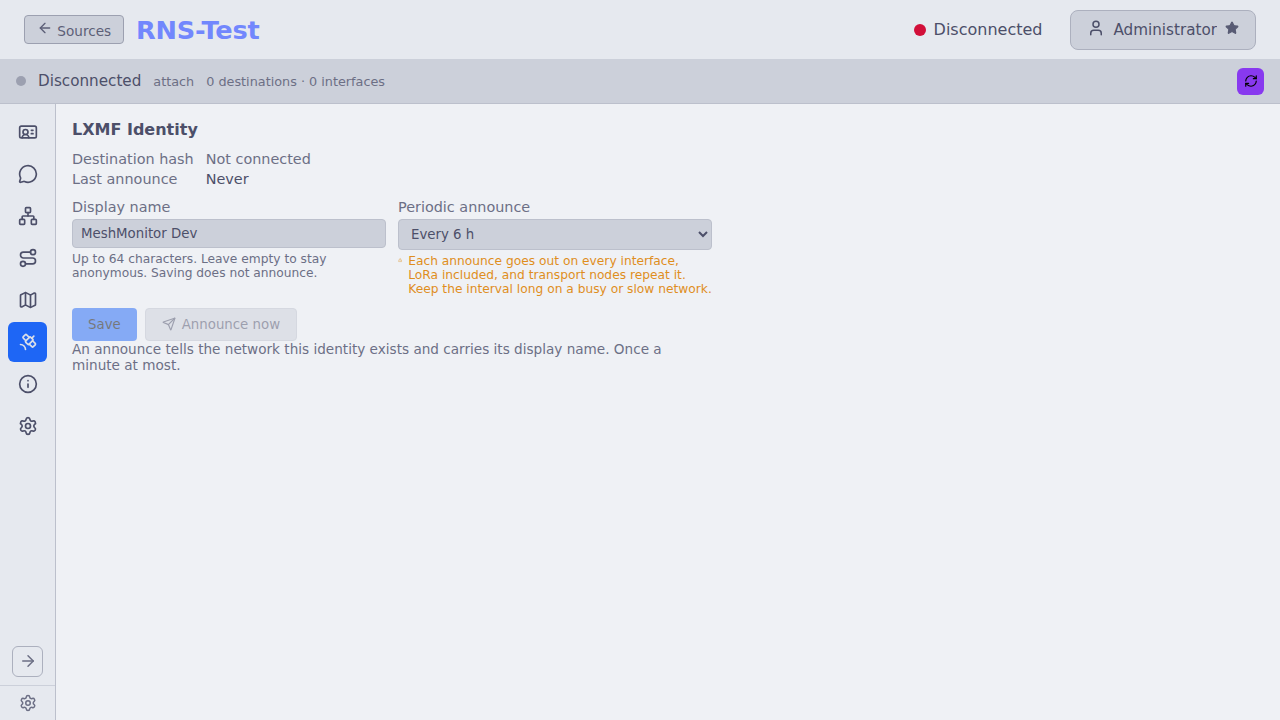
- Destination hash: the address peers use to message this source. Shown while the source is connected.
- Display name: the name Sideband, NomadNet and other LXMF clients show for this source. Up to 64 characters; leading and trailing spaces are trimmed. Leave it empty to stay anonymous. MeshMonitor stores the name with the source, so it survives restarts, and you can save it while the source is disconnected. On every connect MeshMonitor hands the name to the bridge before the on-connect announce, so the first announce already carries it. Saving the name does not announce; press Announce now to send it.
- Announce now: sends one announce. Once per minute per source at most, counted from the last announce of any kind (on-connect, manual or periodic). The server enforces the limit; the button shows the seconds left.
- Periodic announce: off by default. Pick an interval from 1 to 24 hours to have MeshMonitor announce on a timer. MeshMonitor stores the time of the last announce, so a restart or a settings save never sends an announce by itself, and the timer counts from the last announce rather than starting over. An announce at connect pushes the next periodic one back by a full interval.
All three need Configuration: write on the source (Configuration: read to view the section). Users without it see the values but cannot change them.
Airtime
An LXMF announce is about 170 bytes with a name. It goes out on every interface the bridge has, an RNode LoRa interface included, and transport nodes pass it on. RNS caps announce traffic at 2% of each interface's bandwidth, but on a slow LoRa link that is still shared airtime. Keep the periodic interval long, and leave it off if peers already know this source.
Kubernetes (Helm)
The chart gates an optional second container in the MeshMonitor pod behind reticulum.enabled (default false, a default install renders identically with or without this feature present in the chart). Add to your custom-values.yaml:
reticulum:
  enabled: true
  image: "ghcr.io/yeraze/meshmonitor-rns-bridge:latest"
  mode: "attach"                  # attach | tcp_peer
  configDir: "/root/.reticulum"   # host path to the RNS config dir (attach mode)
  token: "changeme"               # REQUIRED when enabled — shared secret (BRIDGE_TOKEN)
bind: "127.0.0.1:8765" # bridge's own WebSocket listen addresshelm upgrade --install meshmonitor ./helm/meshmonitor -f custom-values.yamlNotes specific to the Kubernetes deployment:
attachmode setshostNetwork: trueon the whole pod, not just the bridge container, Kubernetes has no per-container network-namespace setting, and the shared- instance RPC socket the bridge attaches to only listens on127.0.0.1. This means the main MeshMonitor container is on host networking too when Reticulum attach mode is enabled. If that's undesirable, usetcp_peermode instead (nohostNetworkneeded) or run the bridge as a separate Deployment/DaemonSet outside this chart.configDiris mounted read-write, and the bridge must run as its owner. RNS writes into<configdir>/storage, and the bridge image's own user cannot write a directory owned by someone else. Setreticulum.securityContext.runAsUser/runAsGroupto the owner ofconfigDir(0for the default/root/.reticulum).configDiris ahostPathmount, so the node the pod schedules onto must actually have that path, pin the pod there with anodeSelector/affinity(both exposed by the chart) if your cluster has more than one node.tokenis set directly invalues.yamlfor a quick start. For anything beyond local testing, prefer a KubernetesSecretand reference it viaextraEnv'svalueFromon your own values overlay instead of committing the token in plaintext.- See the Helm chart README and Kubernetes/Helm Guide for the rest of the chart (ingress, persistence, resource limits, etc.), the
reticulumblock composes with all of it.
Troubleshooting rpc_key / RPC_AUTH_FAILED
The single most likely misconfiguration in attach mode. Two RNS instances must agree on an rpc_key to exchange interface stats, path-table, and signal data over the shared- instance RPC channel. By default this key is derived from the config directory's transport identity, which means:
If the bridge is pointed at the same config directory as your
rnsd, the setup both the Compose overlay and the HelmconfigDirabove use by default (bind-mounting~/.reticulum/ hostPath-mounting it), the keys match automatically. No action needed.If you deliberately keep the bridge on a separate config directory from
rnsd(e.g. you don't want to share your main config dir, or the bridge andrnsdrun on different hosts), you must set an explicit, matchingrpc_keyin both config files, under[reticulum]:ini[reticulum] rpc_key = <same 64-char hex string in both configs>There is no bridge-side environment variable for this, it is an RNS config-file setting, not a bridge setting, because it has to match on both sides of the RPC channel. Mounting nothing extra is required beyond each side's own config file carrying the matching key.
What you'll observe when this is wrong: the initial attach itself succeeds, no error on connect, because packet forwarding only depends on the interface access-control (ifac) key, not rpc_key. The mismatch only surfaces on the first interface-stats poll, which opens a separate authenticated RPC channel and fails with RPC_AUTH_FAILED. If MeshMonitor's Reticulum Info view shows the bridge attached but interface/destination data never appears, check this first.
See bridge/README.md for the complete failure-code reference (CONFIGDIR_UNREADABLE, NO_SHARED_INSTANCE, TCP_PEER_UNREACHABLE, PROTOCOL_VERSION_MISMATCH, AUTH_FAILED, and more).
Image publishing
meshmonitor-rns-bridge is built and pushed to ghcr.io/yeraze/meshmonitor-rns-bridge for linux/amd64 and linux/arm64 by the publish job in .github/workflows/reticulum-bridge.yml, triggered on a published GitHub release or a manual workflow_dispatch. It runs after and depends on, the bridge's pytest suite passing, so a broken bridge is never published. :latest only moves on a stable (non-prerelease) release, matching the main image's tagging convention.